Creación de un nuevo efecto de luz
El programa ofrece una rica colección de efectos de luz listo-para-usar. Un efecto puede ser aplicado en su forma original, o se puede modificar. Usando uno de estos presets usted puede crear y guardar su propio efecto único.
Cada efecto de la luz está compuesto de elementos simples. Para crear un efecto de luz sólo se combinan una serie de elementos, ajustando la posición y los parámetros.
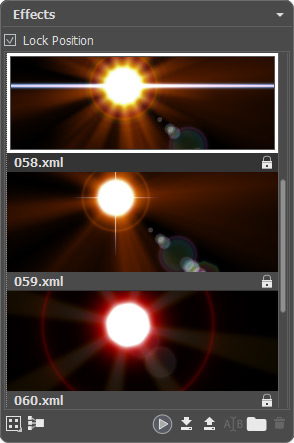
Panel Efectos
Siga las instrucciones para crear un efecto de luz:
-
Paso 1. Cuando una imagen se carga en el programa, se muestra el último efecto utilizado en la Ventana de imagen.
Para añadir otro efecto a la imagen selecciónelo en el panel Efectos y haga clic doble en él o utilice el icono
 situado en la parte inferior del panel.
-
Paso 2. En el panel Elementos edite la lista de los elementos que componen el efecto de luz.
Puede añadir nuevos elementos y eliminarlos, ocultar y mostrar, mover arriba y abajo.
- Paso 3. Ajuste los parámetros para los elementos seleccionados en el panel Propiedades del elemento. Todos los cambios se muestran en tiempo real.
-
Paso 4. Ajuste el efecto completo utilizando los Parámetros del efecto y la herramienta
 .
.
-
Paso 5. Puede guardar su efecto de la luz en la lista de Efectos para utilizarlo en el futuro. Usted puede aplicarlo en su forma original, o utilizarlo como base para la generación de nuevos efectos.
Haga clic en
 para guardar el preset. En el cuadro de diálogo especifique el grupo, el nombre y la ruta en la que guardará el efecto.
Nota: No se puede sobrescribir, quitar o cambiar el nombre de los efectos señalados con
 - estos son efectos de luz desarrollados en AKVIS.
Para importar un efecto para el programa, haga clic en  y seleccione un archivo xml. El nuevo efecto será añadido al grupo actual.
Para crear un nuevo grupo, haga clic en  . Puede arrastrar un efecto a otro grupo.
Todos los comandos están también disponibles con un clic de botón derecho en el panel.
LightShop v. 8.1 - Prueba gratuita de 10 días
