Graphic software for Windows Mac graphic software
Ingrese su email para suscribirse a la lista de AKVIS.
 
  
  Productos     Descargar     Tienda     Tutorial     Apoyo técnico     Compañia
en  fr  de  es  pt  it  jp  ru    
 

Tutorial: AKVIS LightShop

Stripe


Esta información está disponible solamente en inglés. La version en español aparecerá pronto.

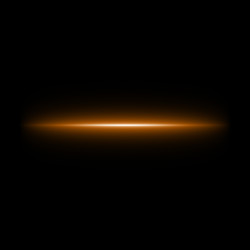
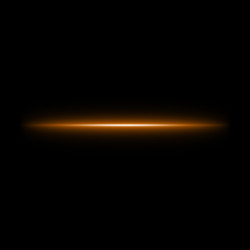
Stripe is a luminous line light effect. You can modify this element's size, opacity, thickness, edge softness, and color.

Preview of the element Stripe

The Color of the Stripe is set on a gradient line that has two white sliders initially. The left slider represents the color in the center of the element, the right slider - the edge color, with soft transitions between them.

To change a slider color you should double-click on it with the left mouse button and choose a color from the Standard color selection dialog box. You can add an infinite number of intermediate sliders and set a color to each of them.

Color selection

The Size parameter sets the Stripe element's size as a percent of the minimal image size (width and height).
Size = 50% Size = 100%

The visible size of the element depends on the softness of the edges (Softness parameter). Softer edges fade quicker, therefore the higher is the Softnes parameter value, the smaller is the visible size of the element.


The Softness parameter regulates the softness of the element's edges. The higher is the Softness value, the softer are the edges. A Stripe element with Softness set to zero has sharp edges.
Softness = 10% Softness = 80%

The Opacity parameter sets the opacity level of the light effect. The default value of the parameter is 100% that corresponds to a solid Stripe element. The less is the parameter value the more transparent is the element. With Opacity =0% the element is completely transparent.
Opacity = 50% Opacity = 100%

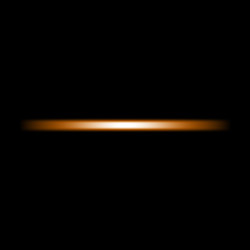
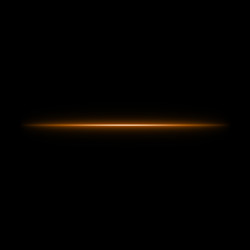
The Width parameter sets the width of the element.
Width = 50 Width = 150

When the Half checkbox is enabled only a half of the element is shown.
The whole element Half of the element

 
Cómo funciona Cómo funciona
Ejemplos Ejemplos
   — Rayos y Relampagos — Rayos y Relampagos
   — Juegos Artificiales — Juegos Artificiales


   Política de privacidad | Mapa Web | Buscar | English  | Français  | Deutsch  | Español  | Português  | Italiano  | 日本語  | Pусский  | © 2004-2008, AKVIS Software Inc. Todos los derechos reservados.