Elementos de los efectos de luz
Cualquier efecto de luz se compone de elementos que tienen sus propios parámetros. Puede modificar la estructura del efecto en el panel Elementos que se puede ver en el modo Avanzado del espacio de trabajo.
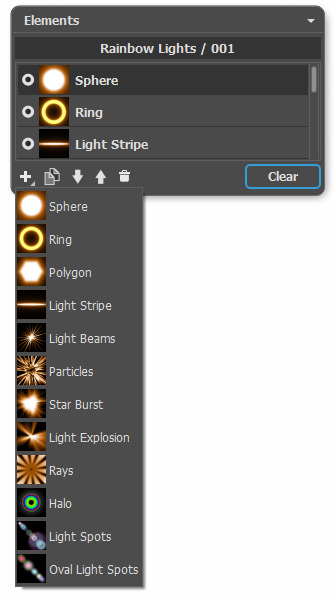
Usted puede utilizar estos botones en la parte inferior del panel (todos los comandos también están disponibles si hace clic con el botón derecho en el panel):
- Para agregar un nuevo elemento, haga clic en
 y seleccione lo que quiere de la lista desplegable. El nuevo elemento se añade por encima del actual en el panel de Elementos y se muestra en la Ventana de imagen.
El elemento seleccionado (editable) está resaltado en color gris en la lista de los elementos añadidos. Sus parámetros están disponibles en el panel Propiedades del elemento.
- Para duplicar el elemento, haga clic en
 . Se añadirá la copia del elemento por encima de la actual.
- Use los botones
 y
y  para cambiar la posición del elemento en la lista (hacia arriba o hacia abajo una posición). La posición en la lista especifica la relación del elemento con el efecto: el elemento superior está más cerca del primer plano, el inferior está más cerca del fondo.
También se puede cambiar el orden de los elementos arrastrándolos hacia arriba o hacia abajo.
- Utilice el indicador de visibilidad
 /
/ ocultar/mostrar el elemento en la Ventana de la imagen. Los parámetros para los elementos ocultos están desactivados. Para hacerlos visibles haga clic en el indicador.
- Para eliminar el elemento seleccionado haga clic en
 . También puede arrastrar el elemento al icono o utilizar la tecla Supr (Delete).
- Use el botón Borrar para eliminar todos los elementos de la lista.
Ajuste los parámetros para el elemento seleccionado en el panel Propiedades del elemento. Estos ajustes son los mismos que para la mayoría de los elementos:
Posición y tamaño. Este grupo contiene parámetros para el ajuste de la ubicación y el tamaño del elemento de luz.
- Cambiar (-200..200). El parámetro cambia la posición del elemento en una línea recta que se muestra cuando la herramienta
 está activa.
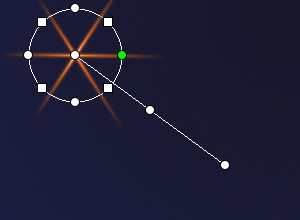
Cambiar = 100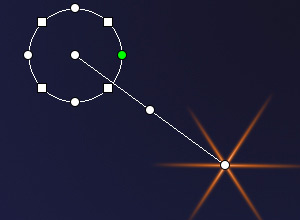
Cambiar = -100 - Escala (1-1000). El parámetro cambia el tamaño del elemento.
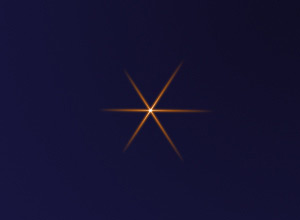
Escala = 50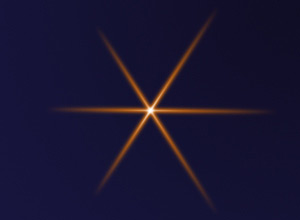
Escala = 100 - Rotar (0-359). El parámetro gira el elemento en el ángulo elegido.
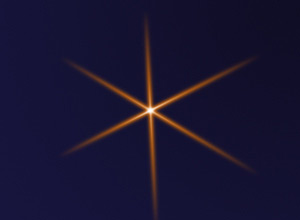
Rotar = 30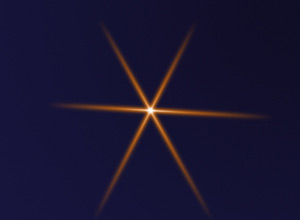
Rotar = 60
Color. Con este grupo de parámetros usted puede cambiar el color y la transparencia del elemento seleccionado, así como las opciones para combinar con los elementos subyacentes.
- Opacidad (1-100). El parámetro cambia la opacidad del elemento permitiéndole revelar los elementos subyacentes y la imagen de fondo. Los valores más bajos hacen que el elemento sea más transparente.
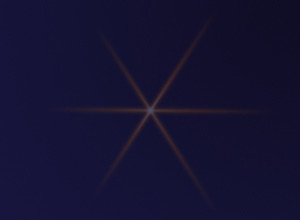
Opacidad = 25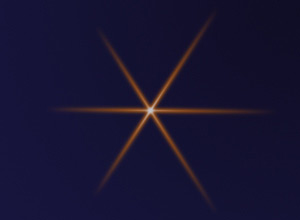
Opacidad = 75 - Modo de fusión. Elija de la lista desplegable el modo cómo el elemento se va a mezclar con los elementos subyacentes. El modo predeterminado para los elementos es Normal. Lea más acerca de los modos de fusión.
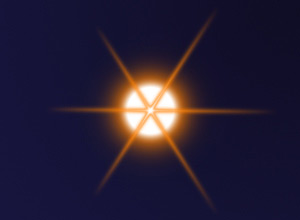
Modo de fusión: Normal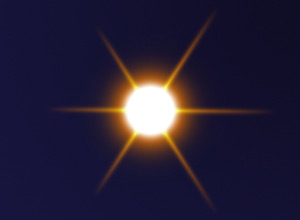
Modo de fusión: Añadir - Luminosidad (1-200). El parámetro especifica la intensidad del brillo. Los valores más bajos dan un efecto de suave resplandor. Al aumentar el valor aumenta el brillo de la luz.
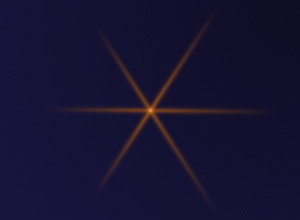
Luminosidad = 50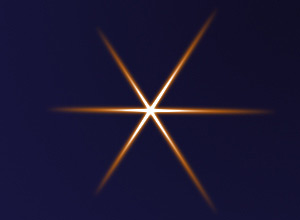
Luminosidad = 150 - Color. Puede especificar dos colores para cada elemento (Brillo y Halo). Por defecto, las placas de color están vacías, y el programa utiliza los colores seleccionados en los Parámetros del efecto.
Para elegir un color en el cuadro de diálogo Seleccionar color, hacer clic doble en la placa correspondiente. Para elegir un color de la imagen o del efecto de la luz aplicada, haga clic con el botón izquierdo en la placa y el cursor se transformará en un cuentagotas. Para eliminar la placa, haga clic en ella.
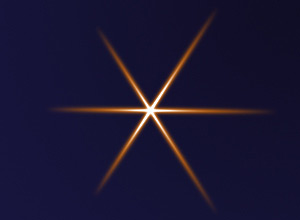
Brillo = blanco
Halo = anaranjado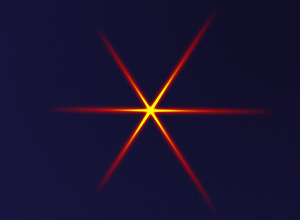
Brillo = amarillo
Halo = rojo
Parámetros especiales. Además de los parámetros mencionados anteriormente, cada elemento tiene un grupo de configuraciones especiales. Lea más acerca de ellos en las páginas que describen los elementos.
LightShop v. 8.1 - Prueba gratuita de 10 días
