Thunder and lightning
The example was made in the old version of AKVIS LightShop.
Read how to use the current version of the program.
The author of the example is Héctor Calle E.
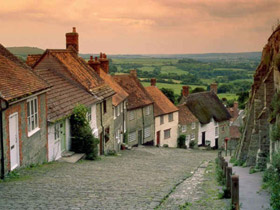
Shaftesbury is a small town in England. The dwellers of Shaftesbury, as many other people in small and big towns and villages, listen to the forecast every day and don't like when the weather lets them down.
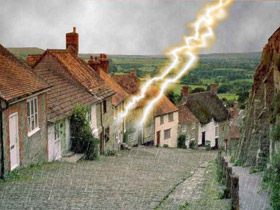
Let's try to change the weather dramatically and shake the authority of weather forecasters.
|
|
| Original image | Result |
For this tutorial we use AKVIS LightShop plugin and Adobe Photoshop.
Alternatively, you can use AKVIS NatureArt to add clouds, rain, and lightning to a photo.
- Step 1. Open the image in the photo editor.
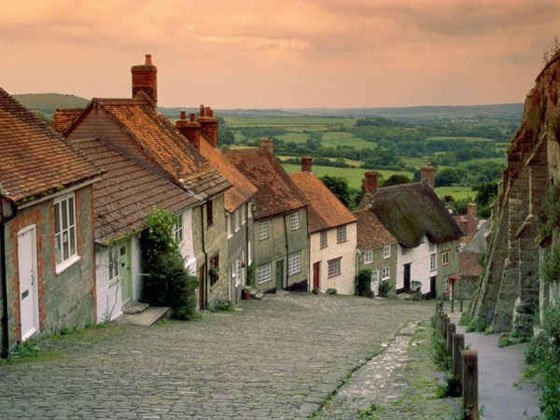
- Step 2. First we will change the color of the sky. So let's select it.
You can use any selection tool. In Adobe Photoshop the easiest way is to use Quick Mask mode
 . Click the Quick Mask mode button in the Toolbox and use the Pencil tool to draw a line below the sky.
Note that to select the sky in Quick Mask Mode we will have to mask everything but the sky because when we switch back to Standard Mode only unmarked areas will be selected.
- If the Masked Areas option is active

the areas non marked with red will be selected; - If the Selected Areas option is active

the areas marked with red will be selected.
Hints on the Quick Mask Options:
Open the Preferences by double clicking on the Quick Mask button.
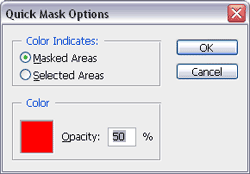
We use the default settings ("Masked Areas").
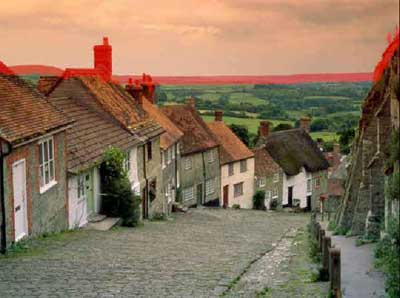
Activate the Paint Bucket tool and left-click on the area below the drawn border. This area will be highlighted in red. The border must be without space to prevent the highlighting of the whole image.
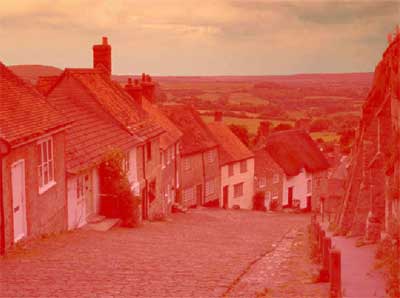
Switch to the Standard mode by clicking on
 .
.
The sky is selected.
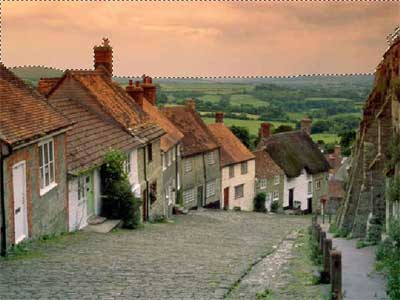
- If the Masked Areas option is active
- Step 3. Let's recolor the sky.
Press the button Set Foreground Color in the Toolbox and choose an appropriate tint of blue-gray color in the Color Picker dialog box. Then press OK. Now press the button Set Background Color in the Toolbox and choose a white color. This is necessary to make the color of the sky look more natural.
In the menu of the photo editor choose Filter -> Render ->Clouds.
Here we have a new sky.
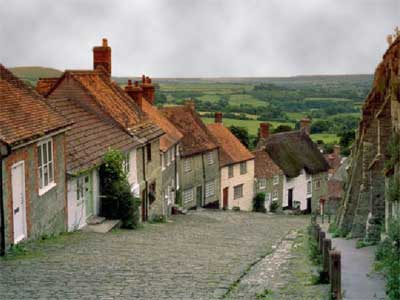
If the border between the sky and the ground is rough, use the Blur tool to smooth it.
- Step 4. Now we'll make a rainy day.
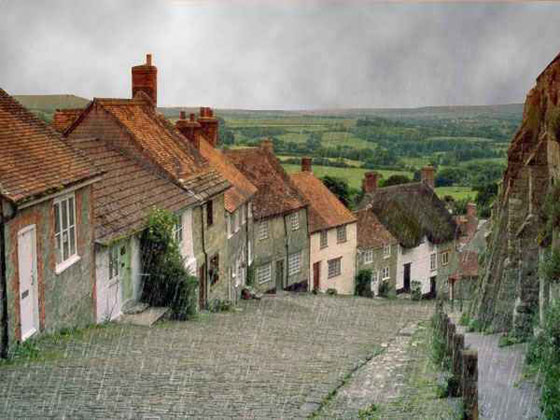
Choose the Brush tool, set grey color and brush size=1 px. Cover the whole image with thin diagonal strokes as if it is raining.
So we get a rain in Shaftesbury.
- Step 5. Call AKVIS LightShop to make some lightning: Filter -> AKVIS -> LightShop.
- Step 6. Choose Sample 61 from the AKVIS presets and adjust some settings.
(In the old version used for creation the example it was Sample 46, as at the screenshot below.)
Deactivate the Whirlpool modifier in the list of Modifiers.
By default the color is blue, but we want the lightning bolt to look more natural. Double-click on the left slider of the gradient line and choose a white color from the Select Color dialog box. Then double-click on the right slider and choose an orange color.
Change the parameter of Angle=10. Press the button
 .
.
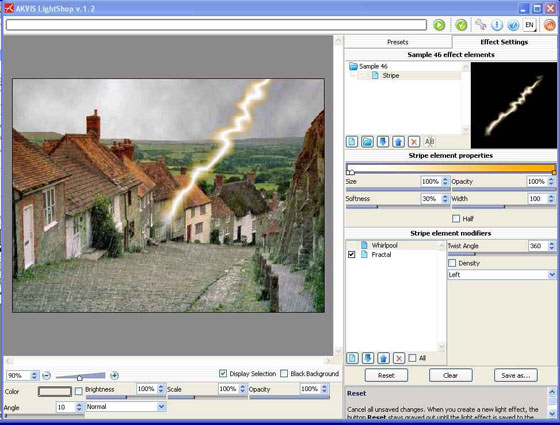
See the result in the plugin's window. If you don't like the result you can change the modifier properties. You can place the lightning bolt on any part of the image. To apply the result press the button
 .
.
Now we have an image with a lightning bolt.
- Step 7. In the same way we can add one more lightning bolt.
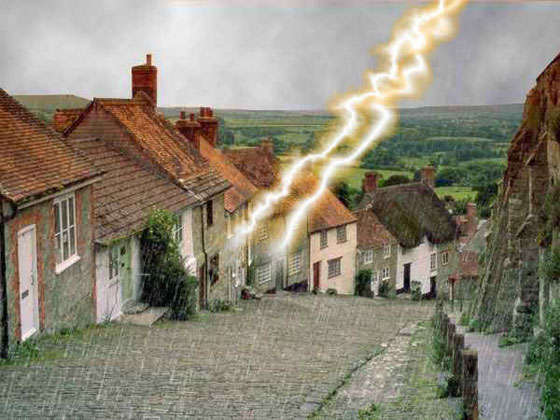
Using AKVIS LightShop we have finally spoiled the weather in this small town.
Well, the town-dwellers will have to stay at home and drink their 5 o'clock tea near the fireplace. Do not believe the weathermen!
LightShop v. 8.1 - Free 10-day Trial
