Graphic plugins for Windows Mac graphic plugins  
Entrar seu e-mail para subscrição em novidades.
 
  
  Produtos     Download     Online Store     Tutorial     Suporte     Quem Somos
en  fr  de  es  pt  it  jp  ru    
 

Tutorial: AKVIS Chameleon

"Chameleon" Mode


Neste momento algumas páginas são disponíveis somente em Inglês ou em Espanhol.

Follow the instruction to create a collage using the Chameleon Mode of AKVIS Chameleon.

In the Chameleon Mode the program adjusts the inserted object to the target image color range and smoothes the object's borders. It looks similar to the way a chameleon adapts to the environment.

  • Step 1. Open an image with the object that you want to transfer to a new background.

  • Фотография самолета
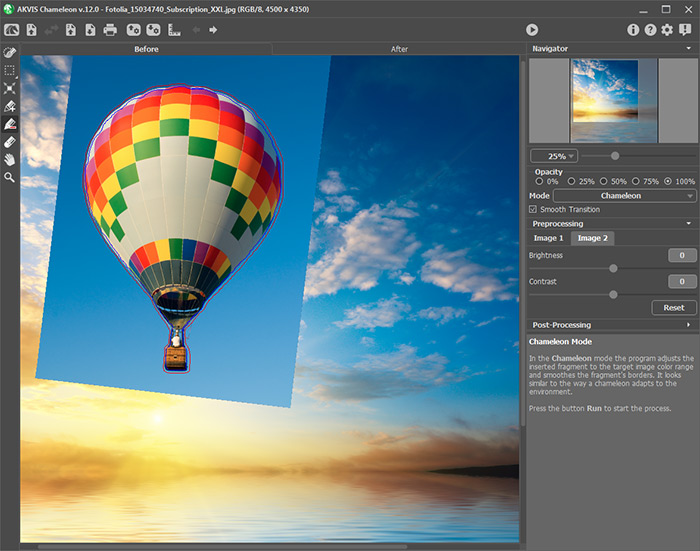
  • Step 2. Select the object with any selection tool.

  • Выделяем фрагмент
  • Step 3. Call AKVIS -> Chameleon – Grab Fragment from the Filter menu of the photo editor.

    Adobe Photoshop - Filter –> AKVIS –> Chameleon – Grab Fragment; Paint Shop Pro - Effects –> Plugins -> AKVIS –> Chameleon – Grab Fragment; Corel PHOTO-PAINT - Effects –> AKVIS –> Chameleon – Grab Fragment.

    If everything is done correctly, you’ll see a message that selected object is saved into the clipboard.

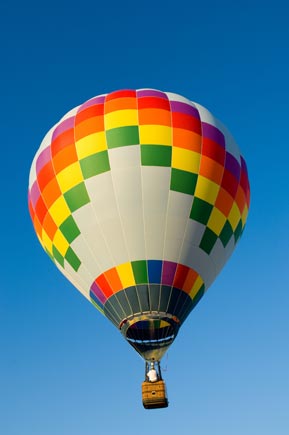
  • Step 4. Open an image that will be used as a background for the future collage
    Вечернее небо, закат

    and call the command AKVIS –> Сhameleon – Make Collage from the menu Filters.

    Adobe Photoshop - Filter –> AKVIS –> Chameleon – Make Collage; Paint Shop Pro - Effects –> Plugins -> AKVIS –> Chameleon – Make Collage; Corel PHOTO-PAINT - Effects –> AKVIS –> Chameleon – Make Collage.

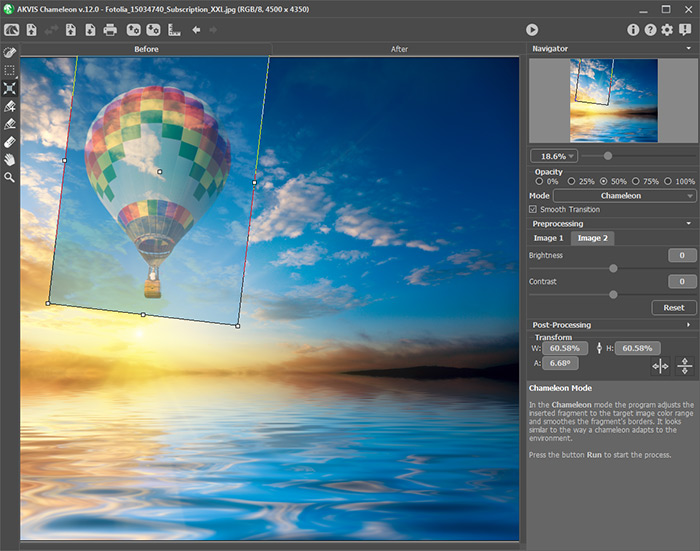
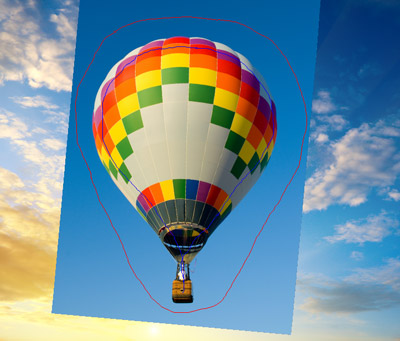
    The AKVIS Chameleon window will open. The window will contain the background image and the inserted object.

    Окно плагина AKVIS Chameleon со вставленным объектом

    Note: If you begin with Step 4, the window will show the last used fragment.

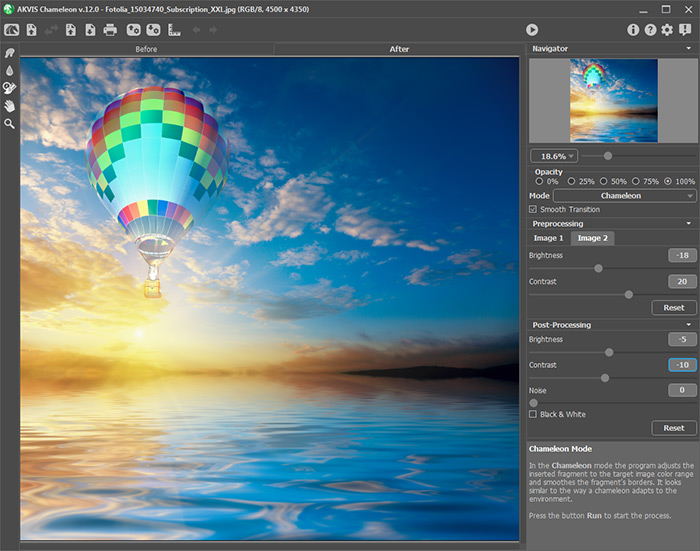
  • Step 5. Select the Chameleon mode from the drop-down menu in the Settings panel.
    Панель настроек плагина AKVIS Chameleon

  • Step 6. Use the Transform tool from the Toolbox to change the size, the position, and the rotation angle of the pasted fragment on the background image.
    Трансформация объекта

    If you press the button (T) a dotted frame will appear and the Settings panel will show the transformation parameters.

    To change the size of the object, bring the cursor to the dotted frame. The cursor will turn into a two-sided arrow . Keeping the left mouse button pressed, increase or reduce the size of the fragment. Besides, you can scale the image by changing the parameters W (width) and H (height).

    There is a proportion sign between the parameters W and H. If this option is enabled the image will be scaled proportionally; if it is disabled you can set your own parameters.

    To rotate an object, bring the cursor to one of the angle markers to get a rounded two-arrows pointer , move the pointer keeping the left mouse button pressed. You can rotate an object by setting the parameter A (angle) to a value between 0 to 360 in the Settings panel.

    To move an object bring the cursor inside the object, the cursor will turn into a cross . Move the object keeping the left mouse pressed.

  • Step 7. Click on to start the process of the collage creation. The result will be shown in the After tab. You can switch between the tabs using the button Tab.
    Результат работы плагина
  • Step 8. You can save the fragment used for the collage: press the button ( Ctrl+S (Command+S on Macintosh) hot-key) on the Control Panel, in the Save fragment and strokes dialog box enter a name for the file and indicate a folder to which you want to save the file.

    The fragment will be saved with the .chameleonFragment extension. The file will contain information about the fragment's location and the settings.

    Open the saved fragment with the button (Ctrl+O (Command+O on Macintosh) hot-key) and choose the fragment in the Load fragment and strokes dialog box.

  • Step 9. Click on to apply the result and close the plugin's window.
    Готовый фотоколлаж


Como funciona Como funciona
Montage Mode Montage Mode
Chameleon Mode Chameleon Mode
   — O pôr do Sol — O pôr do Sol
   — Câmbio da aparência — Câmbio da aparência
   — A prova de tattoo — A prova de tattoo
   — Um camaleão em fogo — Um camaleão em fogo
   — Peisagem marinho — Peisagem marinho
   — Flores e um gato — Flores e um gato
   — Um Elefante — Um Elefante
   — Etiqueta para limonada — Etiqueta para limonada
   — Ruinas arqueológicas — Ruinas arqueológicas
   — Um lago com cisnes — Um lago com cisnes
   — Um macaco com máscara — Um macaco com máscara
   — Terra e Lua — Terra e Lua
   — Imagem com uma rapariga — Imagem com uma rapariga
   — Marca do Café — Marca do Café
   — Imaginação — Imaginação
   — Pombo de paz — Pombo de paz
   — Uma menina em ocaso — Uma menina em ocaso
   — O cartão de parabéns — O cartão de parabéns
Blend Mode Blend Mode
   — Pintura em madeira — Pintura em madeira
   — Criação dum cartão — Criação dum cartão
   — Dia de São Valentin — Dia de São Valentin
   — Um pombo em fogo — Um pombo em fogo
   — Imagem fantástica — Imagem fantástica
   — Uma rapariga em fogo — Uma rapariga em fogo
   — Pássaro Mágico — Pássaro Mágico
   — Fruteira com ginjas — Fruteira com ginjas
   — Borboleta sobre a parede — Borboleta sobre a parede
   — Um pássaro em céu — Um pássaro em céu


   Política de privacidade | Mapa do Site | Pesquisar na site | English  | Français  | Deutsch  | Español  | Português  | Italiano  | 日本語  | Pусский  | © 2004-2008, AKVIS LLC. Todos os direitos reservados.