Graphic software for Windows Mac graphic software
AKVIS ニュースの購読を申し込むには, 電子メールアドレスを入力してください。
 
  
  プログラム     ダウンロード     サイバーショップ     チュートリアル     サポート     会社情報
en  fr  de  es  pt  it  jp  ru    
 

チュートリアル: AKVIS ArtWork

Comics Technique (Using Settings in "Painting" Tab)


あいにく, このページは英語にだけ使用可能です。日本語のバージョンは遠からず出ります。
Attention! You can get a free licence for an AKVIS program by translating texts from English to Japanese.
Please contact us at team@akvis.com.

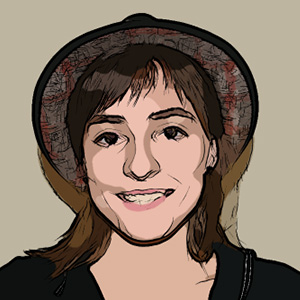
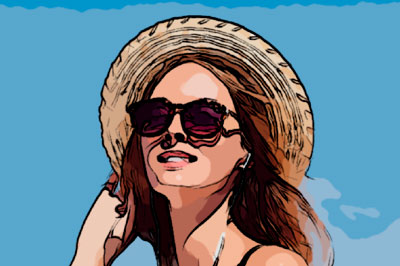
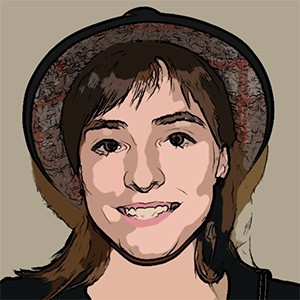
In the Painting tab in Settings Panel you can adjust the parameters to convert a photo into an image in a style similar to comics or a cartoon. A similar effect is achieved from rotoscoping - a time-lapse filming method (this method was used to create the famous animated film "A Scanner Darkly").

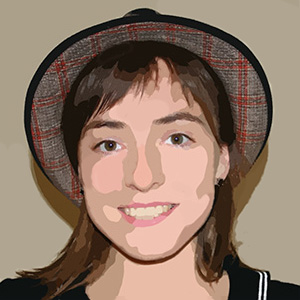
A posterized image has a limited number of tones (colors). Due to the lack of halftones it looks similar to a poster. This technique is widely used in art photography to achieve such an effect.

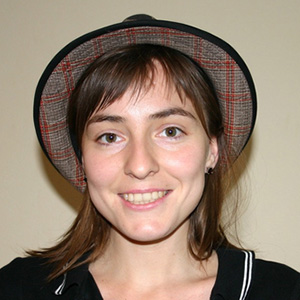
    Original image Conversion into an image with a "comics" style
    Original image Result


The parameters grouped under Image affect the simplification of the painting and the reproduction of colors.

    Radius of Simplicity (0-20) - degree of posterization of the image. This parameter effects the size of the area which is simplified. The higher the value, the more homogeneous areas become. This effect is especially evident with a high value of the Blur Parameter. The higher the value of Blur, the greater the Radius of Simplicity.
    Small Radius of Simplicity Wide Radius of Simplicity
    Radius of Simplicity = 2 Radius of Simplicity = 18

    Blur (Blur) (0-100) - Effects the smoothness of an image by blurring similar colors in homogeneous areas.
    Weak Blurring Strong blurring
    Blur = 20 Blur = 80

    Posterizing (0-100) - The association of similarly colored pixels. This parameter effects the number of distinguishable colors during simplification. At higher values of this parameter, fewer colors are used, and the image becomes more uniform and flat.
    Posterizing: Weak Effect Posterizing: Strong Effect
    Posterizing = 10 Posterizing = 70

    Smoothing (0-10) - This parameter determines the smoothness of lines dividing posterized colors: the higher the value, the smoother the lines between these areas. At lower values the border between colors becomes more "jagged".
    Rough Border Between Colors Smooth Border Between Colors
    Smoothing = 1 Smoothing = 9


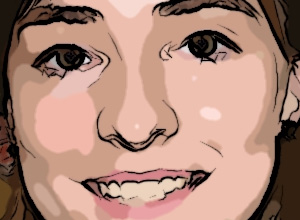
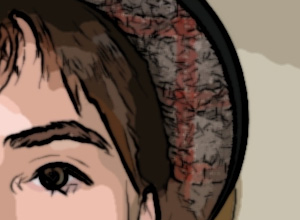
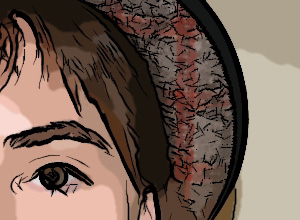
Activating the Outlines check box adds black boundary lines to the image and activates settings for these boundaries.

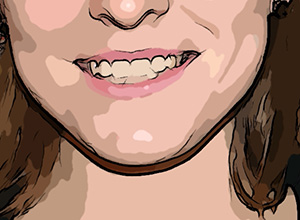
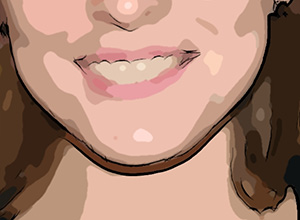
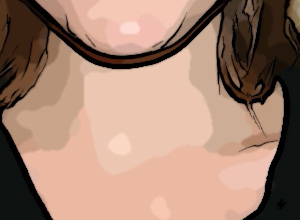
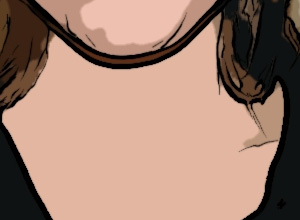
    Outlines Shown Outlines Removed
    "Outlines" Check Box Activated "Outlines" Check Box Deactivated

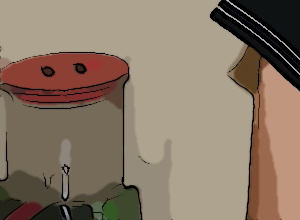
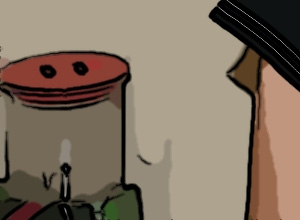
    Level of Detail (1-100) – level of detail and strokes that form the border.
    Low Level of Detail High Level of Detail
    Level of Detail = 30 Level of Detail = 45

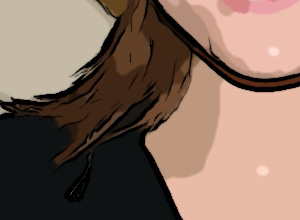
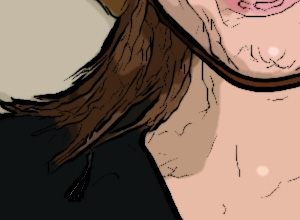
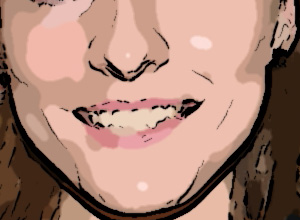
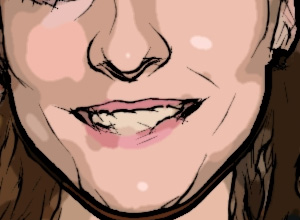
    Sensitivity (0-100) – This parameter affects the intensity of boundary lines. The higher the value of this parameter, the more lines are applied to the image. The value should be reduced to remove extra lines.
    Low Sensitivity High Sensitivity
    Sensitivity = 50 Sensitivity = 90

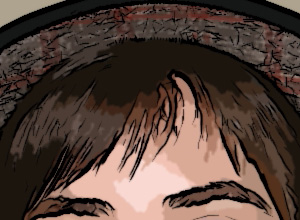
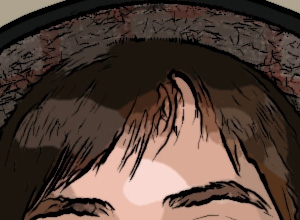
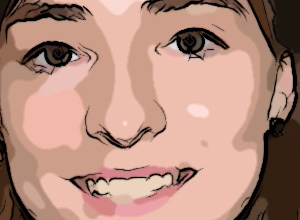
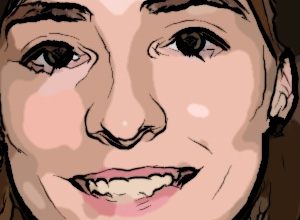
    Thickness (1-100) - This parameter affects the thickness of the black boundary lines. At the minimum value lines are one pixel in width, while increasing the value makes lines thicker.
    Thin Lines Thick Lines
    Thickness = 20 Thickness = 90

    Definition (0-8) – This parameter affects the size, appearance, and position of lines, as well as how lines define areas of an image. At higher values of this parameter more lines are used and the details of an image are more defined.
    Weak Defintion Strong Definition
    Definition = 1 Definition = 7

    Sharpen (0-100) – This parameter affects the sharpness of lines. At higher values lines have more clarity and more vividly and accurately trace areas. At lower values lines become thicker and blurred.
    Blurred Image Sharp Image
    Sharpen = 10 Sharpen = 90


操作方法 操作方法
   — ワークスペース — ワークスペース
   — 操作方法  — 操作方法
   — Oil Painting — Oil Painting
   — Comics Effect — Comics Effect
   — Pen & Ink — Pen & Ink
   — テキスト — テキスト
   — キャンバス — キャンバス
   — ArtWorkプリセット — ArtWorkプリセット
   — 環境設定 — 環境設定
操作例 操作例
   — Harmony — Harmony
   — City Canal View — City Canal View
   — ArtWork Gallery — ArtWork Gallery


   プライバシー | サイトマップ | Web サイトの検索 | English  |Français  |Deutsch  |Español  |Português  |Italiano  | 日本語  |Pусский  | © 2004-2009, AKVIS Software Inc. All rights reserved.