Light Effect Elements
Any light effect is composed of elements that have their own parameters. You can edit the structure of the effect in the Elements panel that is visible in the Advanced workspace's mode.
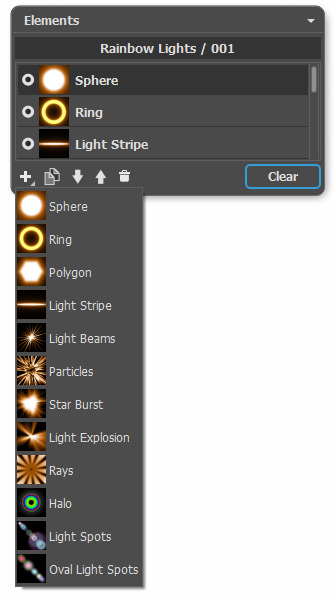
You can use these buttons at the bottom of the panel (all commands are also available by right-clicking within the panel):
-
To add a new element, click on
 and choose from the drop-down list. The new element will be added above the current one in the Elements panel and displayed in the Image Window.
The selected (editable) element is highlighted in gray in the list of the added elements. Its parameters are available in the Element Properties panel.
-
To duplicate the element, click on
 . The copy of the element will be added above the current one.
-
Use the buttons
 and
and  to change the position of the element in the list (up or down by one position). Position in the list specifies the state of the element in the effect: the top element is closer to the foreground, the bottom - to the background.
The order of the elements can also be changed by dragging them up or down.
-
Use the visibility indicator
 /
/ to hide/show the element in the Image Window. Parameters for the hidden elements are disabled. To switch a visibility, click on the indicator.
-
To delete the selected element, click on
 . You can also drag the element to the icon or use the Delete-key.
- Use the Clear button to delete all the items in the list.
Adjust the parameters for the selected element in the Element Properties panel. These settings are the same for most elements:
Position & Size. This group contains parameters for adjusting the location and size of the light element.
-
Shift (-200..200). The parameter changes the position of the element along a straight line that is shown when the tool
 is active.
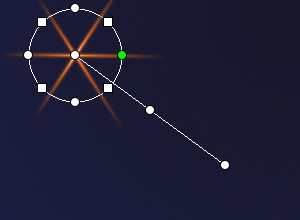
Shift = 100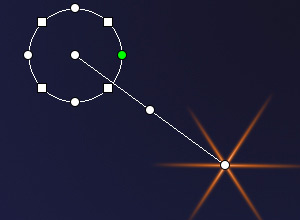
Shift = -100 -
Scale (1-1000). The parameter changes the size of the element.

Scale = 50
Scale = 100 -
Rotate (0-359). The parameter turns the element at a chosen angle.

Rotate = 30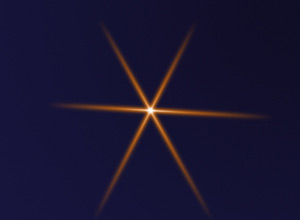
Rotate = 60
Color. With this group of the parameters you can change the color and transparency of the selected element, as well as the options for blending with the elements below.
-
Opacity (1-100). The parameter changes the opacity of the element
that lets revealing the underlying elements and the background image. Lower values make the element more transparent.

Opacity = 25
Opacity = 75 -
Blend Mode. Choose from the drop-down list how the element blends with the underlying elements. The default mode for the elements is Normal. Read more about the blend modes.
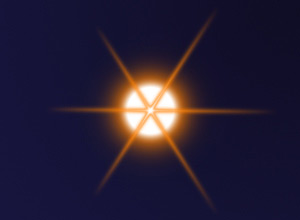
Blend Mode: Normal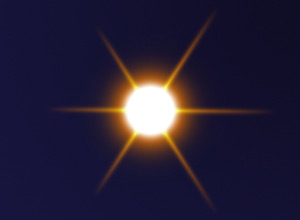
Blend Mode: Plus -
Brightness (1-200). The parameter specifies the intensity of glow. Lower values give soft glow effect. Increasing the value increases the brightness of the glow.

Brightness = 50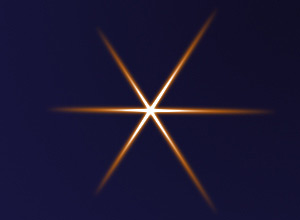
Brightness = 150 -
Color. You can specify two colors (Glow and Halo) for each element. By default, the color plates are empty, and the program uses the colors selected in the Effect Parameters.
To choose a color from the Select Color dialog box, double click on the corresponding plate. To pick a color from the image or from the applied light effect, left-click on the plate, and the cursor will be transformed into an eyedropper. To clear the plate, right-click on it.
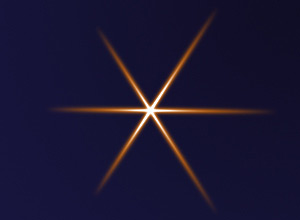
Glow Color = White
Halo Color = Orange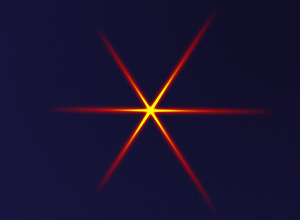
Glow Color = Yellow
Halo Color = Red
Special Parameters. In addition to the above-mentioned parameters, each element has a group of special settings. Read more about them in the pages describing the elements.
LightShop v. 8.1 - Free 10-day Trial
