Das während der Bildkorrektur enstehende Rauschen entfernen
Wenn Sie ein dunkles Bild heller machen wollen, werden Sie feststellen, dass die korrigierten Teile des Bildes verrauscht sind. Um diese unvermeidlichen Folgen der Belichtungskorrektur zu beheben, greifen wir zu einer entsprechenden Software - AKVIS Noise Buster.
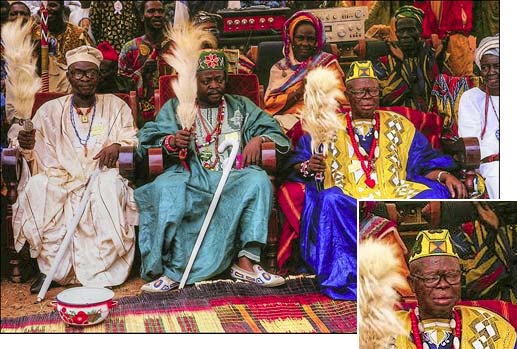
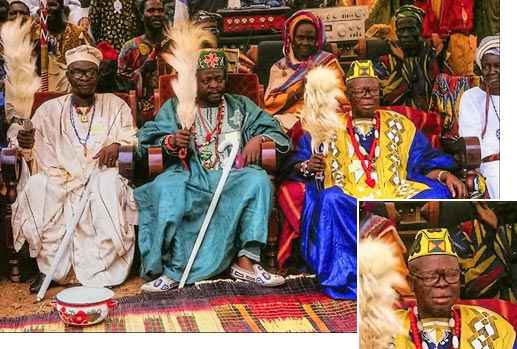
Vergleichen wir das Fragment vor und nach der Bearbeitung: auf links ist das ursprüngliche dunkle Bild, in der Mitte - das Ergebnis der Bildkorrektur mit AKVIS Enhancer und rechts - das Ergebnis der Rauschreduzierung mit AKVIS Noise Buster.
Achtung! Das Tutorial wurde mit der alten Version des Noise-Buster-Algorithmus erstellt. Ab Version 12.0 verwendet das Programm trainierte neuronale Netze, um Rauschen zu entfernen.
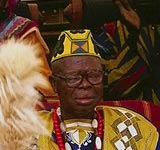
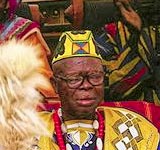
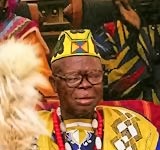
Wir nehmen ein unterbelichtetes Foto und wenden das Programm AKVIS Enhancer an, um die Details in den dunklen Bereichen zu verbessern. Schauen Sie auf die Menschen im Hintergrund - ihre Gesichter sind kaum sichtbar.
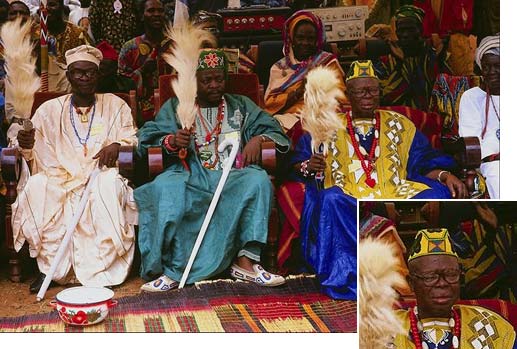
- Schritt 1. Öffnen Sie das Foto mit Ihrer Bildbearbeitungssoftware, die mit AKVIS Enhancer und AKVIS Noise Buster kompatibel ist. Rufen Sie das Plugin AKVIS Enhancer auf und passen Sie die Parameter an.
Nach der Anwendung des Plugins sind die Gesichter der Menschen im Hintergrund sichtbar geworden, das Rauschen auch.
- Schritt 2. Jetzt werden wir AKVIS Noise Buster anwenden, um das Bildrauschen loszuwerden.
Am häufigsten tritt lästiges Farbrauschen auf - grüne und rote Flecken, die besonders beim Hautbild hervorstechen. Um dieses unangenehmes Farbrauschen zu verringern, passen Sie die Parameter Rauschpegel und Glätten im Bereich Farbrauschen an.
Passen Sie auch die Parameter für das Helligkeitsrauschen an. Erhöhen Sie den Wert der Parameter Rauschpegel und Glätten.
- Schritt 3. Nach der Bearbeitung sind die Farbflecke verschwunden und die Haut wirkt glätter.
Noise Buster AI v. 13.2 - 10-Tage-Testversion
