Reduce Noise Appeared During Image Correction
When you correct a dark photo, you will often notice that as you "shed light" upon its underexposed areas, the noise in the areas shows up more abundantly. You can't do anything about it. You can only struggle with these inevitable consequences of exposure correction. Besides, they are not so difficult to cope with.
Let's compare one and the same fragment before and after the filtration: on the left is the original dark photo, in the middle - the result of image correction with AKVIS Enhancer, on the right - the result of noise reduction with AKVIS Noise Buster.
Attention! The tutorial was made with the old version of the Noise Buster algorithm. Starting from version 12.0, the program uses trained neural networks to remove noise. You can see the work of Noise Buster AI here.



Let's take an underexposed photo and improve detail in the dark areas. Pay attention to the people in the background - their faces are hardly visible.
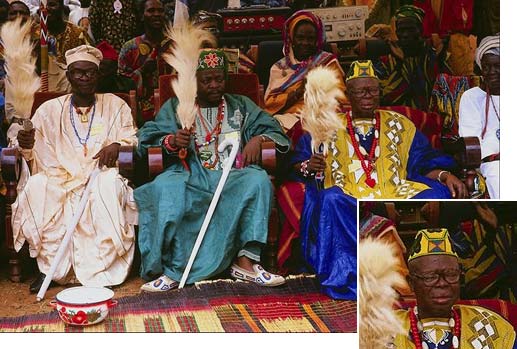
- Step 1. Open the photo in a photo editor compatible with the AKVIS Enhancer and AKVIS Noise Buster plug-ins. Or you can use the standalone versions of the AKVIS software.
Call the AKVIS Enhancer plug-in (or use the standalone program), select the Improve Detail mode, and adjust the settings.
After using AKVIS Enhancer, the faces of the people in the background became visible, and the noise became stronger too.
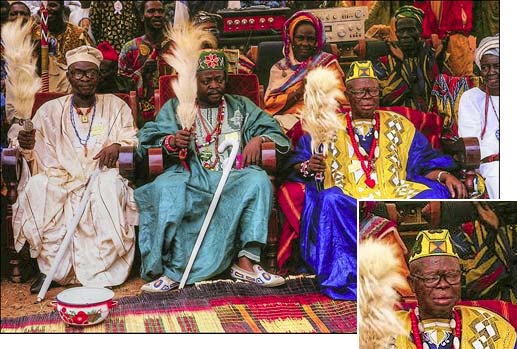
- Step 2. You can apply the AKVIS Noise Buster plug-in to get rid of the noise.
Call the plugin (or use the standalone edition) and adjust the parameters.
The color blots have disappeared and the skin looks smooth.

Noise Buster AI v. 13.0 - 10-giorni di prova gratuita
