Graphic software for Windows Mac graphic software  
Entrez votre e-mail pour souscrire à notre liste de diffusion.
 
  
  Produits     Télécharger     Magasin en ligne     Tutoriel     Support      Compagnie
en  fr  de  es  pt  it  jp  ru    
 

Tutoriel: AKVIS Enhancer

HDR-mode


Désolé, à présent cette information n'est disponible qu'en anglais. La version française sera bientôt affichée.

The instruction below explains how to use AKVIS Enhancer to obtain an HDR-image from a series of shots taken with different exposure settings.

  • Step 1. Launch AKVIS Enhancer.

    Run AKVIS Enhancer
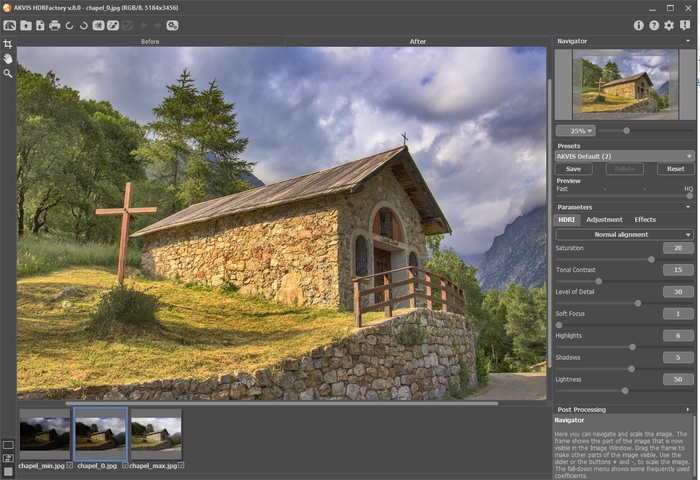
  • Step 2. Open several shots of the same scene taken with different exposure settings (they must be in jpg format). For this purpose click on and select the required files from the Open images dialog box. Under the Image Window you can see thumbnails of the opened files; and in the Image Window (Before tab) one of the opened images is shown.
    Open several shots of the same scene taken with different exposure settings

    The check-box near the thumbnail indicates if the image will be used when generating an HDR-image. Deactivate the check-box near the image with a left-click, if you do not want to use it in creation of the HDR-image.

    Hint: Here you can learn how to get a series of shots with different exposure settings using a digital camera.

    Attention! If the shots do not contain any exposure information you will see the Set Exposure Value dialog box that allows entering the values manually.

    At first the program calculates exposure for every shot automatically; then you can change the values either by selecting the exposure step in the fall-down menu or by entering arbitrary values.

    • The button Reset restores the automatically calculated exposure values.

    • The button Apply opens the images taking into account the set exposures.

    • The button Cancel closes the dialog box.

  • Step 3. Select the value of the Preview Size parameter.

    The parameter sets the image size at the preliminary processing stage and can have the following values: 1, ½, ¼, and ¹/8. At value = 1, the size of the original image (its width and height) do not change. At value = ½, it is reduced twice, at value = ¼, it is reduced by 4 times, at value = ¹/8. – by 8 times. The processing time is reduced accordingly.

    The Preview Size parameter is an auxiliary tool, it does not influence the real size of the image. The original image will stay the same and all details of the original image will be kept.

    The parameter allows to speed up the pre-processing stage when one tries different settings to obtain the best result. It is useful on photos that do not require close attention to every part of it and it is enough to see the general outcome (for example, when processing photos for printing in the standard size).

      Note: Once you adjusted the parameters, it is recommended to try the processing with Preview Size = 1 to make sure that the best settings are chosen.

  • Step 4. Adjust the settings for the HDR-image in the HDR tab of the Settings panel.

    • Adjust the quality of alignment the images by selecting one of the following options: Fast alignment, Normal alignment and High-quality alignment.

      The better the alignment quality, the longer is the processing time. We recommend Normal alignment.

      If you are sure that there is no shift in the image series choose No alignment.

    • When the check-box Standard Tone Curve is enabled, the HDR-image is generated using the standard tone curve.

      Every digital camera has its own tone curve that defines the dynamic range compression. We recommend to use the Standard tone curve that suits for most cameras. When the check-box Standard Tone Curve is disabled, the tone curve is calculated individually for the present series of images. It can produce an unpredictable result.

  • These two parameters influence the generation of an image with an expanded dynamic range (HDR image).

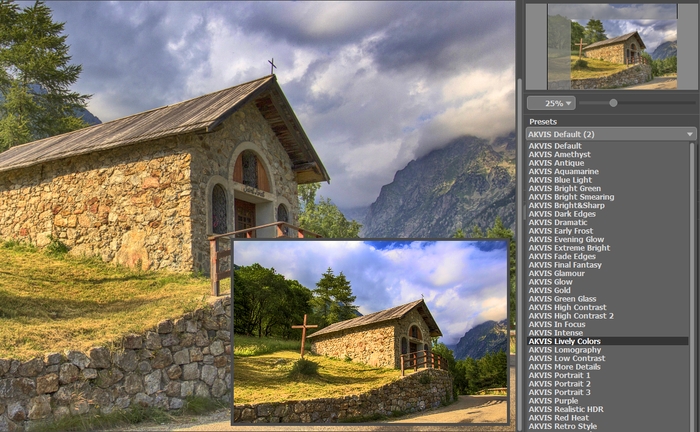
  • Step 5. Select one of the standard presets (AKVIS Natural: the resulting image looks natural and close to reality; AKVIS Expressive: the resulting image is bright, contrasting and impressive; AKVIS Default is the golden mean between a natural image and an artistic effect that one usually wants to obtain when creating an HDR-image) or adjust the Tone Mapping settings in the HDR tab and Post Processing settings yourself.

  • Step 6. There are the following Tone Mapping parameters:

    • The Saturation parameter allows changing the intensity of the image colors. It accepts values between 0 and 100; the default value is 40.

    • The Lowlights parameter allows improving the contrast of the image by increasing the minimum brightness value (black point). It accepts values between 0 and 100. As you increase the value of the parameter, the dark parts of the image get lighter and details in these areas get clearer.

    • The Highlights parameter allows improving the contrast of the image by reducing the maximum brightness value (white point). It accepts values between 0 and 100. As you move the slider to the right, the value of the parameter increases and the light areas get darker, while the details in these parts get more distinct.

    • The Level of Detail parameter defines the amount of details detected. It accepts values between 0 and 15 with the default value of 0. The higher the value, the sharper is the color transition and the more detail is visible. On underexposed images the high value of this parameter may cause noise.

    • The Lightness parameter allows the change of the overall lightness of the image - to make it darker or lighter. It accepts values between 0 and 100. By default it is set to 50. As you move the slider to the right, the image gets lighter; as you move the slider to the left - it gets darker.

    • The Dark Detail parameter influences the illumination of details in shadows. It accepts values between 0 and 100 with the default value of 10. As you increase the value of the parameter, the dark details get lighter.

    • The Light Detail parameter influences the illumination of details in highlights. It accepts values between 0 and 100 with the defau value of 50. As you increase the value of the parameter, the light details get even lighter.

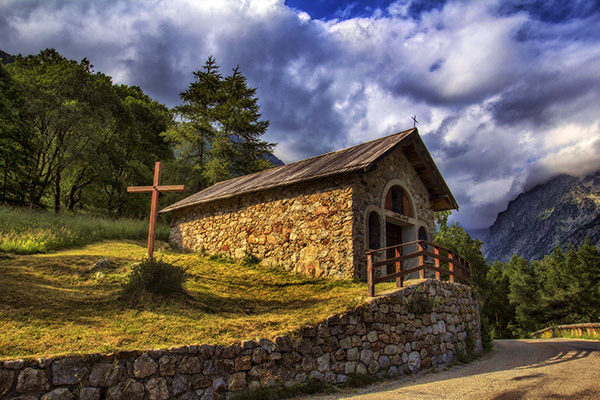
    The original images will be combined to create a High Dynamic Range image. However, monitors have a lower dynamic range and can not render an HDR-image to the best advantage. That is why, a technology called Tone Mapping is applied for intelligent compression of the dynamic range and getting an LDR (low dynamic range) image. The resulting image contains more details.

  • Step 7. For further image correction use the Post Processing tab. The tab contains a Histogram and four parameters: Brightness, Contrast, Gamma and Saturation.

    A Histogram is a graph that shows the tonal range of an image. On the horizontal line the brightness values are set - from the darkest to the lightest. The vertical line sets the number of pixels having this lightness value.

    Below the histogram there are three sliders that can be moved to change the image contrast.

    The extreme point on the right end represents pixels having the maximum brightness (white points). If the histogram does not have such pixels, the image does not contain any white points. If we move the white slider to the left, the point against which the slider is located will assume the maximum brightness (255) and the pixels having this value will become white. The brightness of other pixels will be re-calculated accordingly. The image will get lighter.

    The extreme point on the left end represents pixels having the minimum brightness (black points). If the histogram does not start at the left end, the image does not have any black pixels (brightness = 0). If you move the black slider to the right, the point against which the slider is located will assume the minimum brightness value. As a result this tone will become black, while other pixels will be re-calculated accordingly. The image will get darker.

    The middle slider defines the tone of the image that will have the brightness of 128 (middle-gray tones). If you move the slider to the left, the mid-gray tones get lighter; if you move the slider to the right, the mid-gray tones get darker.

    Near the histogram there is a fall-out list with image channels (RGB, Red, Green, Blue, Colors, Luminosity). It is possible to adjust every channel separately or correct a combined channel.


    The Post Processing tab also contains parameters that allow correcting brightness and contrast of the image, making gamma-corrections and changing saturation of the image.

    • The Brightness parameter allows changing the image brightness. It accepts values between -100 and 100 with the default value of 0. The higher is the value of the parameter, the lighter are all pixels of the image, and vice versa.

    • The Contrast parameter allows increasing (if the value is over 0) or reducing (if the value is under 0) the difference between bright and dark parts of the image. The parameter accepts values between -100 and 100 with the default value set to 0.

    • The Gamma parameter allows changing the overall contrast of the image by increasing or reducing mid-tones and gray mid-tones. The parameter accepts values between 50 and 250 with the default value set to 100.

    • The Saturation parameter allows changing the intensity of colors on the image. The parameter accepts values between -100 (gray color) and +100 (saturated colors). By default the value is set to 0.

    As you adjust the settings in this tab, the processing is started automatically. The result is shown in the After tab

  • Adjust the Post Processing tab settings
  • Step 8. If you like the new settings of the Tone Mapping and Post Processing parameters, you can save them as a preset and use them later. To save the settings, enter a name for the preset into the Presets field and press the button Save.

    Next time you launch the program, these settings will be used by default. To return to the initial settings of the program, click on Reset.

    To process the image with a certain preset, select this preset from the fall-out list. The image will be automatically processed with the preset's settings.

    To delete a preset, select it from the list and click on the button Delete.

  • Step 9. Save the processed image into a file. Click on in the Control panel to open the Save As dialog box. Enter a name for the file, define its format (jpg, tiff, bmp or png) and select the destination folder.

  • Step 10. It is possible to print the image. For this purpose click on , adjust the print settings in the Print dialog box and press the button Print.

    The left part of the Print dialog box is the preview area where the current position of the image on the page is shown, in the right part of the dialog box the print settings are adjusted:

    • The check-boxes Album and Portrait set the page orientation when printing. The check-box Album corresponds to the horizontal page orientation (width larger than height), the check-box Portrait - to vertical.

    • The parameters Scale, Width and Height and the check-box Fit to Page set the printed size of the image. They do not influence the image itself, only its printed copy. It is possible to change the size of the printed copy by specifying the image scale in % (any value less than 100% reduces the image, any value over 100% increases it) or by setting new values for width and height in the corresponding fields. If you want to fit the image into the page, enable the check-box Fit to Page.

    • The image in the preview area has a frame with markers that allow changing the image size manually. Put the mouse cursor to a corner marker or to one of the sides (the cursor will transform to a two-side arrow) and drag the marker or the side. To change the position of the image on the page, bring the cursor to the center of the image, press the left mouse button and move the cursor. Besides, it is possible to define the image position on the page with the parameter Move To by clicking on one of the nine squares.

    If your computer is connected to a local network with several printers or several output devices are connected to this computer, you will have to choose one of the available printers to do the job. Click Printer Setup in the dialog box Print, select a printer in the opening dialog box and adjust the printing settings.

  • Step 11. Close AKVIS Enhancer by clicking on .

 
AKVIS Enhancer Plug-In AKVIS Enhancer Plug-In
   — Zone de travail — Zone de travail
   — Mode Enhancer — Mode Enhancer
   — Mode Focus — Mode Focus
   — Batch Processing — Batch Processing
AKVIS Enhancer - HDR program AKVIS Enhancer - HDR program
   — Zone de travail — Zone de travail
   — Mode Enhancer — Mode Enhancer
   — Mode Focus — Mode Focus
   — HDR mode — HDR mode
   — High dynamic range image — High dynamic range image
Exemples Exemples
   — Photo sombre d'une église — Photo sombre d'une église
   — Court de tennis — Court de tennis
   — Dans la rue — Dans la rue
   — Enfant dans le jardin — Enfant dans le jardin
   — Tir à l'arc — Tir à l'arc
   — Camion — Camion
   — Chapelle orthodoxe — Chapelle orthodoxe
   — Ville ancienne — Ville ancienne
   — Améliorer la netteté — Améliorer la netteté
   — Oranger — Oranger
   — Photo prise contre le soleil — Photo prise contre le soleil
   — Illustration technique — Illustration technique
   — La ville au crépuscule  — La ville au crépuscule
   — Photo sous-exposée — Photo sous-exposée
   — Un bébé avec un hochet — Un bébé avec un hochet
   — Les enfants de l'Afrique — Les enfants de l'Afrique
   — Raviver photos sans flash — Raviver photos sans flash
   — Enlever le brouillard — Enlever le brouillard
   — Le poète et les pigeons — Le poète et les pigeons
   — Le chat noir — Le chat noir
   — À la campagne (HDR) — À la campagne (HDR)


   Politique de Confidentialité | Plan du Site | Recherche | English  | Français  | Deutsch  | Español  | Português  | Italiano  | 日本語  | Pусский  | © 2004-2008, AKVIS Software Inc. Tous droits réservés.