Area di lavoro
AKVIS Enhancer funziona come applicazione standalone (indipendente) e come plugin per i più diffusi programmi di grafica.
Standalone è un programma indipendente. È possibile eseguirlo nel solito modo.
Plugin è un modulo aggiuntivo per programmi di grafica, ad esempio Photoshop, AliveColors ed altri programmi compatibili. Per lanciare il plugin selezionarlo dai filtri dell'editor grafico.
L'area di lavoro di AKVIS Enhancer appare così:
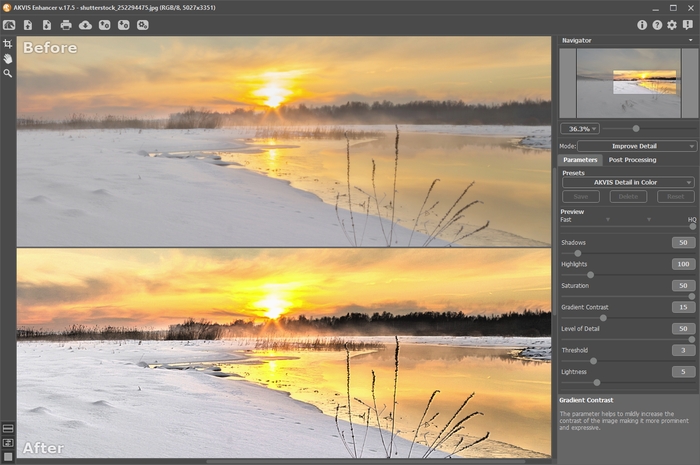
Area di lavoro di AKVIS Enhancer, scheda Dopo
La parte sinistra dell’area di lavoro di AKVIS Enhancer è occupata dalla Finestra immagine con due schede Prima e Dopo. La scheda Prima visualizza l’immagine originale, la scheda Dopo mostra la foto elaborata. È possibile passare da una finestra all’altra facendo clic sulla scheda con il tasto sinistro del mouse. Per confrontare l’immagine originale con quella creata, si può anche cliccare sull'immagine premendo/rilasciando il tasto del mouse, il programma automaticamente passa da una scheda all'altra.
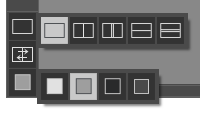
È possibile definire l’aspetto della Finestra immagine e delle schede Prima/Dopo regolando la Modalità di visualizzazione immagine nella parte inferiore della Barra degli strumenti.
Nella parte superiore della finestra c’è il Pannello di controllo con i seguenti comandi:
- Il pulsante
 apre la pagina Web del programma AKVIS Enhancer.
- Il pulsante
 permette l’apertura dell'immagine per l’elaborazione (solo nella versione standalone). Tasti rapidi Ctrl+O su Windows, ⌘+O su Mac.
È possibile visualizzare l'elenco dei file recenti cliccando con il tasto destro del mouse su questo pulsante. Nelle preferenze del programma si può impostare il numero di documenti recenti da visionare.
- Il pulsante
 permette di salvare l'immagine sul disco (solo nella versione standalone). Tasti rapidi Ctrl+S su Windows, ⌘+S su Mac.
- Il pulsante
 apre la finestra di dialogo Stampa per stampare l'immagine (solo nella versione standalone).
Tasti rapidi Ctrl+P su Windows, ⌘+P su Mac.
apre la finestra di dialogo Stampa per stampare l'immagine (solo nella versione standalone).
Tasti rapidi Ctrl+P su Windows, ⌘+P su Mac.
- Il pulsante
 permette di importare un elenco di preset (file .enhancer).
- Il pulsante
 permette di esportare i preset (impostazioni salvate per un successivo utilizzo). E' possibile salvare un numero illimitato di preset con estensione .enhancer.
- Il pulsante
 (solo nella versione standalone) apre la finestra di dialogo Elaborazione batch per elaborare automaticamente un gruppo di foto.
- Il pulsante
 (solo nelle modalità Prestampa e Correzione toni) avvia il trattamento dell'immagine con le impostazioni attuali dei parametri.
- Il pulsante
 (solo nella versione plugin) consente di chiudere la finestra del plugin ed applicare il risultato nell’editor di foto.
- Il pulsante
 mostra le informazioni sul software, sulla licenza e sulla versione.
- Il pulsante
 apre i file d'Aiuto del programma. Tasto rapido F1.
- Il pulsante
 apre la finestra di dialogo Preferenze che permette di modificare le impostazioni del programma.
- Il pulsante
 apre una finestra che mostra le ultime notizie su Enhancer.
La Barra degli strumenti si trova alla sinistra della finestra immagine:
- Il pulsante
 (solo nelle modalità Prestampa e Correzione toni) attiva/disattiva la finestra di anteprima.
- Il pulsante
 (solo nella versione standalone) attiva lo strumento Taglierina che consente di ritagliare aree indesiderate dell'immagine.
- Il pulsante
 attiva lo strumento Mano che permette di scorrere l'immagine nella finestra qualora l'intera immagine abbia una dimensione non adatta ad essa. Per spostare l'immagine selezionare lo strumento, posizionare il cursore all’interno della foto, premere il tasto sinistro del mouse e, tenendolo premuto, spostare l'immagine nella finestra.
Facendo doppio clic sull'icona
, sulla Barra degli strumenti, adatta l'immagine alla Finestra immagine.
- Il pulsante
 attiva lo strumento Zoom che permette di scalare l'immagine. Per aumentare la scala dell'immagine fare clic con il tasto sinistro del mouse sull'immagine. Per ridurla usare il tasto sinistro del mouse + Alt. Premere Z per accedere rapidamente a questo strumento.
Facendo doppio clic sull'icona
, sulla Barra degli strumenti, mostra l'immagine nelle dimensioni reali, impostando la scala al 100%.
Nella parte inferiore del questo pannello ci sono tre pulsanti che servono a definire l’aspetto della Finestra immagine.
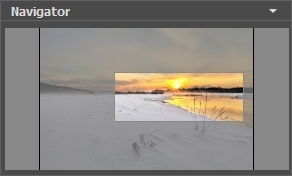
Navigare e scalare l'immagine usando la finestra Navigatore. La cornice mostra la parte dell’immagine visibile al momento nella finestra principale; l’area esterna ad essa sarà ombreggiata. Trascinando la cornice si potranno vedere altre parti dell’immagine, durante lo spostamento la cornice cambia colore diventando verde. Per spostarla portare il cursore al suo interno, premere il tasto sx del mouse e, mantenendolo premuto, trascinare la cornice.
Per far scorrere l'immagine premere la barra spaziatrice sulla tastiera e trascinare l'immagine premendo il tasto sinistro di mouse, il cursore si trasformerà in una mano. Oppure utilizzare la rotella del mouse per spostare l’immagine su/giù; mantenendo il tasto Ctrl premuto, utilizzare la rotella del mouse per spostare l’immagine a destra/sinistra; mentre per ridurre/ingrandire l’immagine premete il tasto Alt utilizzando sempre la rotella del mouse.
Per scalare l'immagine usare il cursore. Spostando il cursore verso destra, la scala dell'immagine aumenta. Spostando il cursore verso sinistra, la scala dell'immagine si riduce.
È possibile cambiare la scala dell'immagine anche immettendo un nuovo coefficiente nel campo della scala.
Inoltre, sempre per modificare la scala dell'immagine, si possono usare i tasti rapidi: + per aumentarla e - per ridurla.
Sotto il Navigatore c’è il Pannello impostazioni in cui è possibile selezionare una delle Modalità e regolare le sue impostazioni.
Nel campo Preset si possono salvare le impostazioni preferite come un preset (predefinito) per usarlo successivamente. Le impostazioni possono essere salvate, modificate, cancellate. Quando si avvia il programma o il plugin vengono utilizzate le impostazioni del preset usato per ultimo.
Sotto il Pannello impostazioni, per impostazione predefinita, è possibile vedere alcuni Suggerimenti: una breve descrizione del parametro/pulsante quando il cursore passa sopra uno di essi. Cliccando su (preferenze del programma) è possibile modificare la posizione del campo Suggerimenti oppure nasconderlo.
Enhancer v. 17.8 - 10-giorni di prova gratuita
