Prato fiorito
L'autore di questo esempio è K.J. Hartmann.
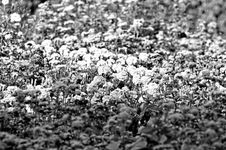
"Ho cercato per lungo tempo la peggiore immagine in B&N per vedere come poteva manipolarla AKVIS Coloriage AI. Sembrava che nulla potesse contribuire a colorare questa foto, tuttavia ho voluto fare un tentativo utilizzando questo plugin. Il pensiero del risultato mi stimolava."
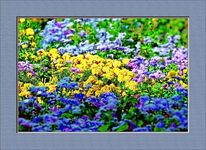
Seguire le istruzioni per ottenere lo stesso risultato.
-
Qui useremo il plugin Coloriage AI, ma il metodo di lavoro nel programma standalone è analogo.
-
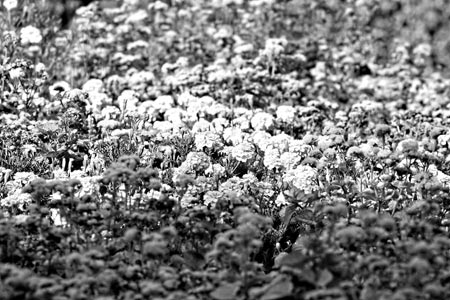
Passaggio 1. Aprire l’immagine in AliveColors e lanciare il plugin AKVIS Coloriage AI dal menu Effetti -> AKVIS -> Coloriage AI.
-
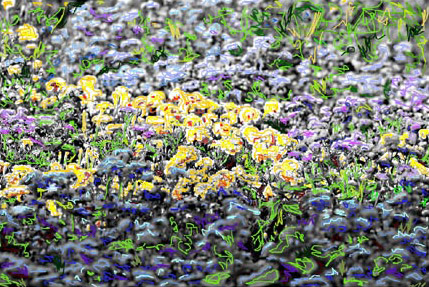
Passaggio 2. Nella modalità Classica utilizzare lo strumento Matita
 per disegnare il contorno dei fiori e impostare una tinta per ogni oggetto. Scegliere i colori dalla scheda Colore (o Campioni) o dalla Libreria colori. Bisogna ricordare che il lavoro andrà fatto in modo meticoloso e per questo ci vorrà del tempo, il risultato dovrebbe essere più o meno come questo.
-
Passaggio 3. Premere su
 , l’esito verrà mostrato nella scheda Dopo.
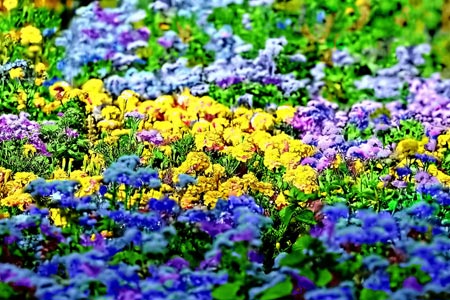
-
Passaggio 4. Se si desidera cambiare qualcosa cliccare sulla scheda Prima, qui è possibile modificare i tratti e le loro tonalità. Usare lo strumento Tubetto
 per cambiare il colore di un solo tratto o il Tubetto magico
  per cambiare quello di tutte le linee aventi la stessa tinta e luminosità. Qui useremo lo strumento Tubetto magico .
Selezionare una nuova tinta dalla Libreria colori e cliccare sul tratto che si desidera modificare, in questo modo si può cambiare colore tutte le volte che si desidera.
Premere nuovamente su
. Se si è ancora insoddisfatti, ripetere questo passaggio fino ad ottenere un piacevole effetto.
-
Passaggio 5. Premere su
 per applicare il risultato e chiudere il plugin.
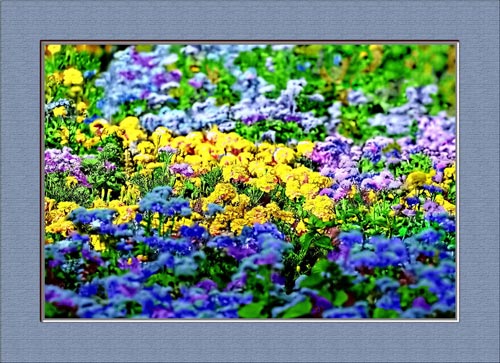
Se si desidera incorniciare l’immagine è possibile utilizzare AKVIS ArtSuite.
Coloriage AI v. 15.7 - 10-giorni di prova gratuita
