Flower meadow
あいにく, このページは英語にだけ使用可能です。
The author of this example is K.J. Hartmann.
"I've been searching for a long time for the worst b&w image to see how could AKVIS Coloriage AI handle this image. It seems nothing can help to colorize this photo. Nevertheless I tried to color it using this plugin. The result excited me."
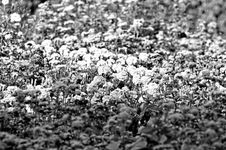 |
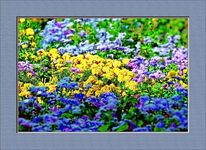 |
Let's try to follow his steps to achieve this colorful result.
In this tutorial the plugin version of Coloriage AI was used. But you can take the standalone program and do the same things.
-
Step 1. Open your image in AliveColors.
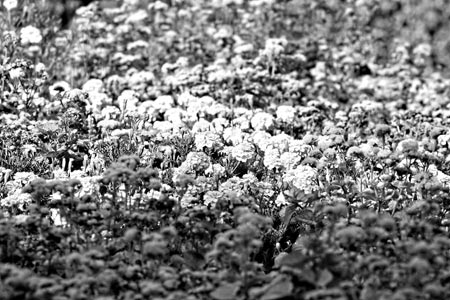
- Step 2. Call AKVIS Coloriage AI from the main menu of Photoshop Effects -> AKVIS -> Coloriage AI.
-
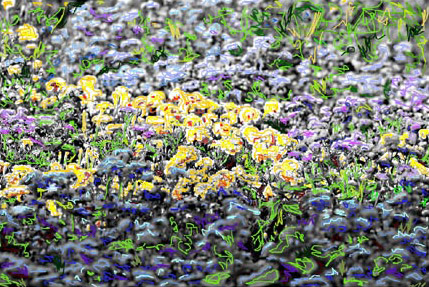
Step 3. Use the Pencil tool
 to draw an outline within the flowers. Set a color for every object on the photo. Select a color from the Color palette or from the Color library. Bear in mind it will take you a long time to colorize this photo. The result should be like this.
-
Step 4. Press the button
 . The result of your painstaking work will be shown in the After tab. Here is the color image.
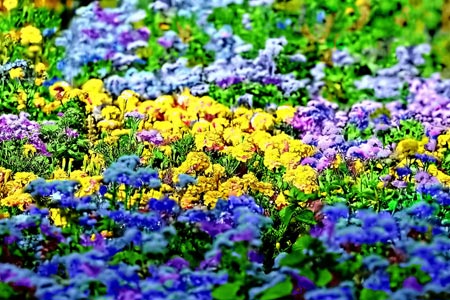
-
Step 5. If you are satisfied with the result, press the button
 . If you want to change something, left-mouse click on the Before tab. At this tab you can change the colors of the flowers. Choose the Tube
  or the Magic Tube tool
  . The former changes the color of the separate stroke; the latter changes recolor strokes having one and the same color and brightness. So let’s use the Magic Tube tool.
- Step 6. Select a color again from the Colors Library and mouse-click on the stroke that you want to change. So you can change the color as many times as you wish.
-
Step 7. Again press the buttom . If you are not yet satisfied, repeat the steps 5 and 6 till you get the image that you like.
-
Step 8. Press the button to apply the result and close the plugin window.
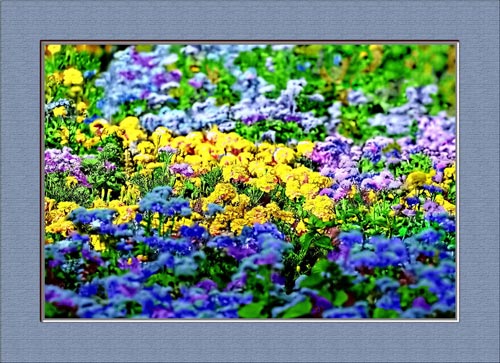
You can frame this picture:
Coloriage AI v. 15.7 - 10日間の評価期間
