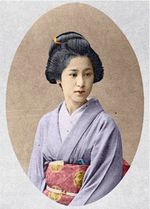
Ritratto di una Geisha
Il tutorial è stato creato da Laura Mabee con il plugin AKVIS Coloriage AI in AliveColors. È possibile utilizzare il programma autonomo Coloriage AI.
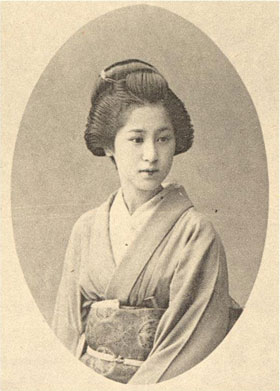
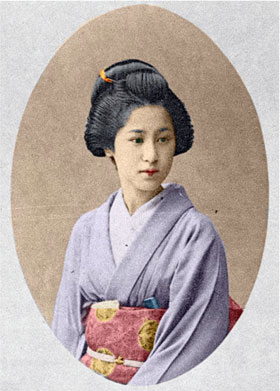
AKVIS Coloriage AI permette di infondere nuova vita alla foto di una Geisha, scattata all’inizio del XX secolo, consentendo di aggiungere colore.
-
Passaggio 1. Aprire l’immagine in AliveColors. Lanciare il plugin AKVIS Coloriage AI selezionando Effetti -> AKVIS -> Coloriage AI.
-
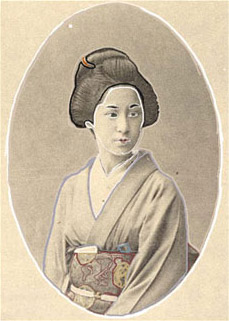
Passaggio 2. Nella modalità Classica tracciare il contorno interno di ogni oggetto con il colore scelto usando la Matita
 . È possibile selezionare i colori dalla Libreria colori. Per assegnare un colore ai piccoli dettagli, si consiglia di ingrandire l'immagine utilizzando i tasti +/- o il cursore nella finestra di Navigazione.
Utilizzare i tasti rapidi per regolare la dimensione dello strumento Matita
: per ridurla premere [, per aumentarla premere ].
-
Passaggio 3. Premere su
 per colorare il ritratto, poi su
  per applicare il risultato.
Coloriage AI v. 15.7 - 10-giorni di prova gratuita
