Suppress Noise on a Rendered Image
The author of the design project is Innokenti Chtchavrovski.
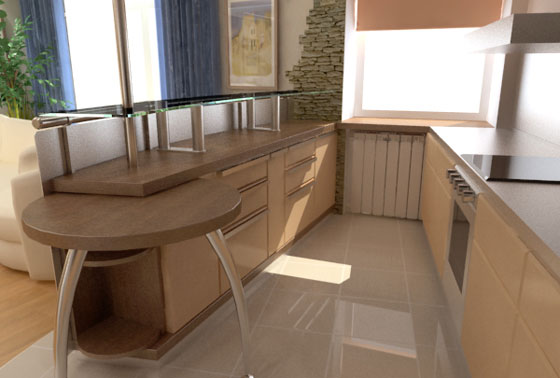
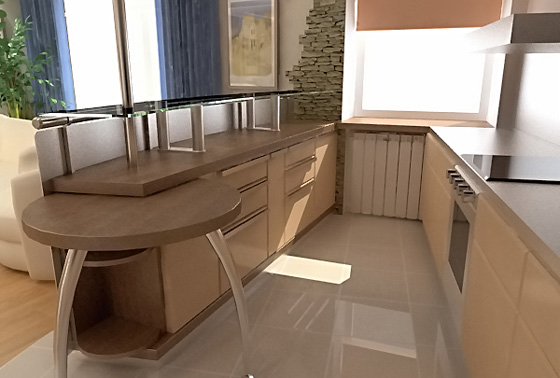
The picture below is the result of rendering a 3D interior design model in 3DS MAX.
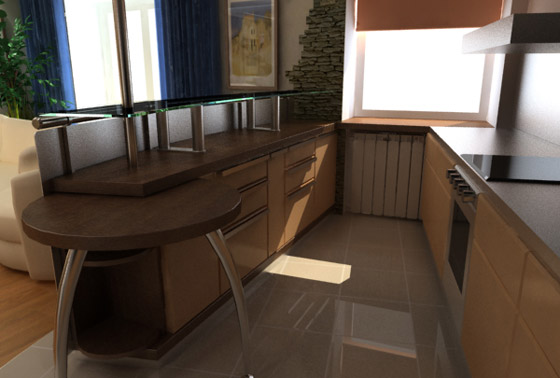
Rendering is a complex process of transforming a 3D vector model into a 2D bitmap image taking into account the visual angle, illumination, materials, texture overlay, etc.
Everyone engaged in the creation of interior design models knows that quality rendering requires a lot of time and resources; it may take hours and hours.
And what if the customer is already on the doorstep, and you do not have time for high-quality rendering?
The only way out is to render the picture with the average settings and then process the image in a photo editor, for example in AliveColors. It will save you time.
The image above has been rendered with the average settings and in a relatively short period of time. But this affected the quality of the result: you can see noise in shadows and on the metal surface of the bar.
- Step 1. Open the image in AliveColors (or any other photo editor) and apply the initial correction with the Levels command.
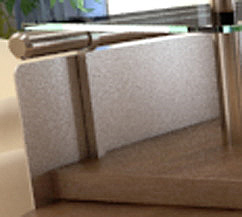
On the metal surface of the bar, the noise is especially pronounced.
- Step 2. Now comes the noise correction. We will apply the AKVIS Noise Buster AI plug-in compatible not only with AliveColors, but with many other photo editors as well (consult the Compatibility page).
Call the AKVIS Noise Buster AI plug-in: Effects -> AKVIS -> Noise Buster AI. Start with the default parameters (AKVIS Default preset). The result will be shown in the preview area.
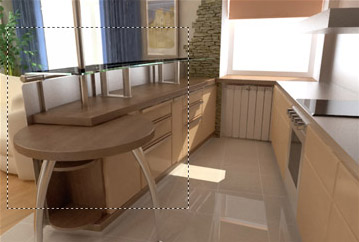
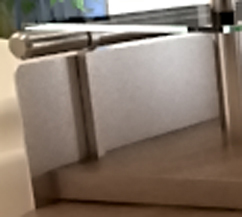
The result is good: now there is much less noise. Compare the image fragment before and after processing.
Before Noise Reduction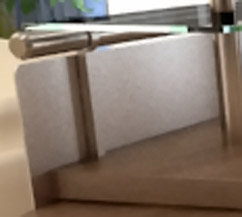
After Noise ReductionThere is no need in removing the noise completely; the main idea is to improve the overall impression from the image. The image filtered with the default settings is good enough to be shown to the customer.
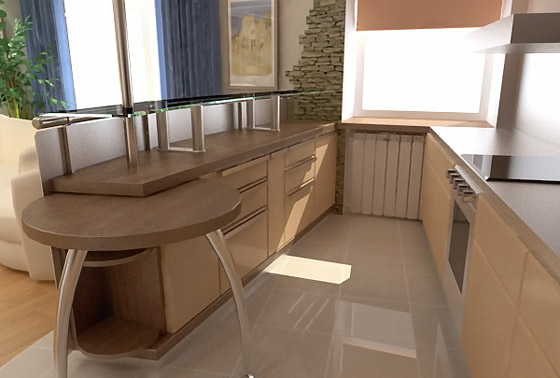
- Step 3. If necessary, you can adjust the parameters manually.
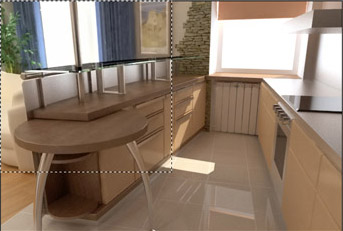
The adjustment will take no more than 5 minutes. The result is a noise-free picture.
Now, we will process the entire image with the chosen settings. Maybe the final image is not very realistic, but it pleases the eye.
Afterword:
Nevertheless, the author took the image made with the default settings to the customer. It's only a matter of taste, though.
Noise Buster AI v. 13.2 - Free 10-day Trial
