How to Use The Program
AKVIS Noise Buster AI reduces both luminance and color noise on images without spoiling other aspects of the photo. The software can work independently as a standalone program and as a plugin to a photo editor.
Follow the instructions below to reduce noise on a picture using AKVIS Noise Buster AI.
- Step 1. Open an image.
- If you work with the standalone edition:
The dialog box Select File to Open appears if you double-click in the empty workspace of the program or if you click
 on the Control Panel. You can also drag the required image into the workspace of the program. The program supports images in the JPEG, TIFF, BMP, PNG, WEBP, TGA, and RAW formats (CRW, NEF, ORF, PEF, etc. - See the full list here). You can also drag the required image into the workspace of the program.
- If you work with the plugin:
Open an image in your photo editor by calling the command File -> Open or using the Ctrl+O key combination (or ⌘+O on Mac).
Call the AKVIS Noise Buster AI plugin in the Filter/Effects menu of the photo editor:
in AliveColors: Effects -> AKVIS -> Noise Buster AI;
in Adobe Photoshop: Filter –> AKVIS –> Noise Buster AI;
in Corel PaintShop Pro: Effects –> Plugins -> AKVIS –> Noise Buster AI;
in Corel Photo-Paint: Effects –> AKVIS –> Noise Buster AI.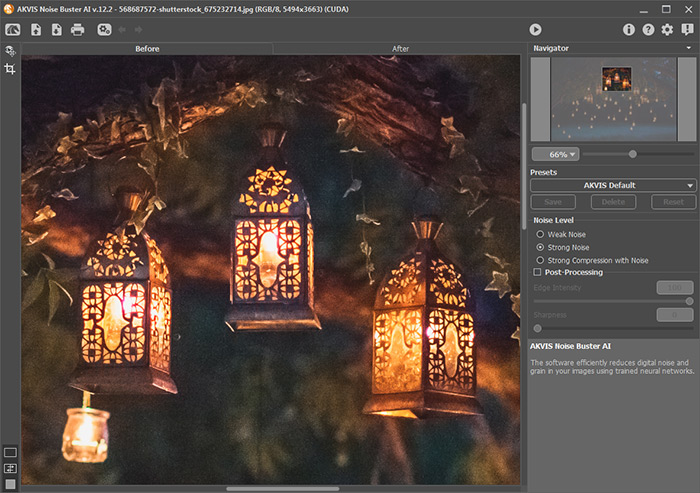
- Step 2. You can start with processing the image using the default settings.
The result will be shown in the Quick Preview area in the Before tab. It is represented by a dotted frame. You can drag the frame or draw it anew on any part of the image, thus analyzing parts of the photo.
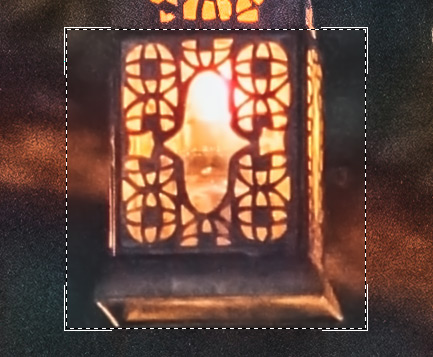
You can compare the filtered result with the original image by clicking in the preview area.
It's possible to change the size of the quick preview area in the program's Preferences
 .
.
- Step 3. You can adjust the noise reduction parameters to achieve the best result.
The task of noise reduction is to find the golden mean between suppressing noise and keeping detail. Besides, it is important to take into account the psychological characteristics of visual perception: when comparing the original and the filtered photo pay your attention not only to details but to the overall impression as well. A certain amount of noise does not necessarily spoil a picture, while some smoothness of a photo may add to the visual effect (especially in portrait retouching where it is not desirable to see the skin structure in detail).
- Step 4. To process the entire image, click
 or press the After tab.
After processing, it is possible to switch between Before/After tabs by pressing the left mouse button anywhere in the image window.
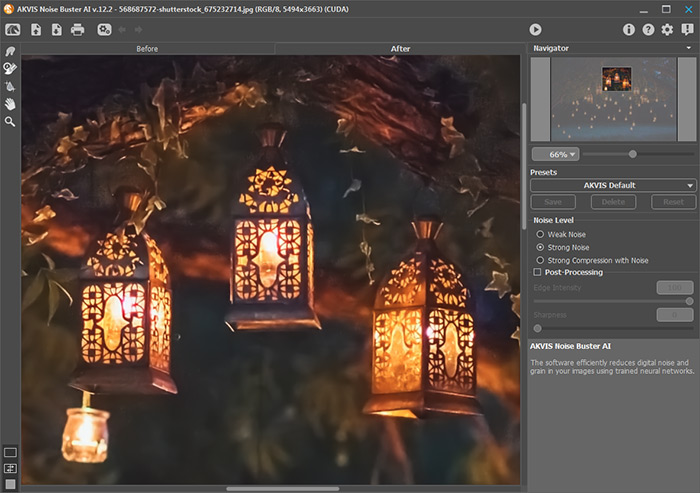
- Step 5. You can also use the post-processing tools in the After tab: Smudge
 , History Brush
  , and Smart Blur
  .
.
Attention! If you change the parameters and re-run the image processing, the changes made with these tools will be lost.
- The Smudge tool helps to refine the image by removing unwanted irregularities.
- The History Brush tool restores areas to their original state.
- The Smart Blur tool smooths out grain and noise while preserving outlines and fine details. It is available only under Home Deluxe and Business licenses.
- The Smudge tool
- Step 6. It is possible to save the settings you like as a preset and use them in the future. The presets are also helpful when working in the batch processing mode.
To save a preset, enter its name into the Presets field and press the Save button. If you change the values of the parameters, you can always come back to the default settings of the preset by pressing the Reset button.
To delete a preset, select it from the list and press Delete.
To process an image with the settings of a certain preset, select it from the drop-down menu and click
.
- Step 7. In the standalone version, you can also print your image with
 .
.
- Step 8. Save the processed image.
- If you work with the standalone edition:
Click the button
 to open the Save As dialog box. Enter a name for the file, choose the format (TIFF, BMP, JPEG, WEBP, TGA or PNG), and indicate the target folder.
- If you work with the plugin:
Click
 to apply the result to the image and close the plugin's window.
In the image editor, call the Save As dialog box using the command File -> Save As, enter a name for the file, choose the format, and indicate the target folder.

click to open a larger copy

Noise Buster AI v. 13.2 - Free 10-day Trial
