Remove Moire on Scans
Images in print media represent a series of overlapping dots that should create an illusion of more colors. When you scan such a photo you can usually discover a moire pattern. A moire pattern results from incorrect screen angles of overprinting halftones.
You can try to avoid moire at the scanning stage. Sometimes a well-chosen scan angle can produce a remarkable effect. However, if you deal with a scanned image you have only one method of moire suppression at your disposal - apply image processing techniques.
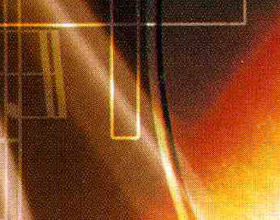
Original Image
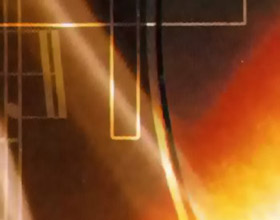
Result
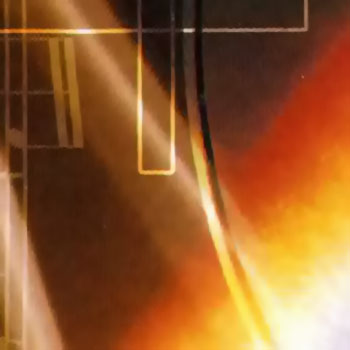
On the photo below you can see a scan of a music CD cover. Moire is visible.
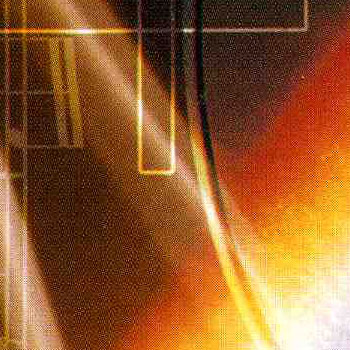
- Step 1. Open this fragment of the scanned cover in AKVIS Noise Buster AI with the
 button.
Noise Buster AI will process the image using the default settings.
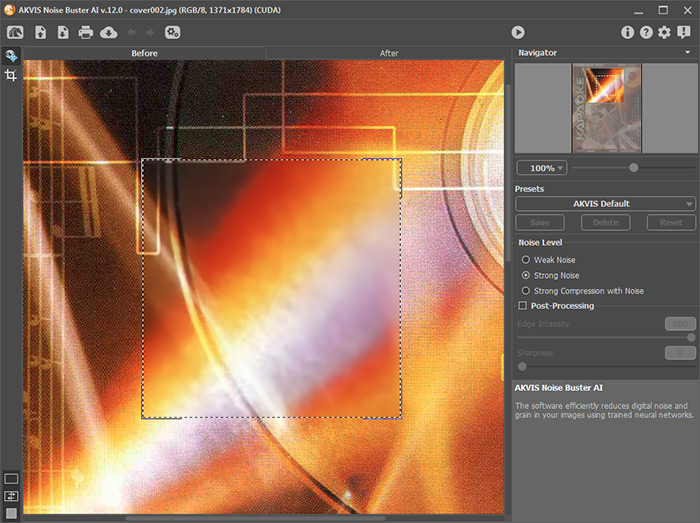
- Step 2. If necessary, change the noise removal mode and adjust the post-processing parameters. In this example, we used the following values:
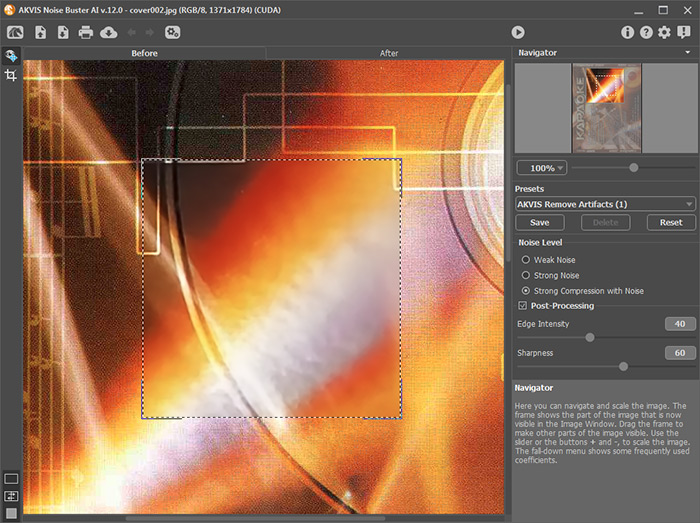
- Step 3. If the result in the preview area is good, press the
 button to apply the filtering to the whole image. Then save the image by pressing the
  button.
Noise Buster AI v. 13.2 - Free 10-day Trial
