ISO-Settings and Noise: Reduce Noise on a Photo with AKVIS Noise Buster


Please enter your email to be kept posted on updates and discounts:
 
 
  Products     Download     Online Store     Tutorial     Support     Company      Customer Room
en  fr  de  es  pt  it  jp  ru    
 

Tutorial: AKVIS Noise Buster

ISO and Noise


The problem with digital noise is still acute. Even expensive professional cameras produce noise at high ISO settings. Not to mention consumer level cameras that perform well only at ISO 50–100.

Most digital cameras offer the option of automatic ISO setting (auto). In this case a camera chooses settings on its own basing on the shooting conditions. As a result, one can easily get "noisy" photos because the camera can decide to shoot at a high ISO value.

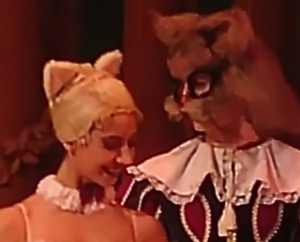
A fragment of the picture in real size is shown below.
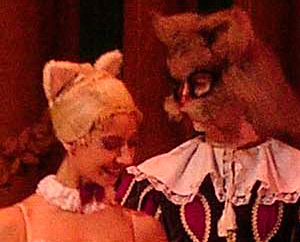
Fragment before filtration: noise photo Fragment after filtration: improved photo

The following photo was taken in automatic mode. Some photos from the same session were taken at ISO 400, others at 261 or 236. But the result is the same – all of them are very noisy. We will take one such photo and try to improve it.
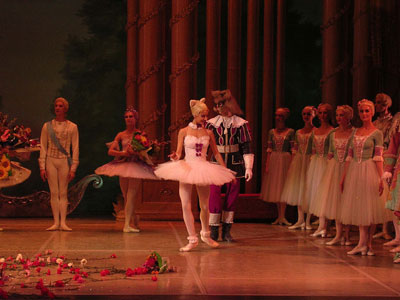
Original photo taken at ISO 261

The added complication is that the photo was then saved in JPEG. This compression is responsible for the JPEG artifacts.

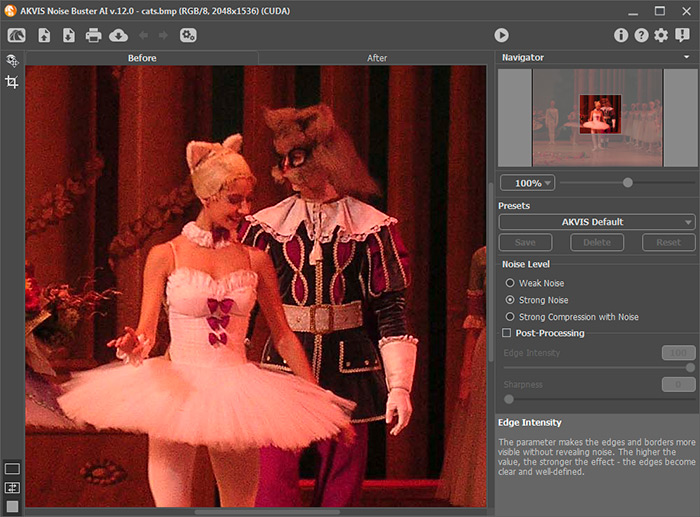
Open the image in AKVIS Noise Buster.

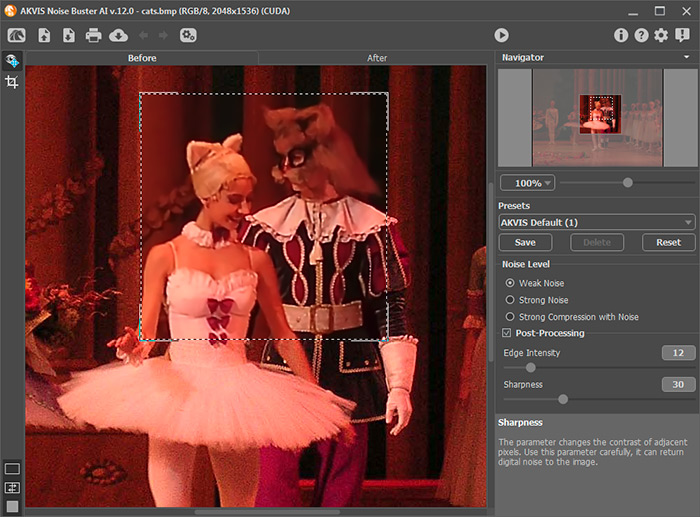
Automatic filtering begins after the program window opens. The result will be shown in the the preview area of the Before tab.

AKVIS Noise Buster window

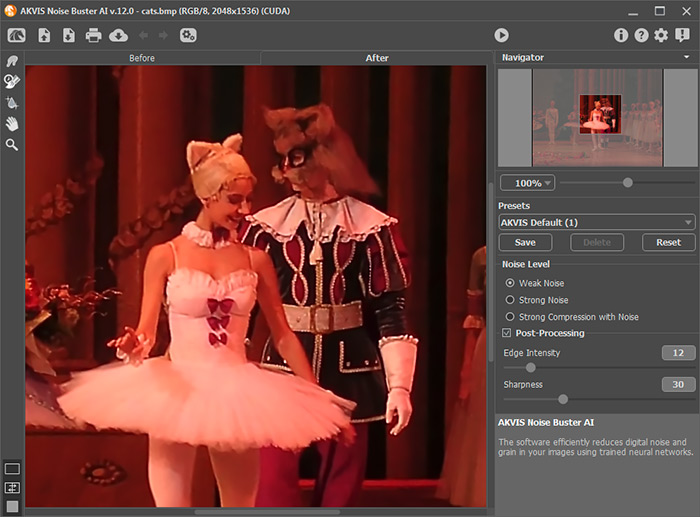
Adjust the settings. We applied the following values: Fade 75%, Luminance Noise Level 15, Luminance Smooth Level 3, Color Noise Level 28, Color Smooth Level 3, Microdetail 50.

It's all very subjective. You may set other values for the parameters.
Adjust the noise reduction parameters

Apply filtration with these parameters by pressing the button.

The processed image in AKVIS  Noise Buster window

Save the image.

 
How It Works How It Works
   — Workspace — Workspace
   — How To Use The Program — How To Use The Program
   — Batch Processing — Batch Processing
   — Preferences — Preferences
Examples Examples
   — Cover Girl — Cover Girl
   — Remove Moire on Scans — Remove Moire on Scans
   — Reduce Noise on a Studio Photo — Reduce Noise on a Studio Photo
   — Color Noise Suppression — Color Noise Suppression
   — ISO and Noise — ISO and Noise
   — Suppress Noise on a Rendered Image — Suppress Noise on a Rendered Image
   — Noise Reduction on a Corrected Photo — Noise Reduction on a Corrected Photo
   — Improve a Dark Photo + Remove Noise — Improve a Dark Photo + Remove Noise
   — Make Your Photo Look Better — Make Your Photo Look Better
   — Remove JPEG-Artifacts — Remove JPEG-Artifacts
   — Lightening Dark Photos — Lightening Dark Photos


back to top


   Privacy Policy | Site Map | Search at AKVIS    
   Contact Us | Twitter | Facebook | YouTube Channel    
| English  |Français  |Deutsch  |Español  |Português  |Italiano  |日本語  |Pусский  | © 2004-2012 AKVIS. All rights reserved.