Rooster constellation
The example was made in the old version of AKVIS LightShop.
Read how to use the current version of the program.
The author of this tutorial is Graeme King. He shows us how to create a wonderful image with AKVIS LightShop without using pencils and brushes.
We will create a cosmic rooster.
 "AKVIS LightShop: cosmic rooster")
|
| Click to open in a new window. |
This example has been made in Paint Shop Pro, but you can work with any other photo editor compatible with AKVIS plugins, or just use AKVIS LightShop as a standalone program.
- Step 1. Open your photo editor and create a new document: File -> New.
- Step 2. First we create the body of the rooster. Create a new layer: click on New Raster Layer in the Layer panel.
- Step 3. Call AKVIS LightShop from the main menu: Effects -> Plugins -> AKVIS -> LightShop. Choose Sample 51 from the AKVIS presets.
Press the button
 and wait a little.
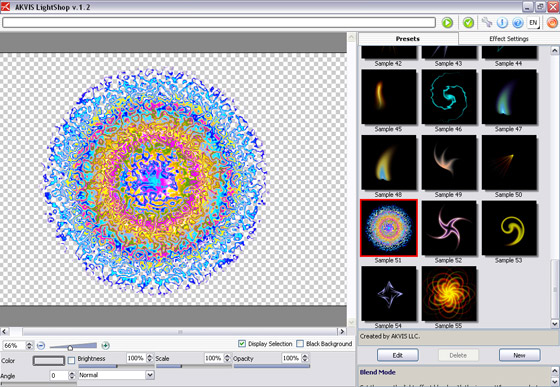
Do not change the settings. Just press the button
 to apply the result and close the plugin's window.
- Step 4. Choose the Deform tool in the Toolbar of your photo editor and change the shape, the form and the position of the image to imitate a body.
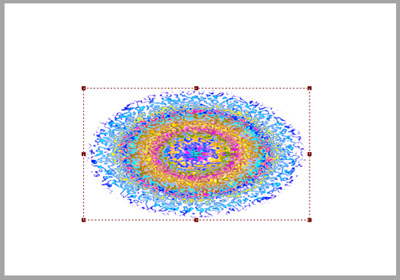
- Step 5. Now we "draw" the rooster's head. Create a new layer and call AKVIS Lightshop. This time choose Sample 21.
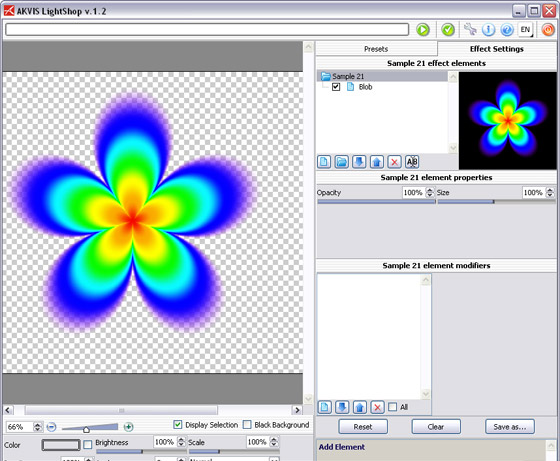
Apply the result by pressing the button
.
- Step 6. We only need one flower petal, so use any tool to remove the other petals. In Paint Shop Pro we use the Freehand Selection tool and outline the petal we need. Invert the selection: Selections -> Invert and remove all other petals by clicking on Delete.
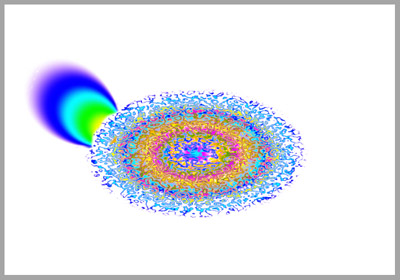
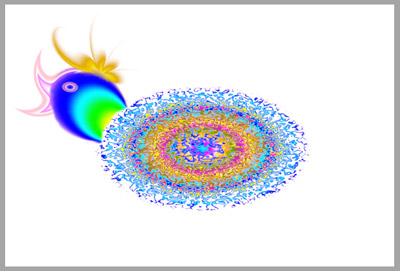
- Step 7. Now we draw an eye using AKVIS Lightshop. For the eye we apply Sample 33, for the beak Sample 52 and for the rooster's comb we use Sample 04.
We get this image:
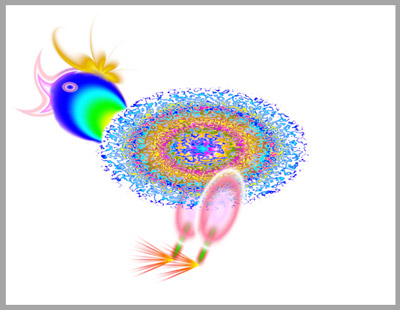
- Step 8. For the legs we choose Sample 33 and Sample 50.
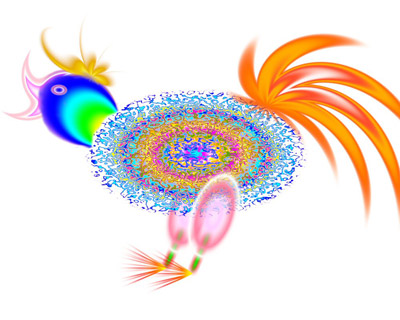
- Step 9. Now we draw the tail. Call AKVIS LightShop and choose Sample 08.
Our rooster is ready.
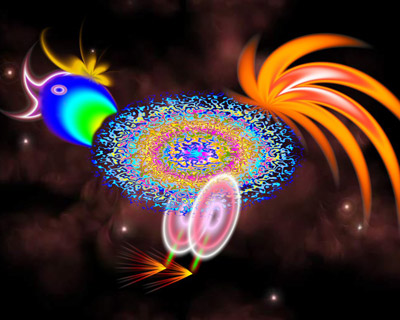
- Step 10. Let's add a night sky background and admire the final result.
LightShop v. 8.1 - Free 10-day Trial
