Graphic software for Windows Mac graphic software  
AKVIS ニュースの購読を申し込むには, 電子メールアドレスを入力してください。
 
  
  プログラム     ダウンロード     サイバーショップ     チュートリアル     サポート     会社情報
en  fr  de  es  pt  it  jp  ru    
 

チュートリアル: AKVIS SmartMask

HotKeys


あいにく, このページは英語にだけ使用可能です。日本語のバージョンは遠からず出ります。

Some operations are easier and faster to do using the so-called "hot-keys" on the keyboard. To activate a tool from the Toolbar, you can click on the corresponding icon with the mouse or you can use key combinations on the keyboard. The latter method can substantially increase your productivity.

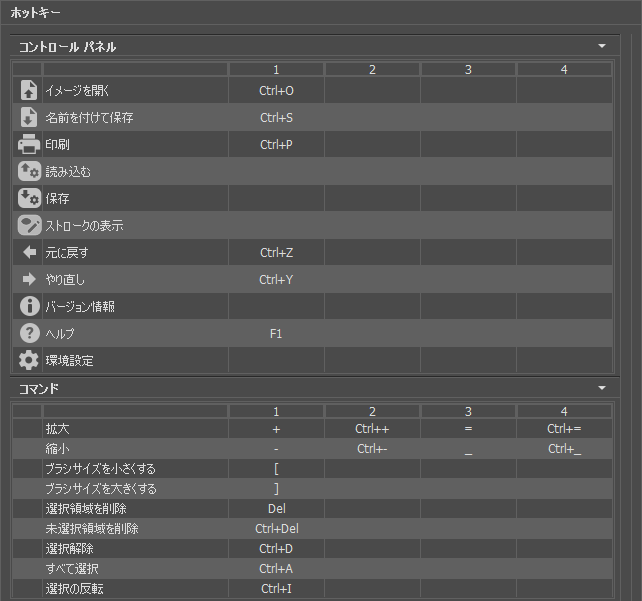
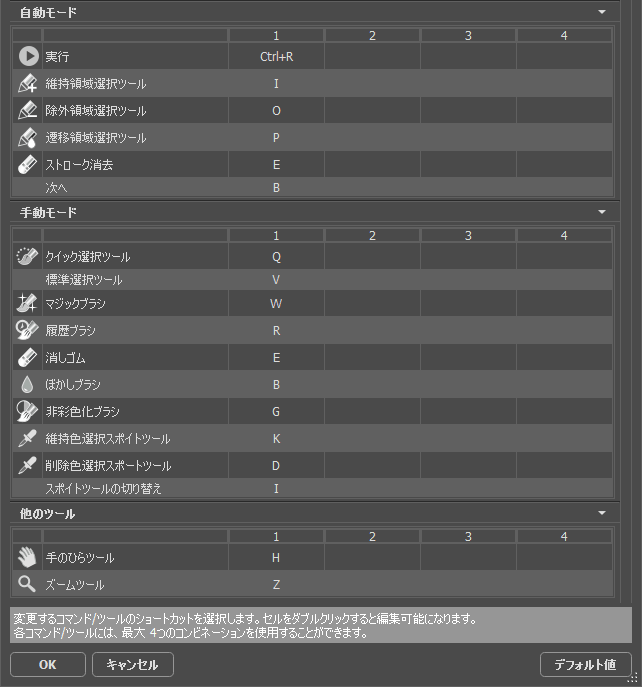
Here is a list of hot-keys for AKVIS SmartMask:


WindowsMac OS X
Ctrl+Z+Z This combination cancels the last operation.
Ctrl+Y+Y This combination returns the last cancelled operation.
VVThis combination switches between the current and previous View mode.
<<Switching between View modes from right to left (circling).
>>Switching between View modes from left to right (circling).
+ or Ctrl++ + or ++ Increasing the image scale.
- or Ctrl+- - or +- Reducing the image scale.
                    Navigate the image (when the space-bar is pressed, the Move tool is activated)
Ctrl+Enter +EnterStart image processing
Tools:
BBSwitching between brushes and pencils (when drawing strokes in Sharp and Soft modes, Magic Brush in Complex mode)
EEEraser tool (in modes Sharp and Complex)
ZZZoom tool (all modes)
GGSwitching between bucket fill tools ( Soft mode)
IISwitching between "eyedroppers" — the tools used to pick a color for the "Keep Colors" and "Drop Colors" lists (Complex mode)
KKEyedropper Tool for the "Keep Colors" list (Complex mode)
DDEyedropper Tool for the "Drop Colors" (Complex mode)
YYRestore Brush (Complex mode)
RRBlur Tool (Complex mode).
Adjusting the settings:
[ and ][ and ]Changing the tool'a size (— reducing/increasing on 5 px correspondingly). In Complex mode both the outer and the inner radius of the tool is changed. The ratio between the radiuses is kept.
{ and }{ and }Changing the tool's size in Complex mode (— reducing/increasing on 5 px correspondingly) by adjusting only the outer radius of the brush.
Additionally:
Shift+mouse click+mouse click Drawing a straight line using pencils or brushes.


プラグインの操作方法 プラグインの操作方法
   — ワークスペース — ワークスペース
   — プラグインの操作方法 — プラグインの操作方法
   — シャープ モード — シャープ モード
   — ソフト モード — ソフト モード
   — 複合モード — 複合モード
操作例 操作例
   — 写真から人物を切り取る — 写真から人物を切り取る


   プライバシー | サイトマップ | Web サイトの検索 | English  | Français  | Deutsch  | Español  | Português  | Italiano  | 日本語  | Pусский  | © 2004-2008, AKVIS Software Inc. All rights reserved.