Graphic software for Windows Mac graphic software
Ingrese su email para suscribirse a la lista de AKVIS.
 
  
  Productos     Descargar     Tienda     Tutorial     Apoyo técnico     Compañia
en  fr  de  es  pt  it  jp  ru    
 

Tutorial: AKVIS SmartMask

HotKeys


Esta información está disponible solamente en inglés. La version española aparecerá pronto.

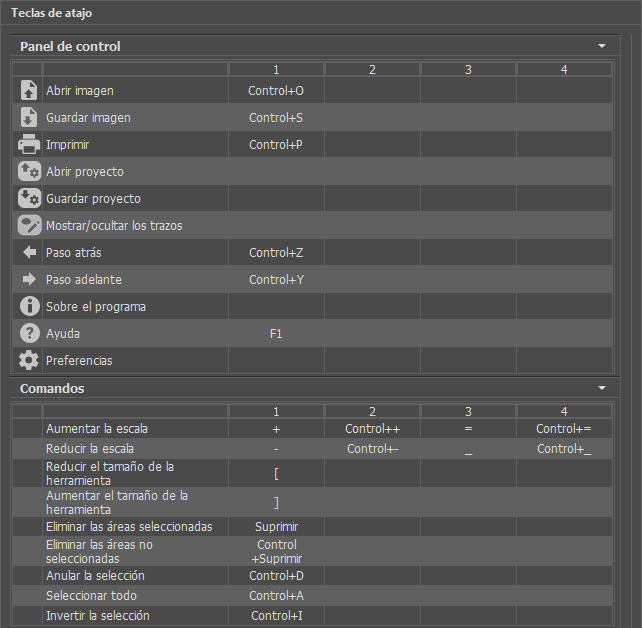
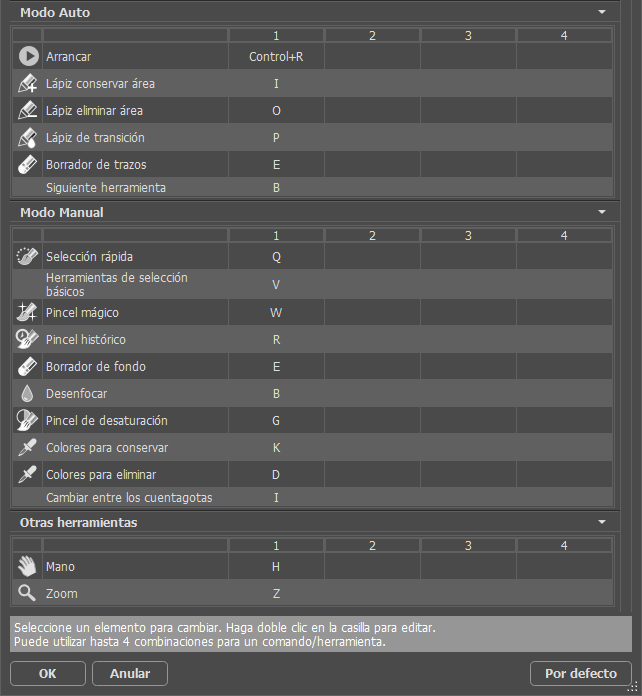
Some operations are easier and faster to do using the so-called "hot-keys" on the keyboard. To activate a tool from the Toolbar, you can click on the corresponding icon with the mouse or you can use key combinations on the keyboard. The latter method can substantially increase your productivity.

Here is a list of hot-keys for AKVIS SmartMask:


WindowsMac OS X
Ctrl+Z+Z This combination cancels the last operation.
Ctrl+Y+Y This combination returns the last cancelled operation.
VVThis combination switches between the current and previous View mode.
<<Switching between View modes from right to left (circling).
>>Switching between View modes from left to right (circling).
+ or Ctrl++ + or ++ Increasing the image scale.
- or Ctrl+- - or +- Reducing the image scale.
                    Navigate the image (when the space-bar is pressed, the Move tool is activated)
Ctrl+Enter +EnterStart image processing
Tools:
BBSwitching between brushes and pencils (when drawing strokes in Sharp and Soft modes, Magic Brush in Complex mode)
EEEraser tool (in modes Sharp and Complex)
ZZZoom tool (all modes)
GGSwitching between bucket fill tools ( Soft mode)
IISwitching between "eyedroppers" — the tools used to pick a color for the "Keep Colors" and "Drop Colors" lists (Complex mode)
KKEyedropper Tool for the "Keep Colors" list (Complex mode)
DDEyedropper Tool for the "Drop Colors" (Complex mode)
YYRestore Brush (Complex mode)
RRBlur Tool (Complex mode).
Adjusting the settings:
[ and ][ and ]Changing the tool'a size (— reducing/increasing on 5 px correspondingly). In Complex mode both the outer and the inner radius of the tool is changed. The ratio between the radiuses is kept.
{ and }{ and }Changing the tool's size in Complex mode (— reducing/increasing on 5 px correspondingly) by adjusting only the outer radius of the brush.
Additionally:
Shift+mouse click+mouse click Drawing a straight line using pencils or brushes.


Trabajando con el plugin Trabajando con el plugin
   — Área de trabajo — Área de trabajo
   — Trabajando con el plugin — Trabajando con el plugin
   — Modo Sharp — Modo Sharp
   — Modo Soft — Modo Soft
   — Modo Complex — Modo Complex
Ejemplos Ejemplos
   — Recortar una figura humana — Recortar una figura humana


   Política de privacidad | Mapa Web | Buscar | English  | Français  | Deutsch  | Español  | Português  | Italiano  | 日本語  | Pусский  | © 2004-2008, AKVIS Software Inc. Todos los derechos reservados.