Questa pagina è disponibile soltanto in inglese. La traduzione
italiana comparirà presto.
Se desiderate ottenere una licenza gratuita
per la traduzione, prego di scrivere noi.
| Windows | Mac OS X | |
 |
|
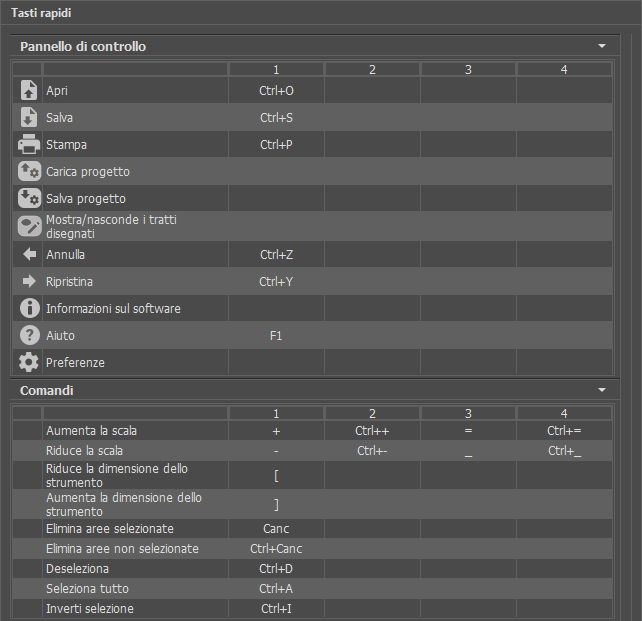
Ctrl+Z | +Z | This combination cancels the last operation. |
|
Ctrl+Y | +Y | This combination returns the last cancelled operation. |
|
V | V | This combination switches between the current and previous View mode. |
|
< | < | Switching between View modes from right to left (circling). |
|
> | > | Switching between View modes from left to right (circling). |
| + or Ctrl++ | + or ++ | Increasing the image scale. |
| - or Ctrl+- | - or +- | Reducing the image scale. |
| | | Navigate the image (when the space-bar is pressed, the Move tool is activated) |
| Ctrl+Enter | +Enter | Start image processing |
| Tools: |
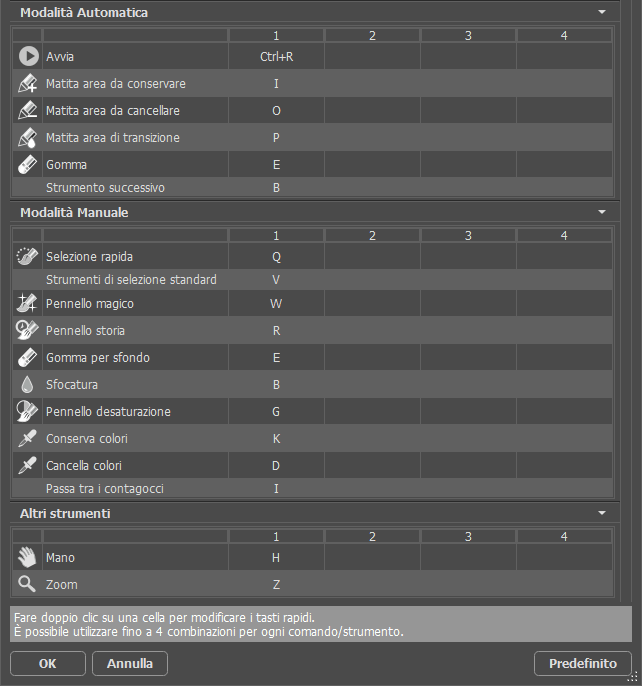
| B | B | Switching between brushes and pencils (when drawing strokes in Sharp and Soft modes, Magic Brush in Complex mode) |
| E | E | Eraser tool (in modes Sharp and Complex) |
| Z | Z | Zoom tool (all modes) |
| G | G | Switching between bucket fill tools ( Soft mode) |
| I | I | Switching between "eyedroppers" — the tools used to pick a color for the "Keep Colors" and "Drop Colors" lists (Complex mode) |
| K | K | Eyedropper Tool for the "Keep Colors" list (Complex mode) |
| D | D | Eyedropper Tool for the "Drop Colors" (Complex mode) |
| Y | Y | Restore Brush (Complex mode) |
| R | R | Blur Tool (Complex mode). |
| Adjusting the settings: |
| [ and ] | [ and ] | Changing the tool'a size (— reducing/increasing on 5 px correspondingly).
In Complex mode both the outer and the inner radius of the tool is changed. The ratio between the radiuses is kept. |
| { and } | { and } | Changing the tool's size in Complex mode (— reducing/increasing on 5 px correspondingly) by adjusting only the outer radius of the brush. |
| Additionally: |
| Shift+mouse click | +mouse click | Drawing a straight line using pencils or brushes. |