Sfondi per il desktop con gatto
Questo tutorial è stato presentato da Olga Podryadchikova.
Olga ha deciso di creare alcuni sfondi del desktop con una foto del suo gatto, trasformandola con l’aiuto del plugin AKVIS Coloriage AI in AliveColors.
-
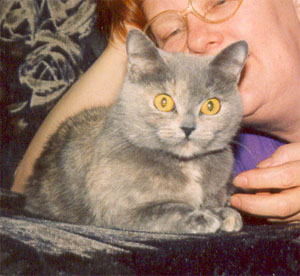
Passaggio 1. Scegliere una foto adeguata ed aprirla con un editor grafico.
-
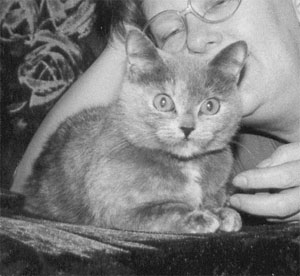
Passaggio 2. Applicare il comando Immagine -> Regolazione -> Bianco e nero per eliminare le informazioni sul colore.
-
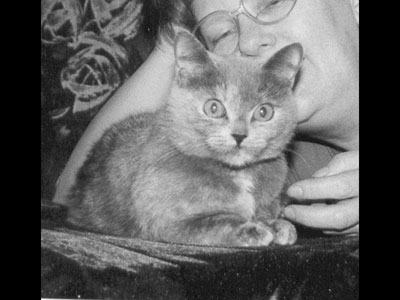
Passaggio 3. Siccome si sta creando uno sfondo per il desktop, si dovranno impostare le dimensioni adeguate, per esempio 800x600 px. Prima di tutto cambiare la dimensione dell’immagine con il comando Immagine -> Dimensione immagine, quindi aumentare la sua larghezza selezionando Immagine -> Dimensione tela.
-
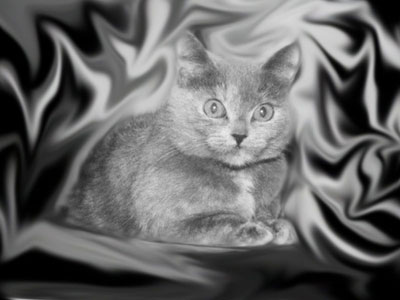
Passaggio 4. Selezionare lo strumento Sbavatura dalla barra degli strumenti e strutturare lo sfondo intorno al gatto con dei riccioli, più sono migliore è il risultato.
-
Passaggio 5. Lanciare il plugin AKVIS Coloriage AI (Effetti -> AKVIS -> Coloriage AI) ed iniziare a colorare l’immagine.
Con la Matita conserva colore
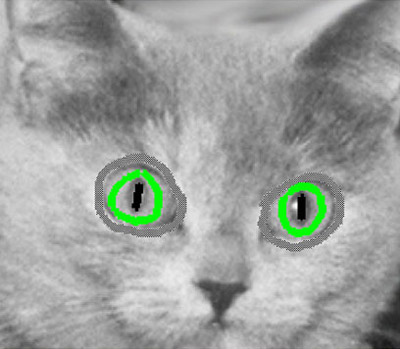
 isolare gli occhi per evitare al colore di diffondersi in altre parti dell'immagine, quindi con lo strumento Matita
  aggiungere la tinta, disegnando un contorno verde al loro interno e tratti neri al centro delle pupille.
Per facilitare questo lavoro è consigliabile aumentare la scala dell'immagine e ridurre la dimensione dello strumento Matita.
-
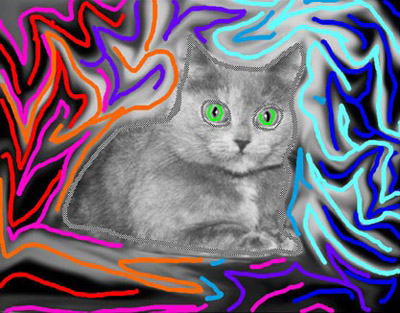
Passaggio 6. Ora passare alla colorazione dello sfondo. Tracciare una linea all’interno dell’animale con la Matita conserva colore perché il suo manto deve rimanere grigio.
Iniziare ad applicare le pennellate di colore allo sfondo tentando di disegnare seguendo le linee dei riccioli, questo per realizzare un lavoro di fantasia. Tener conto che i colori scuri e saturi (rosso, blu, viola, ecc) hanno un aspetto migliore su uno sfondo scuro, mentre per uno sfondo chiaro è consigliabile scegliere colori vivaci e luminosi (verde, giallo, blu).
-
Passaggio 7. Terminato il lavoro premere su
 e vedere il risultato nella scheda Dopo.
Se non si è soddisfatti del risultato, ritornare alla scheda Prima ed effettuare le modifiche necessarie.
I pulsanti nella barra degli strumenti consentono di:
- Cancellare le pennellate con lo strumento Gomma
 ;
;
- Disegnare nuovi tratti con lo strumento Matita;
- Ricolorare separatamente i tratti usando lo strumento Tubetto o ricolorare tutti quelli dello stesso colore con il Tubetto magico
  .
.
È possibile salvare le pennellate su file cliccando su
 e caricare i tratti precedentemente salvati cliccando su
  .
.
-
Passaggio 8. Quando si è soddisfatti del risultato, premere su
 per applicare il risultato e chiudere la finestra del plugin.
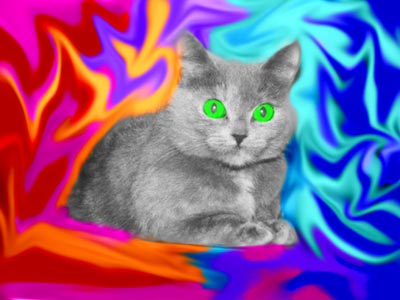
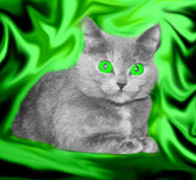
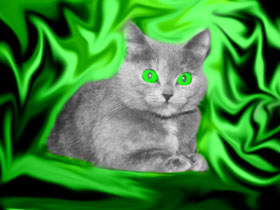
Il risultato è un gatto dagli occhi verdi su uno sfondo di fantasia e per tutto ciò sono bastati solo pochi minuti.
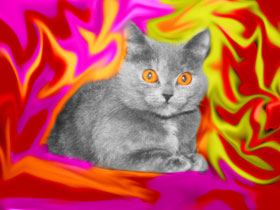
Si possono sperimentare differenti combinazioni di colori…le alternative sono molte!
Coloriage AI v. 15.7 - 10-giorni di prova gratuita
