V.1-3: Soft Mode
The Soft mode is good for selecting objects without clearly defined edges (hair, fluff, fur...).

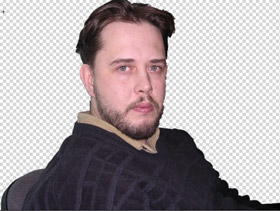
Original photo
- Step 1. First use the Sharp mode to define color
zones:
Blue zones are the parts of the image that must be kept. The points in this area have Transparency = 0%.
Red zones are the parts of the image that will be deleted. The points in this area have Transparency = 100%.
Green zones are a "transition border" between the kept and cutout areas. The points in these zones have different Transparency values (between 0 and 100%).

- Step 2. Use the following tools to edit the color zones:
To edit the blue zones, use
 and
and  , for red
zones -
, for red
zones -  and
and  ,
for green zones -
,
for green zones -  and
and  .
.
Adjust the stroke width by changing the value of the Brush Size parameter on the Settings panel.
Use the Green Zone Width parameter on the Settings panel to change the size of the green zones. The higher the value of the parameter, the wider the green transition border is. This parameter influences only the automatically generated green zones and changes their size on their full length. To edit the green zones more precisely, use the corresponding pencils from the Toolbar.

- Step 3. If needed, adjust the Sensitivity parameter on the Settings panel. This parameter influences the amount of details revealed in difficult areas. The higher the value of the parameter, the more semi-transparent details are visible.
- Step 4. Start image processing by clicking on
 .
.
- Step 5. If you are satisfied with the result obtained in the Soft
mode, click on
 to apply the changes and return to the photo editor. If the result needs
some improvement, go to the Complex tab; in this mode you can touch
up the selection.
to apply the changes and return to the photo editor. If the result needs
some improvement, go to the Complex tab; in this mode you can touch
up the selection.

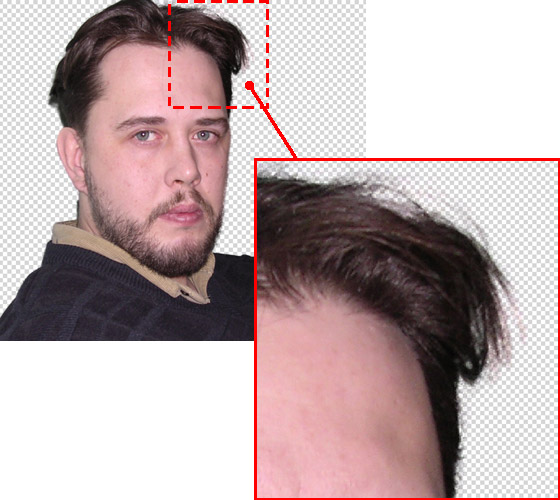
Result
Hint:
The result of the Soft mode is not always impeccable; it is rather a preliminary mode before manual processing in the Complex mode. Despite these drawbacks, the Soft mode saves you a lot of time and minimizes manual work.
SmartMask AI v. 15.1 - Free 10-day Trial
