V.1-3: Modalità Morbida
La modalità Morbida è indicata per selezionare gli oggetti con dei bordi non definiti chiaramente (capelli, peluria, pellicce…).

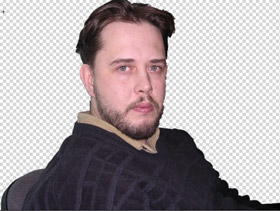
Foto originale
- Passaggio 1. Usare prima la modalità Nitida per definire le zone di colore:
Le zone blu sono le parti dell’immagine che devono essere conservate. I punti di quest’area hanno Trasparenza = 0%.
Le zone rosse sono le parti dell’immagine che devono essere cancellate. I punti di quest’area hanno Trasparenza = 100%.
Le zone verdi sono il "bordo di transizione" tra la zona conservata e quella cancellata. I punti di queste aree hanno valori di Trasparenza differenti (tra 0 e 100%).

- Passaggio 2. Per modificare le zone colorate usare i seguenti strumenti:
Per modificare le zone blu, usate
 e
e  , per quelle rosse -
  e
e  e per quelle verdi -
  e
e  .
.
Lo spessore del tratto della matita si può regolare cambiando il valore del parametro Dimensione dello strumento nel Pannello impostazioni.
Usare il parametro Larghezza della zona verde per cambiare le dimensioni delle zone verdi. Maggiore è il valore del parametro, più largo sarà il bordo verde della transizione. Questo parametro influisce solo sulle zone verdi generate automaticamente cambiando le loro dimensioni lungo tutta la lunghezza. Per modificare le zone verdi con maggior precisione, usare le matite corrispondenti della barra degli strumenti.

- Passaggio 3. Se è necessario, regolare il parametro Sensibilità. Questo parametro influisce sulla quantità dei dettagli rivelati nelle zone difficili. Maggiore è il valore del parametro, più saranno visibili i dettagli semitrasparenti.
- Passaggio 4. Avviare l’elaborazione dell’immagine cliccando su
 .
.
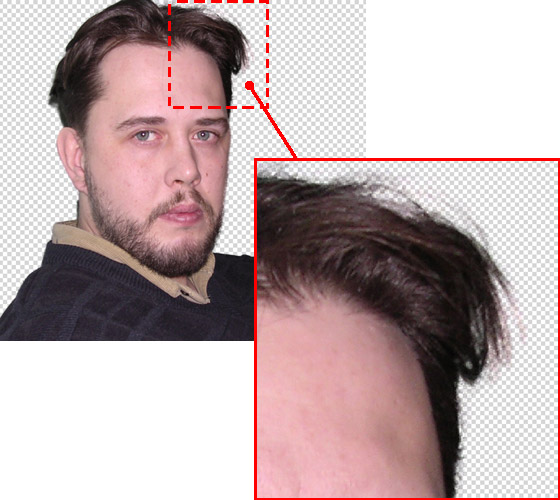
- Passaggio 5. Se si è soddisfatti del risultato ottenuto nella modalità Morbida, cliccare su
 per applicare i cambiamenti e tornare all’elaboratore fotografico. Se i risultati hanno bisogno di qualche ulteriore miglioria, passare alla scheda Complessa; in questa modalità si potrà ritoccare la selezione.

Risultato
| Suggerimento: | Il risultato della modalità Morbida lascia spesso molto a desiderare; è piuttosto una modalità preliminare prima dell’elaborazione manuale nella modalità Complessa. Nonostante tutto però, la modalità Morbida consente di risparmiare molto tempo diminuendo il lavoro manuale. |
SmartMask v. 12.0 - 10-giorni di prova gratuita

