Workspace
AKVIS SmartMask AI can be used as a standalone program or as a Photoshop compatible plugin.
Standalone is an independent program. You can run it in the usual way.
Plugin is an additional module for Photoshop and other compatible image editors. To call the plugin, select AKVIS –> SmartMask AI from the filters of your image editing program.
Attention! Before you call the plugin you must copy the image to a separate layer. Or just unlock the layer.
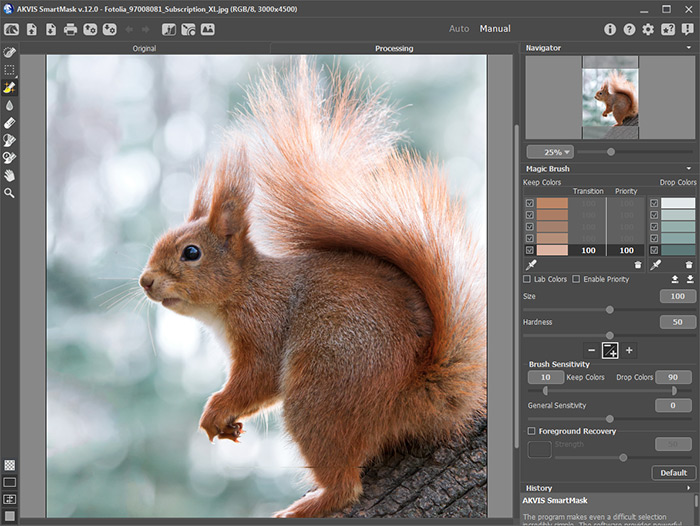
AKVIS SmartMask AI Workspace
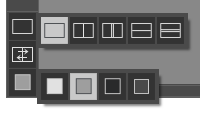
Most of the program's workspace is taken up by the Image Window with two tabs - Original and Processing. All operations are performed in the Processing tab. You can choose how these tabs will be shown by adjusting the Image View Modes.
In the upper part of the program's window you can see the Control Panel:
- The button
 opens the home page of AKVIS SmartMask AI.
- The button
 (only in the standalone version) opens an image for processing. The hotkeys for the command are Ctrl+O on Windows, ⌘+O on Mac. Right-click the button to display the list of recent files. You can change the number of the recent images in the program’s Preferences.
- The button
 (only in the standalone version) allows you to save an image. The hotkeys are Ctrl+S on Windows, ⌘+S on Mac.
- The button
 (only in the standalone version) opens the Print options. The hotkeys are Ctrl+P on Windows, ⌘+P on Mac.
- The button
 allows you to save a project into a file with the .akvis extension.
- The button
 allows you to load the saved project (the .akvis file).
- The button
 cancels the last operation made with the tools. It is possible to cancel several operations in a row. The hotkeys are Ctrl+Z on Windows, ⌘+Z on Mac.
- The button
 returns the last operation cancelled with . It is possible to return several operations in a row. The hotkeys are Ctrl+Y on Windows, ⌘+Y on Mac.
- The button
 calls the Select Subject feature which creates a precise selection of the most noticeable subject(s) in the image using a specially trained neural network.
- The button
 (only for Deluxe and Business licenses) calls the Chroma Key feature that allows you to quickly remove a monochromatic background.
- The button
 (only for Deluxe and Business licenses) calls the Refine Edges feature that allows you to quickly adjust the edges of selections or cut-out objects.
- The button
 (only in the standalone version) calls the Custom Background feature that lets you insert a cut-out fragment into a custom background.
- The button
 opens a list of actions that can be performed with the created selection: Remove Selected Areas, Remove Unselected Areas, Invert Selection, or Deselect.
- The button
 (only in the plugin) applies the result, closes the plugin’s window, and the selected object appears in the workspace of your photo editor.
- The button
 calls information about the program and opens the registration window.
- The button
 calls the Help files.
- The button
 calls the Preferences dialog box for changing the program’s options.
- The button
 opens the How-to panel with links to video tutorials and instructions.
- The button
 opens a window showing the latest news about SmartMask AI.
At the left side of the Image Window, there is the Toolbar. The tool’s parameters are shown in the Settings Panel (on the right) or in a pop-up box after right-clicking in the image window.
You can set up keyboard shortcuts ("hot keys") for all tools and actions in the Preferences.
At the bottom part of the left panel, you can switch between the Mask View Modes:
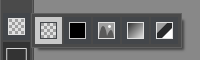
Below you can adjust the Image View Mode.
Navigate and scale the image using the Navigator. The frame in the Navigator surrounds the area of the image which is visible in the main window; the area outside of the frame will be shaded. The frame can be dragged, thereby changing the visible portion of the image. To move the frame, place the cursor within it, left-click the mouse, and then drag.
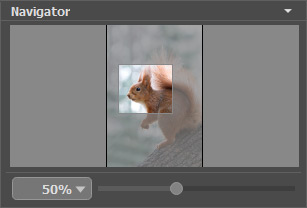
You can hide/show the Navigator by clicking on its title.
Use the slider to scale the image in the Image Window. When you move the slider to the right, the image scale increases. When you move the slider to the left, the image scale decreases.
To scroll the image in the Image Window you can press the spacebar on the keyboard and drag the image with the left mouse button. Use the scroll wheel of the mouse to move the image up/down, by keeping the Ctrl key pressed (Mac: ⌘) – to the left/to the right, by keeping the Alt key pressed (Mac: Option) − scale the image. Right-click the scroll bar to activate the quick navigation menu.
You can also change the image scale by entering a new coefficient into the scale field and pressing the button Enter (Return in Mac). The drop-down menu shows some frequently used coefficients.
You can also use hotkeys to zoom in and zoom out.
Under the Navigator, there is the Settings Panel with the parameters of the chosen mode and the tool’s options. The Default button recovers the default settings of the parameters.
Below, you’ll find the History panel (available only for the Deluxe and Business licenses), which shows the list of every change made to a file. By clicking on an item in the list, you can revert the file to a previous state.
Under the Settings Panel, you can see Hints for the parameters and buttons when you hover over them with the cursor. In Preferences , you can choose where the hints will be shown or hide this field.
SmartMask AI v. 15.1 - Free 10-day Trial
