Funny Fleas: Image Scaling
There is a notion of infinite regression in logic that describes a process of change that goes on and on and never stops. A graphic example for this phenomenon gives a funny verse about fleas ascribed to Scottish mathematician August de Morgan (19 century):
Great fleas have little fleas upon their backs to bite ‘em, |
This story tells us about an infinite increase (reduction) of the size of fleas living on each other. We will illustrate some of the stages of this process using AKVIS Magnifier AI, an image resizing program.
- Step 1. Launch the program AKVIS Magnifier AI.
- Step 2. Open the original image with a double click of the left mouse button on the Image Window. Activate the Autorun mode (see Preferences) for the program to process the image automatically, every time you change the settings.
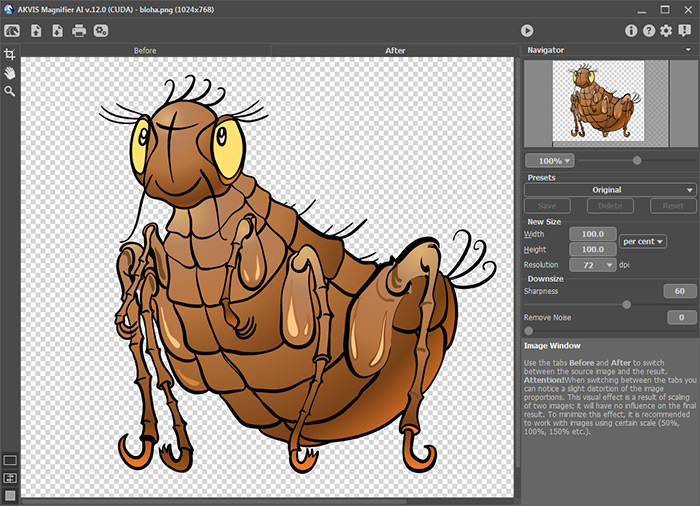
Original image - Step 3. Reduce the image twice. For this purpose set the new size into the New Size field: select per cent in the drop-down menu and enter 50 into the Width or into the Height field. To improve the image quality on the scales lower than 100% use the Sharpness parameter. In this case the original color range is restored with the default settings of parameter.
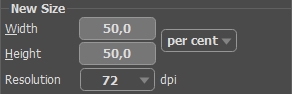
Reduce the image twiceSave the image as little-flea.jpg by clicking on
 and entering a name for the file into the Save as field. Before the image is saved, the whole image will be processed (like with a click on
  ).
).
- Step 4. Reduce the image by 4 times. Enter 25 into the Width or into the Height field.
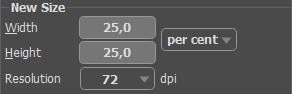
Reduce the image by 4 timesSave the result as little-little-flea.jpg.
- Step 5. Increase the original image twice: enter 200 into the Width or into the Height field.
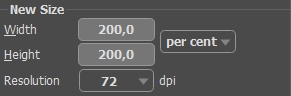
Increase the original image twiceSave the result as big-flea.jpg.
- Step 6. Increase the original image by 4 times: enter 400 into the Width or into the Height field.
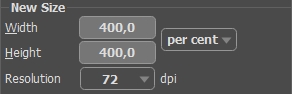
Increase the image by 4 timesSave the result as big-big-flea.jpg.
- Step 7. Close the program AKVIS Magnifier AI.
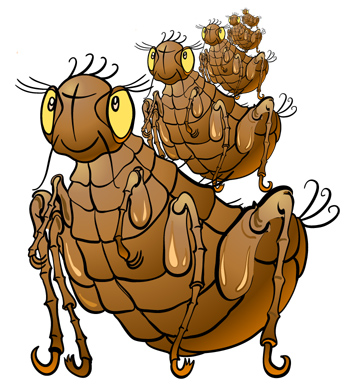
Fleas biting each other
Magnifier AI v. 12.3 - Free 10-day Trial
