Upstairs: Using Image Enlarger
The author of this tutorial is Gordon Sisson.
Mr. Sisson gladfully presents a story about a little man wishing to climb up the big spiral staircase. The tutorial demonstrates an enlargement application of the AKVIS Magnifier AI plug-in in PhotoShop.
Gordon Sisson found an interesting picture in his clip art file of an oil storage tank with a striking view of the stairs climbing around the side. The picture was 300 dpi but the focus was a bit soft and it was only 1.4 inches wide. The author wanted it to be eight inches wide. See below how he did it.
- Step 1. Open the original image in Adobe Photoshop (command File → Open). The picture lacks clarity.
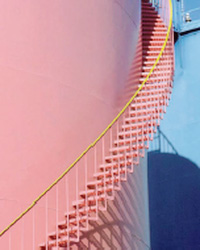
Source Image - Step 2. Call up AKVIS Refocus AI from the Filter menu. This plugin is a highly useful for scanned newspaper or magazine text or any type of photograph. The author created a focus preset that he called Magic which is set to provide moderate focus.
The result is a notable improvement in clarity.
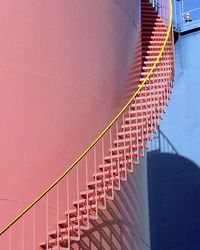
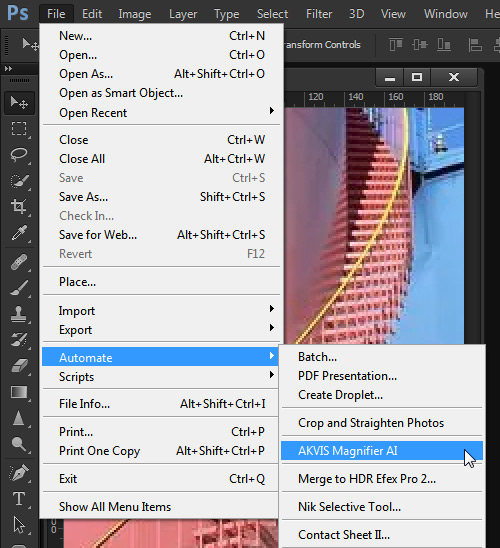
Photo after Focusing - Step 3. In the Photoshop File menu, find Automate and select AKVIS Magnifier AI to call up the image enlarger.
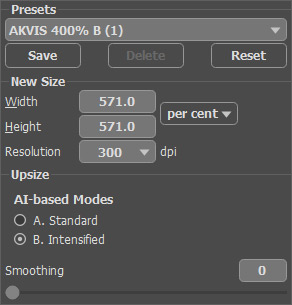
Call up AKVIS Magnifier AI - Step 4. To go from 1.4 inches to eight inches is a 571% enlargement which is set in the New Size window.
You can choose one of the presets, for example, AKVIS 400% B, and change the size settings.
AKVIS Magnifier AI Settings - Step 5. Press
 to run processing and press
  to apply the result. The result is an image enlargement of the original photograph — clear and sharp with fine resolution.
In the corner is the original with the proportionately-sized man (a technician) added and the enlarged photo shows the man from the original but not enlarged. This dramatizes the enlargement.
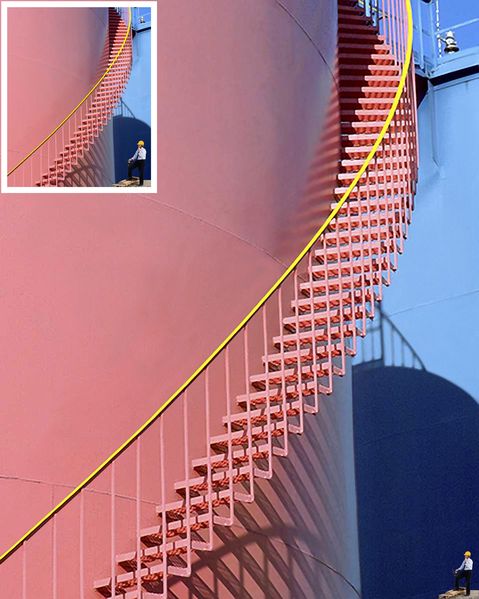
Original Image and Enlarged in Magnifier AI
Magnifier AI v. 13.0 - Free 10-day Trial
