Paparazzi: On the Hunt for the Latest Sensation
Keep your eyes peeled! Seize the moment! Find something sensational!
The paparazzi have waylaid an unsuspecting couple. As they close in all sides and flock to the stairs, they begin to shoot. As usual, their attention is drawn to the tidbits of the meeting. The next day, the newspaper's headline reads: "Billionare's Son Is Dating...", and adorning the front pages are close-ups of their rendezvous.


Quite often attention is not drawn to an entire image but to certain details. In such cases an image will be cropped to focus on these details. This technique is often used in photography to remove the unnecessary elements in the background, get a close-up, and thus draw attention to one detail.
As a rule, the image, post-crop, is smaller than the original. This leads to the problem of returning the image to its original size while maintaining image quality. This is where AKVIS Magnifier AI comes in.
- Step 1. Open the image in the AKVIS Magnifier AI image enlargement software. Here's a shot of the couple's hands made by the paparazzi:
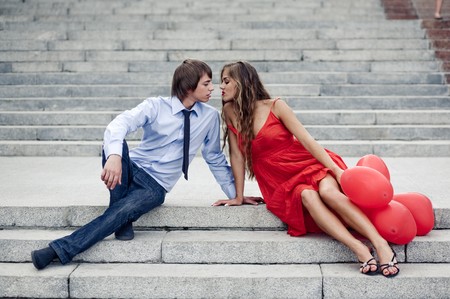
Original Image - Step 2. Use the Crop tool
 to select the desired fragment from the image. A true paparazzi would choose their kiss:
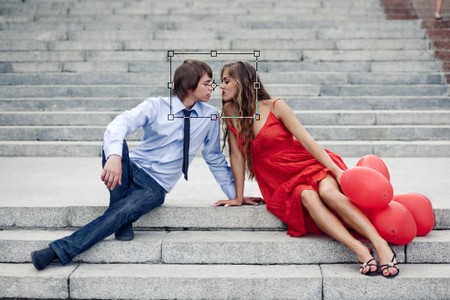
Cropping the Image - Step 3.
Select the unit of measurement in the Settings Panel and choose a size of the image with a resolution no less than 300 dpi. If you want to create a huge sensation, your image should be bigger.
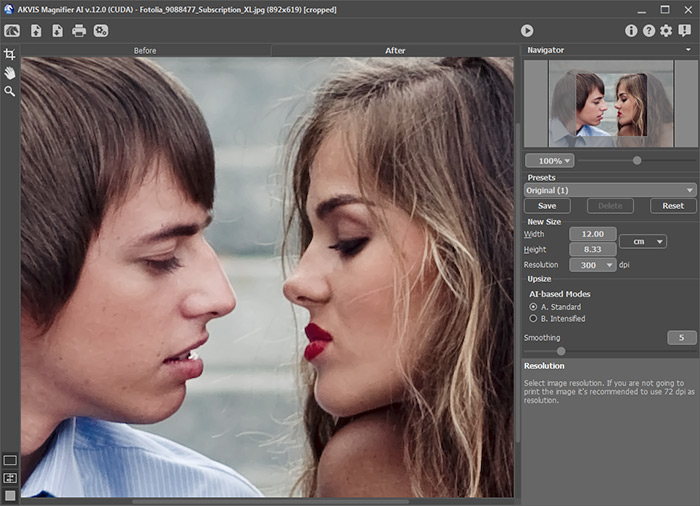
AKVIS Magnifier AI Workspace - Step 4. Process the image by pressing
 and save the result by pressing
  .
.

Paparazzi Photo
Enlarge your digital photos to print in high quality!
Magnifier AI v. 12.3 - Free 10-day Trial
