Upstairs: Image Enlargement
あいにく, このページは英語にだけ使用可能です。
The author of this tutorial is Gordon Sisson.
Mr. Sisson gladfully presents a story about a little man wishing to climb up the big spiral staircase. The tutorial demonstrates an enlargement application of AKVIS Magnifier plug-in version.
Gordon Sisson found an interesting picture in his clip art file of an oil storage tank with a striking view of the stairs climbing around the side. The picture was 300 dpi but the focus was a bit soft and it was only 1.4 inches wide. The author wanted it to be eight inches wide. See below how he did it.
- Step 1. Open the original photo in Adobe Photoshop (command File -> Open).
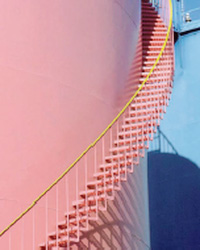
Source image - Step 2. Call up AKVIS Refocus from the Filter menu. This plugin is a highly useful for scanned newspaper or magazine text or any type of photograph. The five sliders provide an adjustment opportunity to provide the improved focus needed. The author created a focus preset that he called Magic which is set to provide moderate focus.
The result is a notable improvement in clarity.
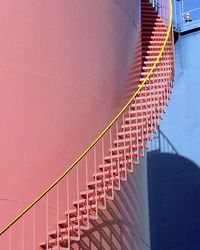
Photo after focusing - Step 3. In the Photoshop File menu, find Automate and select AKVIS Magnifier to call up the plug-in.
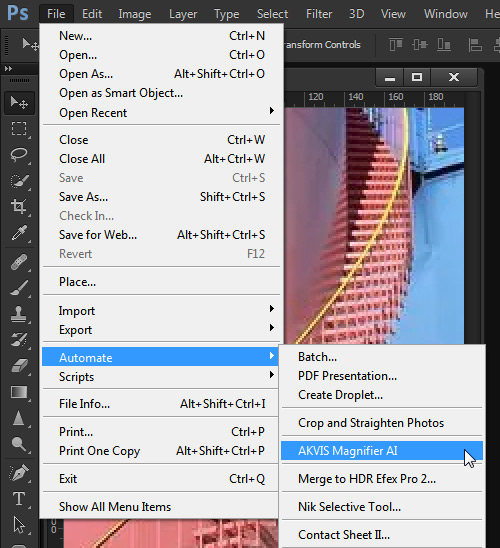
Call up AKVIS Magnifier - Step 4. To go from 1.4 inches to eight inches is a 571% enlargement which is set in the New Size window.
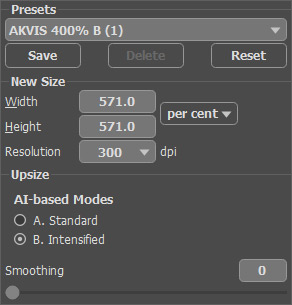
Workspace of AKVIS Magnifier - Step 5. Press
 to run the Magnifier plug-in and press
  to apply the result. The result is an enlargement of the original photograph — clear and sharp with fine resolution. In the corner is the original with the proportionately-sized man (a technician) added and the enlarged photo shows the man from the original but not enlarged. This dramatizes the enlargement.
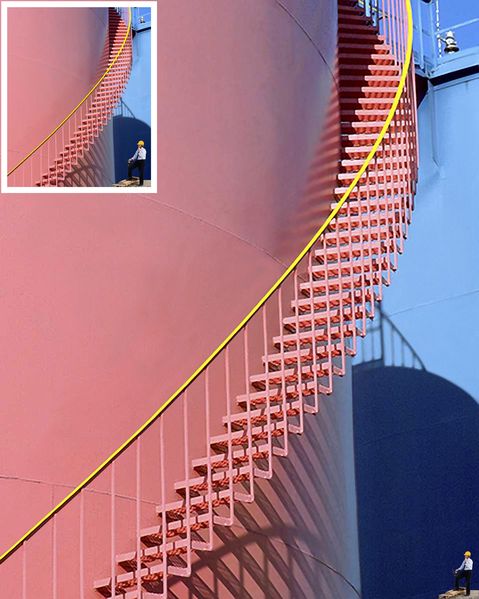
Source Image and Result
Magnifier AI v. 12.3 - 10日間の評価期間
