Escaleras altas
El ejemplo fue creado con el uso del algoritmo anterior de Magnifier.
El autor de este tutorial es Gordon Sisson.
El Sr. Sisson presenta la historia entretenida de un hombre pequeño que desea subir una escalera de caracol grande. El tutorial muestra una aplicación de ampliación de AKVIS Magnifier versión plugin.
Gordon Sisson encontró un cuadro interesante en sus archivos de imágenes prediseñadas, se trata de un tanque de almacenamiento de petróleo con una vista impresionante de las escaleras que suben por el costado.
La imagen es de 300 dpi, pero el foco estaba disperso y era de sólo 3,6 centímetros de ancho. El Autor quería que fuera de 20 centìmetro de ancho. Vea a continuación cómo lo hizo.
- Paso 1. Abra la foto original en Adobe Photoshop (comando Archivo -> Abrir).
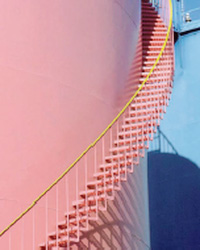
Imagen original - Paso 2. Abra AKVIS Refocus desde el menú Filtro. Este plugin es muy útil para el escaneado del texto de periódicos o revistas o cualquier tipo de fotografía.
Los cinco controles deslizantes proporcionan una oportunidad de ajuste para proporcionar el mejor enfoque necesario. El autor ha creado un enfoque pre configurado que llama Magic (Magia) y provee un enfoque moderado.
El resultado es una mejora notable en la claridad.
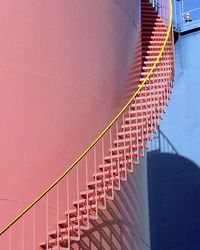
Foto después del enfoque - Paso 3. En el menú Archivo de Photoshop, busque Automatizar y seleccione AKVIS Magnifier para que aparezca el plugin.
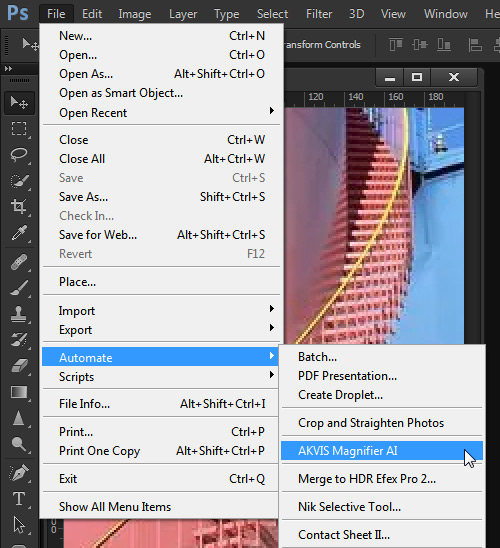
Abra AKVIS Magnifier - Paso 4. Para pasar de 3,6 centímetros a 20 centímetros es una ampliación de 571%. Se encuentra en la ventana de Nuevo tamaño.
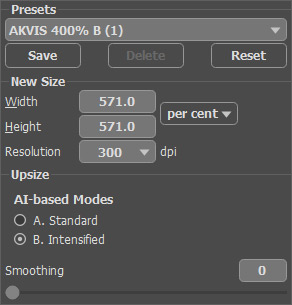
Área de trabajo de AKVIS Magnifier - Paso 5. Pulse
 para ejecutar la plugin Magnifier y presione
  para aplicar el resultado. El resultado es una ampliación de la fotografía original - clara y nítida con una resolución fina. En la esquina se ve el original con un hombre en tamaño proporcionado (un técnico) que se añade y la foto a la izquierda muestra al hombre original, sin ampliación. Esto dramatiza la ampliación.
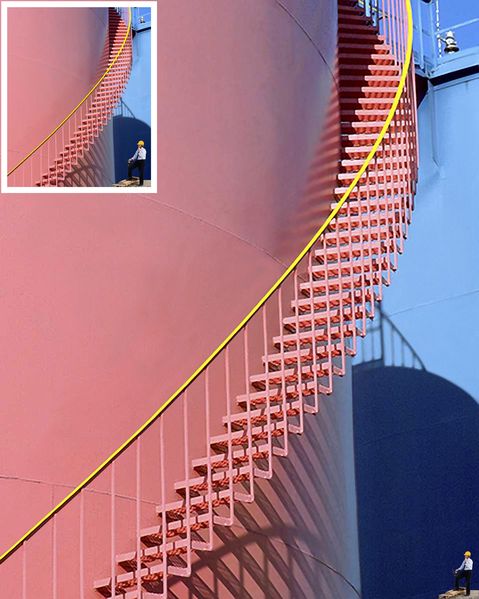
Imagen original y resultado final
Magnifier AI v. 13.0 - Prueba gratuita de 10 días
