Pulgarcito: El aumento de la resolución fotográfica
El ejemplo fue creado con el uso del algoritmo anterior de Magnifier.
El autor del tutorial es Gordon Sisson.
Gordon Sisson nos muestra un nuevo aspecto del uso de AKVIS Magnifier - a saber, la capacidad no sólo de cambiar las dimensiones de las imágenes, sino también de mejorar su calidad. En palabras del autor, con frecuencia tiene que aumentar la resolución de los gráficos importados de Internet o de una colección de imágenes prediseñadas. Estos gráficos son de 72 dpi, la cual no es aceptable para llevar a cabo una impresión. Por lo tanto, se debe aumentar la resolución a 300 dpi.
Para comparar la rapidez y calidad de Adobe Photoshop con las de AKVIS Magnifier, Gordon Sisson decidió ampliar la fotografía de un pequeño niño. Como todos saben, aumentar el tamaño de un niño es un proceso muy complicado. ¡La imagen original tiene tan solo 2,38 pulgadas de altura! El autor afirma que esta tarea, la de ampliar la imagen, se puede llevar a cabo en un par de minutos.
He aquí la magia de AKVIS Magnifier:
- Paso 1. Abra el AKVIS Magnifier, y luego abra la imagen .tif (arrástrela hacia la ventana del programa Magnifier).
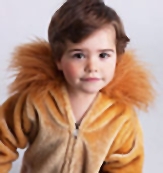
Fotografía original (niño pequeño) - Paso 2. Aumente la Resolución a 300 dpi. Esto reducirá el tamaño a 0,57 pulgadas de altura.
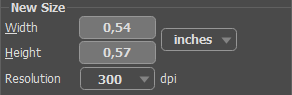
Cambio de resolución de 72 dpi a 300 dpiEn el panel Nuevo tamaño, especifique el tamaño que Usted desee (como porcentaje de la reducción del tamaño del gráfico original - en este ejemplo, 750%).
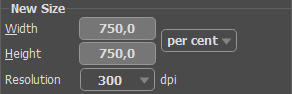
Nuevo tamaño - Paso 3. Tenga en cuenta los Parámetros para mejorar la calidad final del gráfico. Para conseguir la mejor calidad, es probable que sea necesario experimentar con los ajustes de deslizantes. En este nivel de ampliación, el sistema le proporcionará una configuración óptima para la opción Enfocar bordes. La Simplicidad se reducirá a cero, el parámetro de Suavizar bordes no cambiará, y la caja de diálogo Máscara de enfoque se activará con los parámetros Cantidad = 10 y Radio = 1,0.
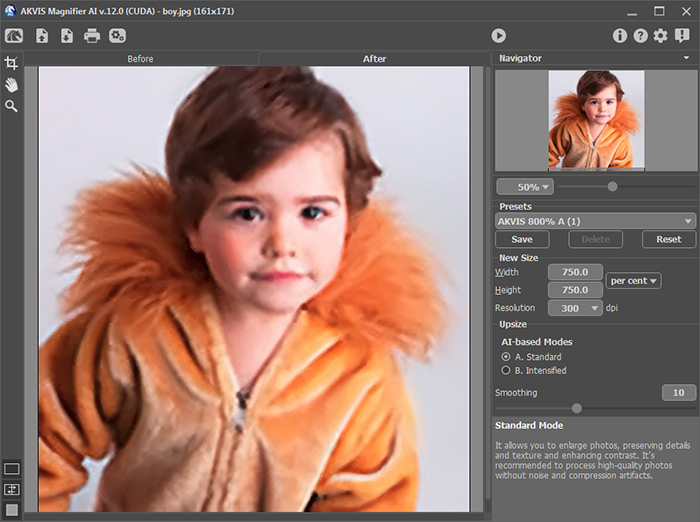
Ventana del programa AKVIS Magnifier - Paso 4. Haga clic en botón
 para procesar la imagen con la configuración establecida. Ahora la altura de la imagen es de 4,28 pulgadas - el niño es el doble de alto y la resolución de la imagen se ha cuadruplicado.
Guarde la imagen final. Ahora se la puede imprimir.
Este método da como resultado un gráfico de mayor calidad, a diferencia del que se puede obtener con el laborioso procedimiento en Photoshop, aproximadamente en una quinta parte del tiempo. Se puede aplicar este procedimiento a otras imágenes.
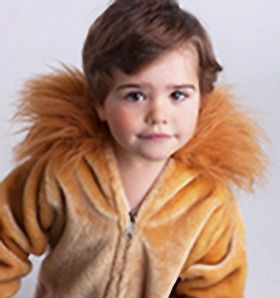
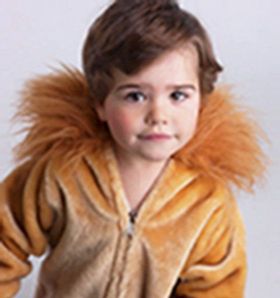
Resultado de AKVIS Magnifier La misma foto ampliada en Photoshop
Magnifier AI v. 12.3 - Prueba gratuita de 10 días
