Graphic software for Windows Mac graphic software  
Please enter your email to be kept posted on updates and discounts:
 
  
  Products     Download     Online Store     Tutorial     Support     About Company
en  fr  de  es  pt  it  jp  ru    
 

Tutorial: AKVIS LightShop

Blob


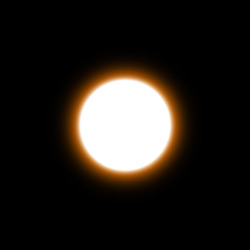
Blob is a ball-shaped light effect. The Blob element has the following parameters: Color, Size, Softness and Opacity.

Preview of the element Blob

The Color of the Blob is set on a gradient line that has two white sliders initially. The left slider represents the color in the center of the element, the right slider - the edge color, with soft transitions between them.

To change a slider color you should double-click on it with the left mouse button and choose a color from the Standard color selection dialog box. You can add an infinite number of intermediate sliders and set a color to each of them

Color selection

When setting a color to the element, take into account that the darker is the color, the quicker it will fade. It means that for two Blob elements of the same Size, the darker one will appear smaller than the one with a brighter color.

On the two pictures below we have Size=100% in both cases. However, dark blue fades quicker than light blue; and the visible size of the two Blobs is different.
Size = 100%, dark blue color Size = 100%, light blue color
Size = 100%,
dark blue color
Size = 100%,
light blue color

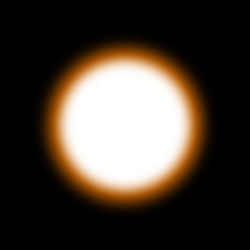
The Size parameter sets the size of the Blob element as a percentage of the minimal image size, so that the element applied to the image at 100% Size would fit in.
Size = 50% Size = 90%

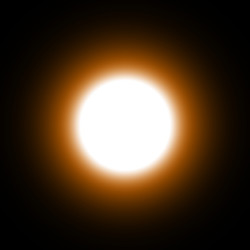
The visible size of the element depends on the softness of the edges (Softness parameter). Softer edges fade quicker, therefore the higher is the Softness parameter value, the smaller is the visible size of the element.


The Softness parameter regulates the softness of the element's edges. The higher is the Softness value, the softer are the edges. A Blob element with Softness set to zero has sharp edges.
Softness = 20% Softness = 85%

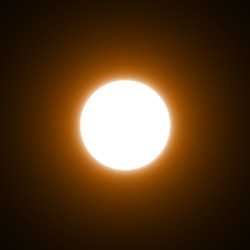
The Opacity parameter sets the opacity level of the light effect. The default value of the parameter is 100% that corresponds to a solid Blob element. The less is the parameter value the more transparent is the element. With Opacity =0% the element is completely transparent.
Opacity = 50% Opacity = 100%

 
How It Works How It Works
   — Workspace — Workspace
   — Applying a Light Effect — Applying a Light Effect
   — Editing Light Effects — Editing Light Effects
   — Creating new light effects — Creating new light effects
   — Common parameters — Common parameters
   — Options — Options
Elements and Their Parameters Elements and Their Parameters
   — Blob — Blob
   — Ring — Ring
   — Rays — Rays
   — Stripe — Stripe
   — Particles — Particles
   — SpikeBall — SpikeBall
   — PolySpikeBall — PolySpikeBall
   — PhotonSpikeBall — PhotonSpikeBall
Modifiers Modifiers
   — Scale — Scale
   — Rotate — Rotate
   — Move — Move
   — Flower — Flower
   — Star — Star
   — Whirlpool — Whirlpool
   — MaskSector — MaskSector
   — Fractal — Fractal
   — Inferno — Inferno
Examples Examples
   — Thunder and Lightning — Thunder and Lightning
   — Firework over the City — Firework over the City
   — Rooster constellation — Rooster constellation
   — Fantastic cocktail — Fantastic cocktail
   — Snow Bursts (Greeting Card) — Snow Bursts (Greeting Card)
   — A fire in a castle — A fire in a castle


   Privacy Policy | Site Map | Search | English  | Français  | Deutsch  | Español  | Português  | Italiano  | 日本語  | Pусский  | © 2004-2008, AKVIS Software Inc. All rights reserved.