Fogos de artifício sobre a cidade
Vamos imaginar uma cidade em uma noite normal de inverno. Todo mundo está ocupado com sua própria vida. Mas não é a data que une todos os habitantes. Nesta noite festiva, podemos ver não só as estrelas no céu da noite da cidade, mas também as luzes coloridas de fogos de artifício.
Com AKVIS LightShop podemos transformar qualquer foto comum em um cartão festivo.
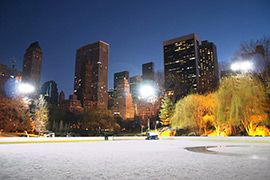
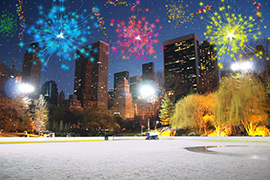
(clique para ampliar)
-
Passo 1. Em AKVIS LightShop, no modo Avançado, mude para o painel de Elementos e criar um novo efeito de luz usando as Partículas e elementos Estrela de raios.
Você pode baixar o efeito, zip aberto e importar o arquivo XML para o programa (usando
 no painel Effect) ou criar seu próprio efeito.
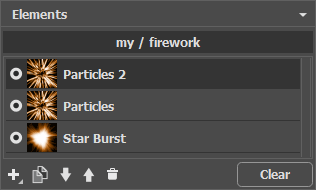
Ajuste os parâmetros de cada elemento do painel Propriedades do elemento, em seguida, as configurações do efeito inteiro no painel de parâmetros do efeito, para obter algo como isto:
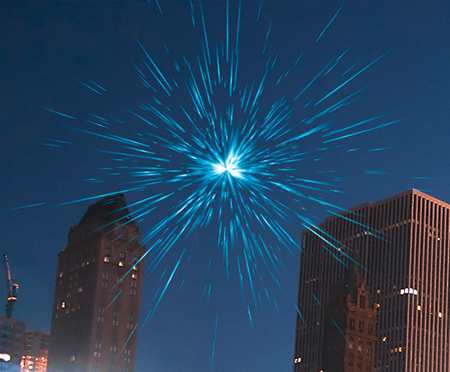
-
Passo 2. Escolha a Pincel de estrelas
 e ajustar as suas opções como mostrado abaixo.
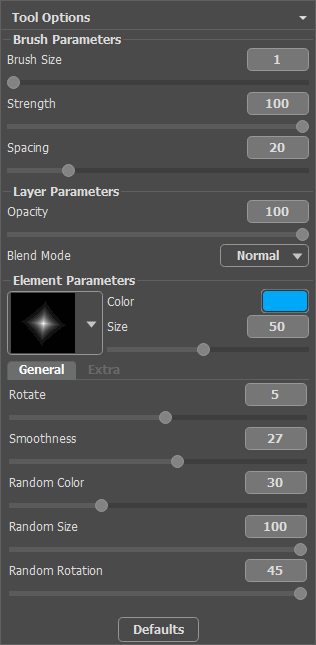
Usando o pincel adicionar estrelas para a imagem. Você pode desenhar estrelas nas pontas das partículas ou de forma aleatória, onde quiser, para obter o flash fogos de artifício no céu.
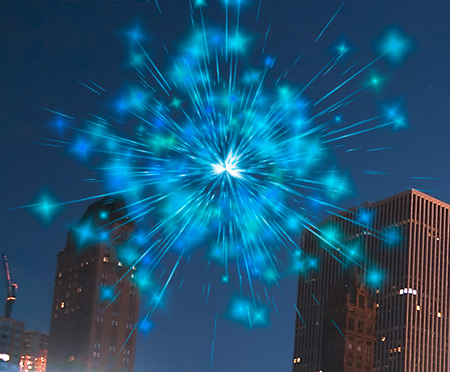
Salve o resultado
 . Você verá a mensagem: "Use o resultado como uma imagem de origem?" Clique em Sim para continuar a trabalhar.
-
Passo 3. Repita os passos 1-2 para adicionar mais efeitos de luz para várias partes da imagem. Alterar o tamanho ea posição do efeito usando a ferramenta Transformar
 . Escolha outra cor nos Parâmetros do efeito.
Para cada efeito que você pode substituir o elemento central (Estrela de raios) com qualquer outro elemento, por exemplo, Feixes de luz ou Raios.
Hint:
Você pode salvar qualquer efeito como uma predefinição, para usá-lo no futuro, clicando
 no painel Efeitos.
Note que apenas os efeitos de luz podem ser salvos em arquivos XML, e não estrelas criadas com o pincel!
-
Passo 4. Desenhe serpentinas multicolor com pequenas estrelas no céu. Use as seguintes configurações para a Pincel de estrelas :
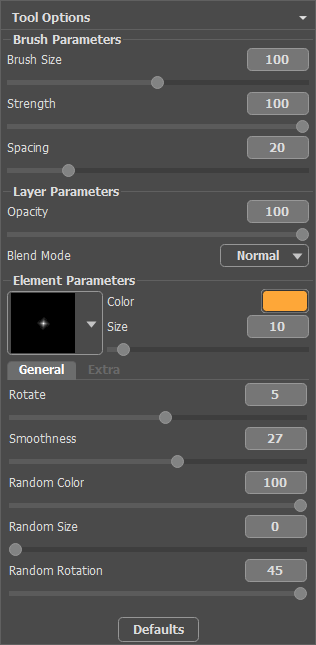
Desenhar com a escova de algumas linhas curvas em várias partes da imagem. Aumentar o Tamanho da estrelas e adicionar novas linhas ao longo dos antigos, mas mais curto quase 1/3.
Agora temos algo como isto:
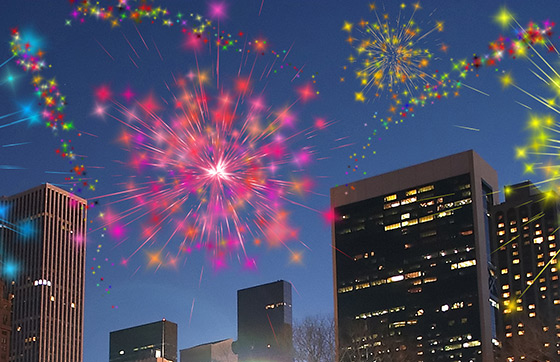
Se algumas partes do céu ainda parecem vazias, você pode adicionar mais estrelas coloridas de tamanhos diferentes.
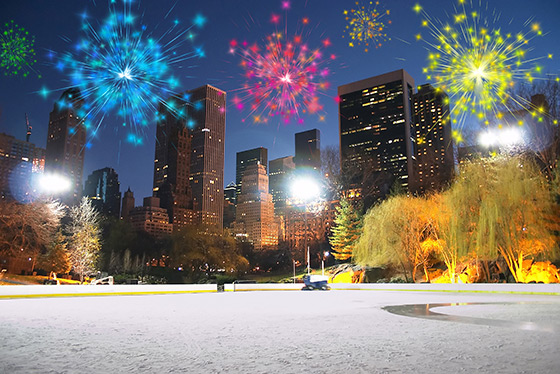
Como resultado, temos essa cidade festiva noite:
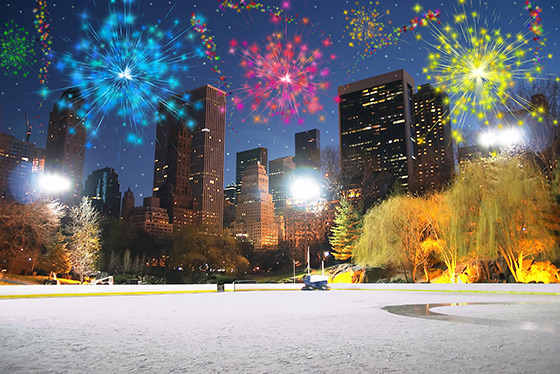
Fogos de artifício no céu noturno
(Clique na imagem para abrir em tamanho grande)

LightShop v. 8.1 - Teste gratuito 10 dias
