Flaming Text
AKVIS NatureArt can be used not only for adding nature effects to photos.
We will show in this tutorial how to use AKVIS NatureArt plugin in AliveColors to create a flaming text effect.
- Step 1. Create a new image in the graphics editor.

- Step 2. Add text to the image using a suitable font and adding some effects. Align the text in the center of the image and duplicate the layer.
Note: It's better to create text on a transparent layer. Rasterize the layer before launching the plugin.

- Step 3. Select the upper layer and make selection

Create a Layer Mask
 :
:
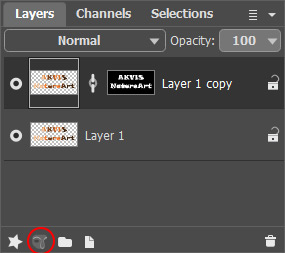
Layer Mask - Step 4. Call the AKVIS NatureArt plugin: Effects -> AKVIS -> NatureArt.
Choose the Fire effect and select the effect area using the Selection Brush
 . For this effect we can define only the origins from where the flame will appear.

Adjust the parameters of the effect and start image processing with
 .
.
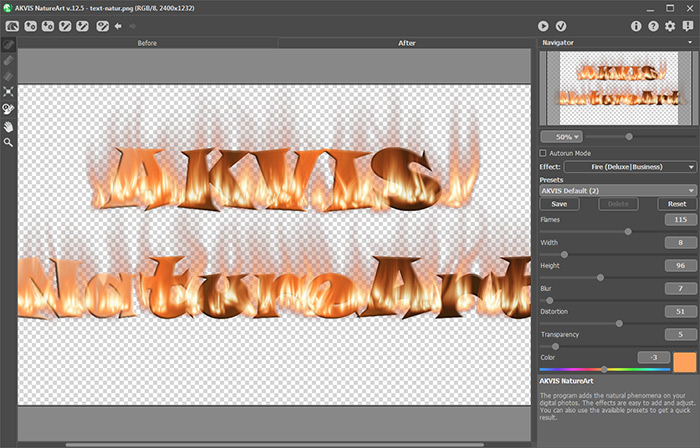
Press
 to accept the result and close the plug-in's window.
You will see the result in the upper layer. The flame does not extend beyond the letters.
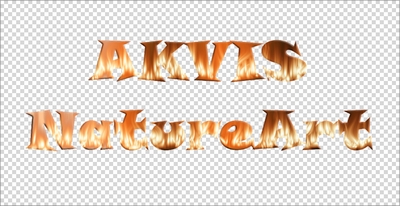
Upper Layer - Step 5. If you want to get the flame effect on all sides of the letters, process the bottom layer as well: once again call the NatureArt plugin, select the effect area, and apply the result.

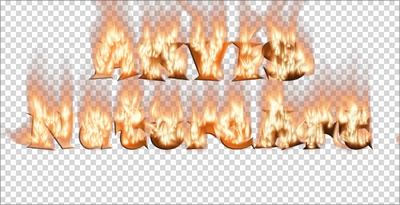
Lower Layer - Step 6. Merge the layers.

Result

Original Text

Flaming Text
NatureArt v. 12.7 - 10日間の評価期間
