Schizzo a matita: autoritratto
Il tutorial è stato creato da Alexander V. Sidorenko con Adobe Photoshop.
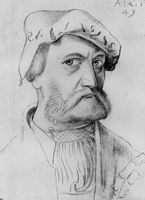
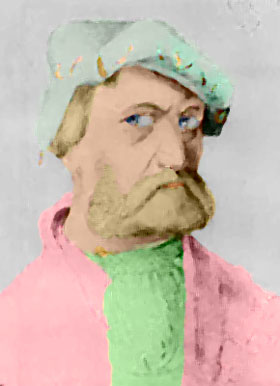
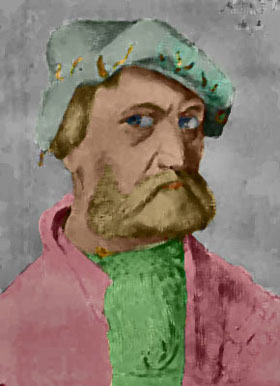
Alexander ha usato AKVIS Coloriage AI per colorare un autoritratto dell'artista tedesco Hans Baldung, dipinto nel 1534 all'età di 49 anni.
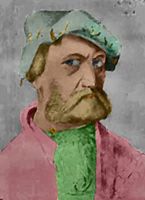
Alexander Sidorenko ha scritto:
"Io ammiro i dipinti degli artisti medievali ed ho una collezione di questi capolavori. Ho letto il Una ragazza “anime” aed ha deciso di applicare la stessa tecnica ai capolavori antichi. Non sono un artista e forse i colori scelti potrebbero essere non del tutto appropriati ma accettate tutto così com’è e giudicate voi stessi."
-
Passaggio 1. Aprire il disegno a matita in un editor di foto.
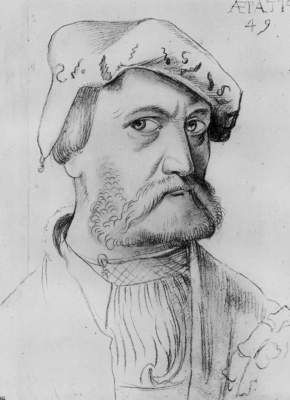
- Passaggio 2. Lanciare il plugin AKVIS Coloriage AI selezionando Filtro -> AKVIS -> Coloriage AI.
-
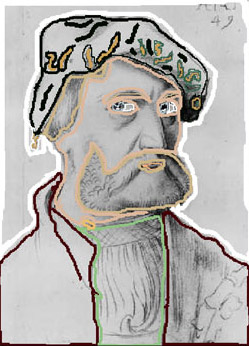
Passaggio 3. Usare lo strumento Matita
 per assegnare un colore ad ogni oggetto disegnando il profilo interno. Consultare il tutorial Come usare il programma per imparare a disegnare i tratti in modo corretto.
-
Passaggio 4. Premere su
 anper osservare la foto colorata nella scheda Dopo.
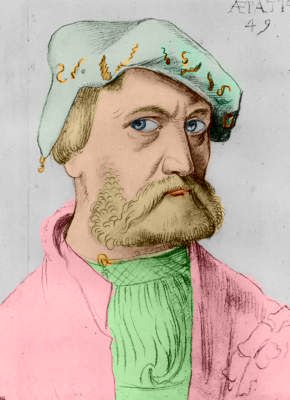
-
Passaggio 5. Premere su
 per applicare il risultato e chiudere il plugin.
-
Passaggio 6. Ora abbiamo un ritratto colorato, ma è possibile continuare a modificare la foto a piacimento. Alexander ha deciso di imitare la pittura a olio ed ha applicato il filtro Artistico – Effetto pennellate (Photoshop) con le seguenti impostazioni: Molto sfocato, Dimensione pennello = 3 e contrasto = 1. Poi ha scurito la foto con il comando Luci/Ombre.
In alternativa, è possibile aggiungere un effetto pittura ad olio utilizzando AKVIS ArtWork, disponibile come plugin e programma standalone, che offre diverse tecniche di pittura.
Coloriage AI v. 15.7 - 10-giorni di prova gratuita
