Arbeitsbereich
AKVIS LightShop steht in zwei Versionen zur Verfügung - als eigenständiges Programm (Standalone) und als Zusatzprogramm (Plugin).
Standalone ist ein unabhängiges Programm. Doppelklicken Sie auf das Symbol des Programms, um es zu öffnen.
Plugin ist ein Zusatzmodul zur Integration in ein Bildbearbeitungsprogramm, z.B. in Photoshop. Um das Plugin aufzurufen, wählen Sie AKVIS –> LightShop in den Filtern Ihres Bildbearbeitungsprogramms aus.
Die Ansicht des Arbeitsbereichs hängt von dem Modus ab, der in der Optionsleiste gewählt wird: Express oder Erweitert.
Im Express-Modus ist der Arbeitsbereich extrem vereinfacht. Es werden nur die wichtigsten Parameter angezeigt, die man braucht, um schnell ein gutes Ergebnis zu erzielen.
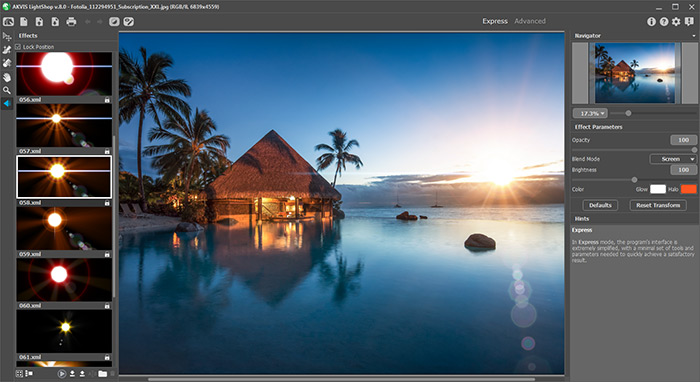
Arbeitsbereich von AKVIS LightShop (Express)
Im Erweitert-Modus wird die ganze Funktionalität des Programms angeboten. Es ist möglich, die frei positionierbaren Leisten zu verschieben und dadurch den Arbeitsbereich anzupassen.
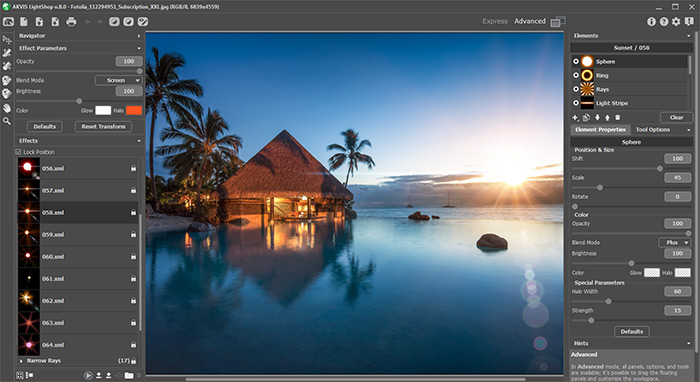
Arbeitsbereich von AKVIS LightShop (Erweitert)
Das Bildfenster mit den Registern Original und Ergebnis nimmt den größeren Teil des Programmfensters ein. Über dem Bildfenster befindet sich die Optionsleiste mit folgenden Schaltflächen:
- Die Schaltfläche
 öffnet die Webseite von AKVIS LightShop.
- Mit der Schaltfläche
 (nur in der Standalone-Version) erstellt man eine neue Datei (Bild). Der Hotkey ist Strg+N auf Windows, ⌘+N auf Mac.
- Mit der Schaltfläche
 (nur in der Standalone-Version) öffnet man eine Bilddatei. Der Hotkey ist Strg+O auf Windows, ⌘+O auf Mac.
Mit einem Rechtsklick werden die zuletzt geöffneten Dateien nach Zeit sortiert angezeigt. Die Anzahl der Einträge kann in den Optionen verändert werden. - Mit der Schaltfläche
 (nur in der Standalone-Version) speichert man das bearbeitete Bild. Der Hotkey ist Strg+S auf Windows, ⌘+S auf Mac.
- Mit der Schaltfläche
 (nur in der Standalone-Version) kann man das bearbeitete Bild drucken. Der Hotkey ist Strg+P auf Windows, ⌘+P auf Mac.
- Die Schaltfläche
 annulliert die letzte Operation, die mit den Werkzeugen durchgeführt wurde. Es ist möglich, mehrere Änderungen nacheinander rückgängig zu machen. Der Kurzbefehl ist Strg+Z auf Windows, ⌘+Z auf Mac.
- Mit der Schaltfläche
 lässt sich die annullierte Änderung wiederholen. Es ist möglich, mehrere Vorgänge nacheinander zu wiederholen. Der Kurzbefehl ist Strg+Y auf Windows, ⌘+Y auf Mac.
- Mit der Schaltfläche
 kann man das Hintergrundbild ein-/ausblenden. Wenn das Hintergrundbild unsichtbar ist, wird der Effekt auf dem transparenten Hintergrund angezeigt.
- Mit der Schaltfläche
 (in dem Erweiterten Modus) kann man den Schutzbereich ein-/ausblenden, in dem der Lichteffekt keine Wirkung haben soll.
- Mit der Schaltfläche
 /
/  können Sie den Lichteffekt ein-/ausblenden, um das Originalbild mit dem Ergebnis zu vergleichen.
- Die Schaltfläche
 ruft das Menü auf, das erlaubt es, den Arbeitsbereich sowie die Liste der gespeicherten Arbeitsbereiche einzustellen. Sie können Ihren Arbeitsbereich anpassen und anordnen, indem Sie die Bedienfelder verschieben und ihre Größe verändern. Angepasste Arbeitsbereiche lassen sich mit folgenden Menübefehlen umgehen:
Zurücksetzen - Anordnung des Arbeitsbereichs zum Zeitpunkt des Programmstartes wiederherstellen
Standard - Standard-Arbeitsbereich wiederherstellen
Speichern - den angepassten Arbeitsbereich speichern
Löschen - den ausgewählten Arbeitsbereich entfernen
- Mit der Schaltfläche
 (nur in der Plugin-Version) wird das Korrekturergebnis angewendet und das Fenster von AKVIS LightShop wird geschlossen.
- Die Schaltfläche
 ruft Informationen über das Programm und das Aktivierungsfenster auf.
- Die Schaltfläche
 ruft die Hilfe auf. Der Hotkey ist F1.
- Die Schaltfläche
 ruft das Dialogfenster Optionen auf.
- Die Schaltfläche
 öffnet ein Fenster mit den neuesten Nachrichten über LightShop.
In dem Programm sind mehrere Bedienfelder mit verschiedenen Funktionen zu finden: Navigator, Werkzeugpalette, Effekte, Effektparameter, Elemente, Elementparameter, Werkzeugparameter und Hinweise. In dem Erweiterten Modus lassen sich alle Bedienfelder beliebig anordnen, mit anderen Bedienfelder zusammenfassen, skalieren sowie ein- bzw. ausblenden.
Um das Bild zu skalieren, verwenden Sie das Navigator-Fenster. Dieses Fenster zeigt eine verkleinerte Kopie des Bildes. Der rote Rahmen widerspiegelt den Bereich des Bildes, der im Bildfenster angezeigt wird; andere Teile des Bildes werden verschattet. Wenn Sie den roten Rahmen über das Navigator-Fenster verschieben, ändert sich der sichtbare Bereich. Um den Rahmen zu verschieben, bringen Sie den Cursor in den Rahmen hinein, drücken Sie die linke Maustaste und ziehen Sie den Rahmen bei gedrückter Maustaste.
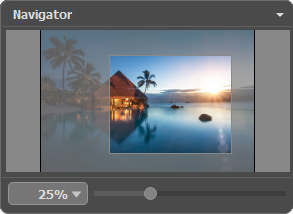
Navigator
Außerdem ist es möglich, das Bild im Bildfenster zu scrollen, indem Sie die Leertaste auf der Tastatur drücken und das Bild mit der linken Maustaste ziehen. Benutzen Sie das Mausrad, um das Bild nach oben bzw. nach unten zu verschieben; wenn die Strg-Taste auf Windows, ⌘ auf Mac gedrückt wird, wird das Bild nach links oder nach rechts verschoben; wenn die Alt-Taste auf Windows, Option auf Mac gedrückt wird, kann man das Bild skalieren. Mit einem Rechtsklick auf die Bildlaufleiste wird das Menü Schnellnavigation geöffnet.
Verwenden Sie den Schieberegler, um das Bild im Bildfenster zu skalieren. Wenn Sie den Schieberegler nach rechts bewegen, wird der Bildmaßstab vergrößert. Wenn Sie ihn nach links verschieben, verringert sich der Bildmaßstab.
Sie können den Abbildungsmaßstab auch ändern, indem Sie einen neuen Koeffizienten in das Maßstabsfeld eingeben und die Eingabetaste (Return auf Mac) drücken. Die häufig verwendeten Werte sind im Aufklapp-Menü zu finden.
Auch mit den Tasten + und Strg++ auf Windows, ⌘++ auf Mac können Sie die Skalierung erhöhen und mit - und Strg+- auf Windows, ⌘+- auf Mac die Skalierung verringern.
Unter der Einstellungsleiste werden die Hinweise für die Parameter und Schaltflächen angezeigt, über denen der Cursor schwebt.
LightShop v. 8.1 - 10-Tage-Testversion
