Trabalhando com o programa V.1-3
Siga esta instrução para recortar um objeto usando SmartMask:
Nota: Estas instruções foram escritas para a versão anterior do SmartMask.
Veja o tutorial para a versão atual aqui.
- Passo 1. Abra uma imagem no seu editor de foto.
- Passo 2. Copie a imagem para uma nova camada.
-
Passo 3. Chame o plugin AKVIS SmartMask.
Para este propósito selecione o comando Filtro -> AKVIS -> SmartMask no Adobe Photoshop,
no Corel Paint Shop Pro Photo do Menu será o item Efeitos -> Plugins -> AKVIS -> SmartMask;
no Corel Photo-Paint chame o comando Efeitos -> AKVIS -> SmartMask.O plugin abrirá a imagem copiada dentro da área de trabalho.
-
Passo 4. Dependendo do tipo das bordas do objeto, você pode escolher entre três modos de procedimento (Nítido, Suave e Complexo) clicando na guia correspondente no Painel de Ajuste. Por padrão o plugin usa o modo Nítido.
-
Modo Nítido. Este modo se adapta a imagens com excelente nível de contraste e para objetos com bordas nítidas (edifícios, roupas e máquinas).
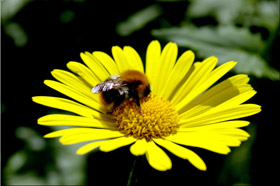
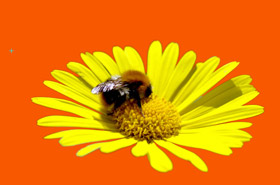
-
Modo Suave. Este modo é bom para selecionar objetos com bordas não claramente definidas (cabelo, penugem e pelo).
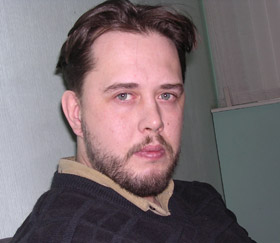
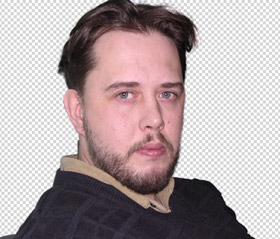
-
Modo Complexo. Este modo é especialmente bom para selecionar objetos complexos - transparente ou objetos de vidro, objetos que tem o mesmo tom de cor igual ao do fundo (arvores, louça, bolhas de sabão...)
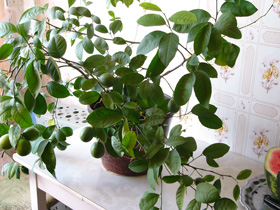
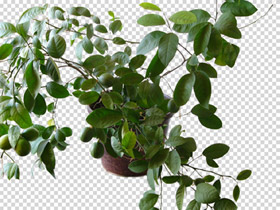
Dica: Para algumas imagens é suficiente usar só um dos modos, para outras pode ser necesário usar os três modos.
Atenção!
O trabalho pode ser começado com qualquer um destes três modos, mas para obter um bom resultado é conveniente trabalhar consequentemente (por exemplo, se começar trabalhando no modo Complexo e então tentar mudar para uma das guias anteriores, as mudanças serão canceladas e a imagem será processada com o ajuste da guia corrente).
-
- Passo 5. Recorte o objeto requerido de acordo com a as instruções do modo escolhido.
-
Passo 6. Antes de aplicar o resultado e fechar o plugin a máscara pode ser salva (os desenhos traçados, áreas coloridas, e os ajustes) dentro de um arquivo separado. Para este propósito, clique no botão
 . No futuro você estará apto a copiar a máscara do arquivo (com o botão
  ) e editá-la.
-
Passo 7. Clique no botão
 para aplicar o resultado e fechar o plugin. O objeto selecionado aparecerá na área de trabalho do seu editor de foto.
SmartMask v. 12.0 - Teste gratuito 10 dias

