Working with the Plugin V.1-3
Follow these instructions to cut out an object using AKVIS SmartMask v.1.0-3.0:
Note: These instructions were written for the old version of SmartMask. See the tutorial for current version here.
- Step 1. Open an image in your photo editor.
- Step 2. Copy the image to a new layer (Duplicate Layer). Or just unlock the layer (Layer From Background).
- Step 3. Call AKVIS SmartMask plugin. For this purpose select the command Filter -> AKVIS -> SmartMask in Adobe Photoshop ; in Corel Paint Shop Pro Photo it will be the menu item Effects -> Plugins -> AKVIS > SmartMask; in Corel Photo-Paint call the command Effects -> AKVIS -> SmartMask. The plugin will open with the image loaded into the workspace.
- Step 4. Depending on the kind of edges the object has, you can choose
between three processing modes (Sharp, Soft and Complex)
by clicking on the corresponding tab in the Settings Panel.
By default the plugin uses the Sharp mode.
-
Sharp mode. This mode is ideal for images with a good contrast level and for objects with sharp edges (buildings, clothes, machines...).
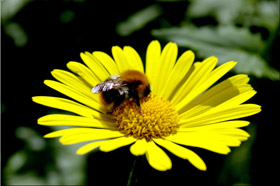
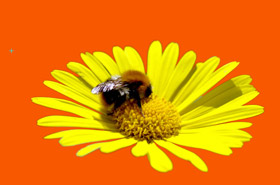
-
Soft mode. This mode is good for selecting objects with not clearly defined edges (hair, fluff, fur...).
-
Complex mode. This mode is especially good for selecting complex objects - transparent or glass objects, objects that have the same color range as the background (trees, dishware, soap bubble...)
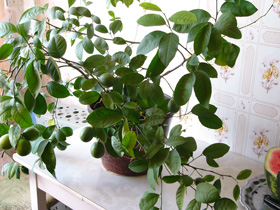
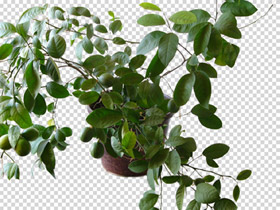

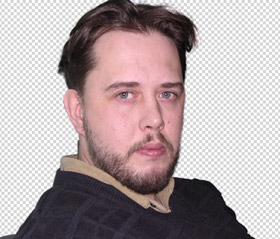
Hint: For some images it is enough to use only one mode, for others you may need to use all three modes.
Attention!
You can start working in any of these three modes, but to achieve a good result it is advisable to work sequentially (for example, if you start working in the Complex mode and then try to switch to one of the preceding tabs, the changes will be cancelled and the image will be processed with the settings of the current tab).
-
- Step 5. Cut out the required object in accordance with the instructions for the chosen mode.
- Step 6. Before you apply the result and close the plugin, you can
save the mask (the drawn strokes, color areas, and the settings) into a separate
file. For this purpose, just click on
 .
In the future you will be able to load the mask from the file (with the button
.
In the future you will be able to load the mask from the file (with the button
 ) and edit it.
- Step 7. Click
 to apply the result and close the plugin. The selected object will appear in the workspace of your photo editor.
SmartMask v. 12.0 - Free 10-day Trial

