Lavorare con il plugin V.1-3
Seguire queste istruzioni per ritagliare un oggetto usando il plugin SmartMask:
Nota: Queste istruzioni sono state create per le versioni precedenti (v.1-3) di SmartMask.
Leggere il tutorial per la versione attuale qui.
- Passaggio 1. Aprire un’immagine nell'elaboratore fotografico.
- Passaggio 2. Copiare l’immagine in un nuovo livello (Duplica livello).
-
Passaggio 3. Lanciare il plugin AKVIS SmartMask.
Per questo scopo:
in Adobe Photoshop e Photoshop Elements selezionare Filtro -> AKVIS -> SmartMask;
in Corel Paint Shop Pro Photo selezionare Effetti -> Plugins -> AKVIS -> SmartMask;
in Corel Photo-paint selezionare Effetti ->AKVIS -> SmartMask.Il plugin si aprirà con l’immagine già caricata nella Finestra immagine.
- Passaggio 4. A seconda del tipo di bordi dell’oggetto, potete scegliere fra tre modalità di elaborazione (Nitida, Morbida e Complessa) cliccando sulla scheda corrispondente nel Pannello impostazioni. Per default il plugin usa la modalità Nitida.
-
Modalità Nitida. Questa modalità è adatta per le immagini con un buon livello di contrasto e per gli oggetti con i bordi nitidi (costruzioni, abbigliamento, macchine…)
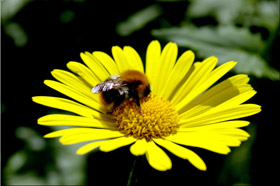
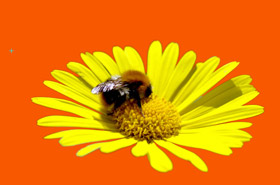
- Modalità Morbida. Questa modalità è adatta per selezionare gli oggetti con dei bordi non chiaramente definiti (capelli, peluria, pellicce…)
-
Modalità Complessa. Questa modalità è particolarmente adatta per selezionare gli oggetti complessi — trasparenti o di vetro, oggetti che hanno la stessa gamma di colore dello sfondo (alberi, bolle di sapone…)
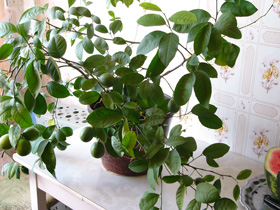
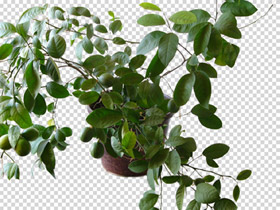
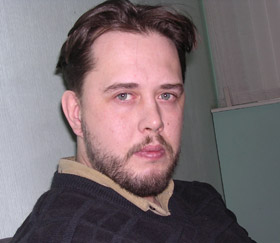
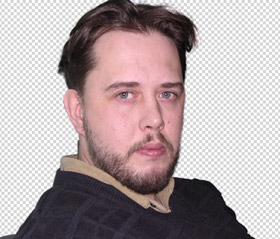
Suggerimento: Per certe immagini è sufficiente usare una modalità sola, per altre può essere necessario usarle tutte tre.
Attenzione:
Si può iniziare a lavorare con una qualsiasi delle tre modalità, ma per ottenere un buon risultato è consigliabile lavorare in sequenza (per esempio, se si inizia a lavorare nella modalità Complessa e poi si cerca di passare a una delle schede precedenti, i cambiamenti verranno cancellati e l’immagine verrà elaborata con le impostazioni della scheda corrente).
-
- Passaggio 5. Ritagliare l’oggetto secondo le istruzioni della modalità scelta.
- Passaggio 6. Prima di applicare i risultati e chiudere il plugin, è possibile salvare la maschera (tratti disegnati, zone colorate, impostazioni usate) in un file separato (.smask).
A questo scopo è sufficiente cliccare su , in seguito si potrà caricare la maschera dal file (con il pulsante
 ) e modificarla.
- Passaggio 7. Per applicare il risultato e chiudere il plugin cliccare su
 . L’oggetto selezionato verrà visualizzato nell'area di lavoro dell'elaboratore fotografico.
SmartMask v. 12.0 - 10-giorni di prova gratuita

