V.1-3: Modalità Complessa
La modalità Complessa è particolarmente indicata per selezionare degli oggetti complessi, oggetti cioè che hanno la stessa gamma di colori dello sfondo (alberi, bolle di sapone…).
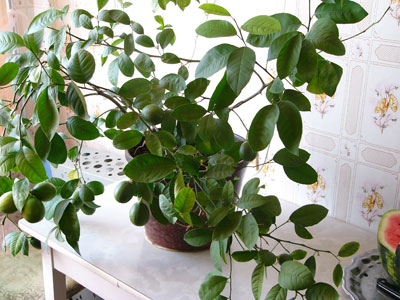
Foto originale
Attenzione! Si tratta di una modalità manuale, perciò il pulsante  è disabilitato.
- Passaggio 1. Usare la casella Solo nella zona verde per definire la modalità dell’operazione. Quando la casella è selezionata, verranno modificate solo le zone all’interno dell’area verde disegnata precedentemente. Quando è disabilitata, i cambiamenti interesseranno tutti i punti dell’immagine.
- Passaggio 2. Modificate l’immagine manualmente usando i seguenti strumenti:
- Cancella colori
 . I colori scelti con questo strumento vengono elencati nel campo Cancella colori. Per selezionare un colore, cliccare sul punto corrispondente dell’immagine con il tasto sinistro del mouse.
- Conserva colori
 . I colori scelti con questo contagocce vengono elencati nel campo Conserva colori. Per selezionare un colore, cliccare sul punto corrispondente dell’immagine con il tasto sinistro del mouse.
Per attivare i contagocce dalla tastiera usare i tasti K e D, per passare da uno all’altro usare il tasto rapido I.
Per default, questi strumenti usano un'area di 3x3 px attorno alla punta del contagocce. E' possibile cambiare il numero di pixel utilizzati per il campione di colore selezionato: il tasto Alt (Mac: Opzione), con un clic del mouse, riduce l'area ad 1 px, il tasto Maiusc, con un clic del mouse, aumenta l'area a 5x5 px.
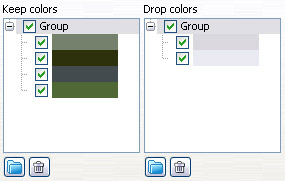
I campi Cancella colori e Conserva colori si trovano nel Pannello impostazioni. Essi contengono le serie dei colori scelti dall’utente. Aggiungere i colori usando gli strumenti indicati sopra. È possibile raggruppare i colori. Per creare un nuovo gruppo, cliccare sul pulsante
 . Per cancellare un colore dall’elenco, selezionarlo cliccando con il tasto sinistro del mouse e premere il pulsante
  . Il segno di spunta verde definisce il colore o il gruppo di colori che verrà preso in considerazione nel calcolare il risultato.
- Cancella colori
-
Passaggio 3. Elaborare l’immagine usando lo strumento Pennello magico
 .
.
Il Pennello magico conserva i punti che hanno i colori elencati nel campo Conserva colori e cancella quelli che hanno i colori elencati nel campo Cancella colori. Gli altri colori vengono conservati o cancellati a seconda della loro somiglianza con una delle serie di colori.
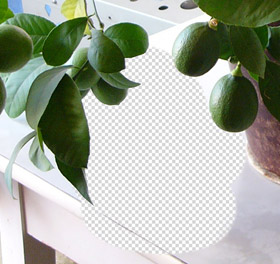
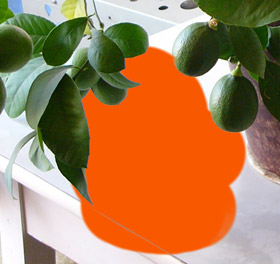
Su uno sfondo trasparente Su uno sfondo colorato Il Pennello magico è provvisto di tre caselle che definiscono la sua modalità operativa:
Calcola. Quando la casella è selezionata, il pennello rimuove i punti che hanno gli stessi colori di quelli elencati nel campo Cancella colori e di quelli similari, ripristinando i punti che hanno gli stessi colori di quelli elencati nel campo Conserva colori e di quelli similari.
Ripara. In questa modalità il Pennello magico ripristina solo i punti che hanno gli stessi colori di quelli elencati nel campo Conserva colori.
Pulisci. In questa modalità il Pennello magico cancella solo i punti che hanno gli stessi colori di quelli elencati nel campo Cancella colori.
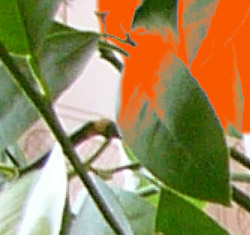
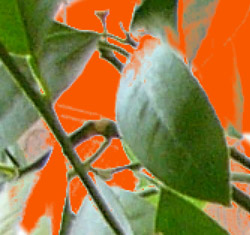
Prima di applicare lo strumento La casella "Calcola" è selezionata 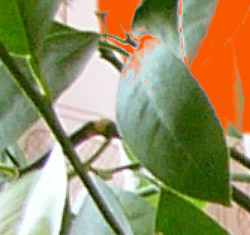
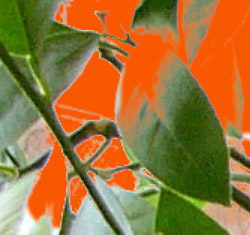
La casella "Ripara" è selezionata La casella "Pulisci" è selezionata Pennello. Questo parametro imposta il diametro interno del pennello, che è la zona in cui l’effetto scelto viene applicato in pieno.
Bordo. Questo parametro imposta il diametro esterno del pennello, che è la zona in cui l’effetto scelto viene applicato parzialmente.
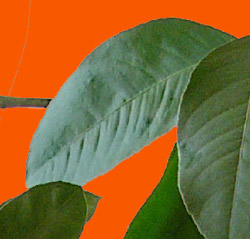
Casella Recupero dello sfondo. Nella maggior parte dei casi gli oggetti in una foto non sono illuminati in modo uguale, perciò il ritaglio dell’oggetto può avere delle sfumature e dei colori riflessi dagli oggetti vicini. Tali sfumature colorate posso essere assolutamente inadatte su un nuovo sfondo: per esempio, i capelli che hanno una dominante blu proiettata dal cielo o una sfumatura verde dovuta agli alberi, ombre degli oggetti sugli abiti…
La casella Recupero dello sfondo aiuta ad eliminare le sfumature di colore indesiderate. Basta selezionare un colore cliccando sul rettangolo del colore (usare la finestra Seleziona colore o il contagocce per prelevare un colore dall’immagine); oppure impostare trasparenza (con un clic del tasto destro sul rettangolo del colore), in questo modo è possibile selezionare un colore nell’elenco di Conserva colori. Elaborare l’immagine con il Pennello magico, i colori perderanno la dominante scelta.
Il parametro Forza definisce l’influenza del colore applicato. Maggiore è il suo valore, più i colori sono soggetti al cambiamento.
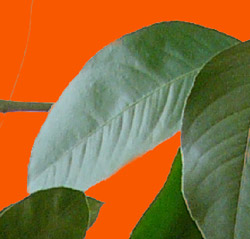
La casella "Recupero dello sfondo" è
disattivataLa casella "Recupero dello sfondo" è
selezionata (con il colore verde)Parametri di Sensibilità:
Generale. Il parametro influenza la quantità dei dettagli recuperati nelle zone complesse. Maggiore è il suo valore più dettagli semitrasparenti saranno visibili.
Sensibilità dei colori da conservare. Maggiore è il suo valore più vasta sarà la gamma dei colori conservati nell’immagine.
Sensibilità dei colori da cancellare. Maggiore è il suo valore più vasta sarà la gamma dei colori cancellati.
- Passaggio 4. Ripetere i passaggi 2 e 3 cambiando le serie dei colori finché l’intera immagine non è elaborata.
- Passaggio 5. Ritoccare il risultato usando i seguenti strumenti:
- Pennello ripristina
 . Questo strumento riporta la zona al suo stato originale, tasto rapido Y.
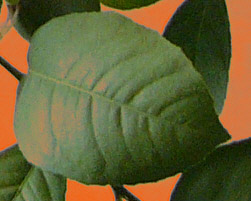
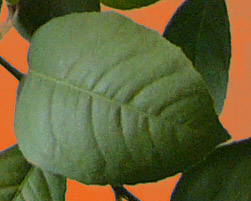
Prima dell’applicazione dello strumento Dopo l’applicazione dello strumento - Gomma
 .
Questo strumento cancella le zone in cui è stato applicato, tasto rapido E.
.
Questo strumento cancella le zone in cui è stato applicato, tasto rapido E.
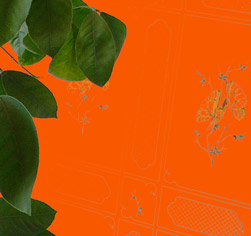

Prima dell’applicazione dello strumento Dopo l’applicazione dello strumento - Sfocatura
 . Questo pennello applica un effetto di sfocatura riducendo il contrasto dei colori tra i pixel adiacenti.
Lo strumento è caratterizzato dal parametro Livello di sfocatura. Maggiore è il suo valore più forte è l’effetto. A Livello = 1 non vi è alcuna sfocatura, tasto rapido R.
- Pennello ripristina
- Passaggio 6. Per applicare i cambiamenti e uscire dal plugin premere su
 .
.
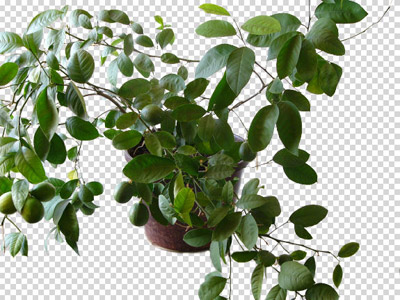
Risultato
SmartMask v. 12.0 - 10-giorni di prova gratuita

