Paisagem modificável
O exemplo foi criado na versão anterior de SmartMask. Na versão atual pode conseguir este efeito mais facilmente com as novas ferramentas baseadas em inteligência artificial.
O autor deste tutorial é Alvaro Salazar Chacon.
O plugin AKVIS SmartMask pode ser usado para alterar o fundo de uma imagem (o céu no exemplo a seguir), independente da complexidade dos objetos na paisagem.
-
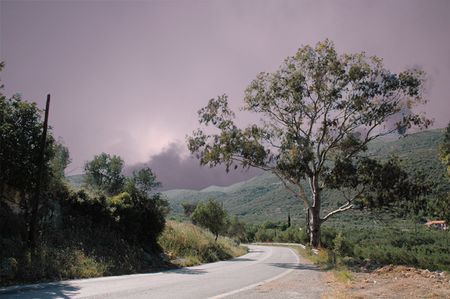
Passo 1. Abra a imagem que você quer editar no AliveColors.
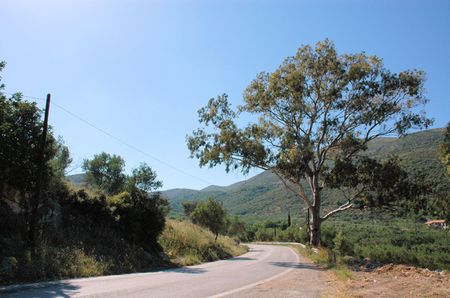
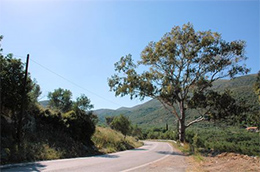
Imagem da paisagem original -
Passo 2. Copie o fundo para uma camada (Layers -> Duplicate), para ser usada pelo plug-in.
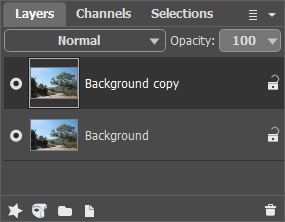
Paleta de camadas -
Passo 3. Abra o plug-in usando AKVIS SmartMask: Effects -> AKVIS -> SmartMask.
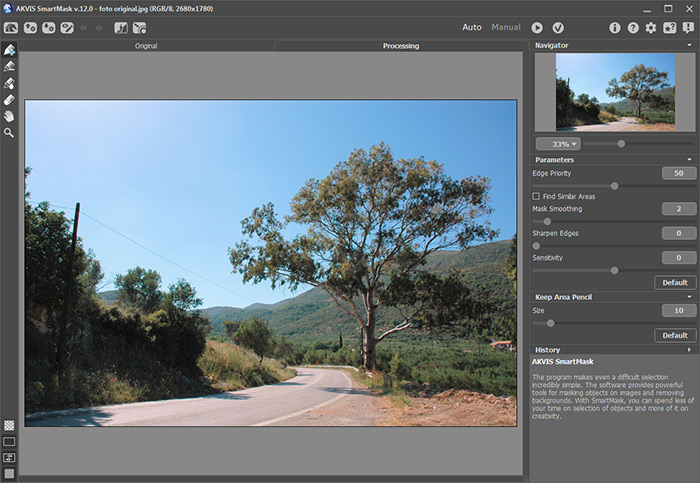
Área de trabalho do plugin SmartMask -
Passo 4. No modo Auto, use o lápis azul - Lápis manter área
 , - para delinear os objetos que você quer preservar. Use o lápis vermelho - Lápis eliminar área
  - para delinear a área da imagem que você quer apagar.
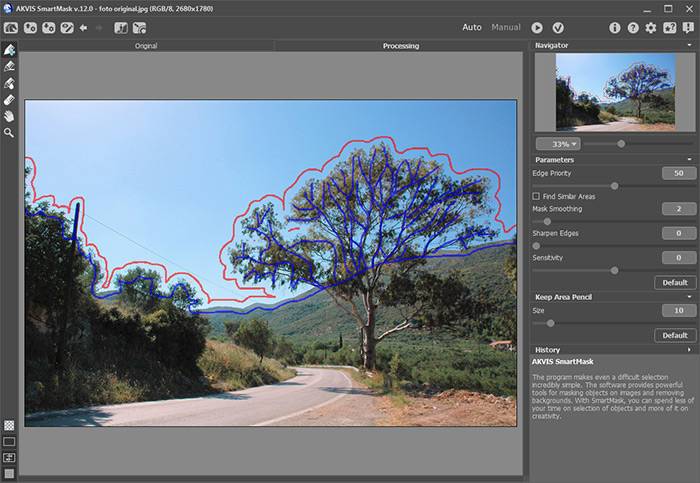
Selecionando áreasClique no botão
 para começar a processar a imagem.
A seleção foi processada bem, mas ainda existem áreas complexas do fundo original.
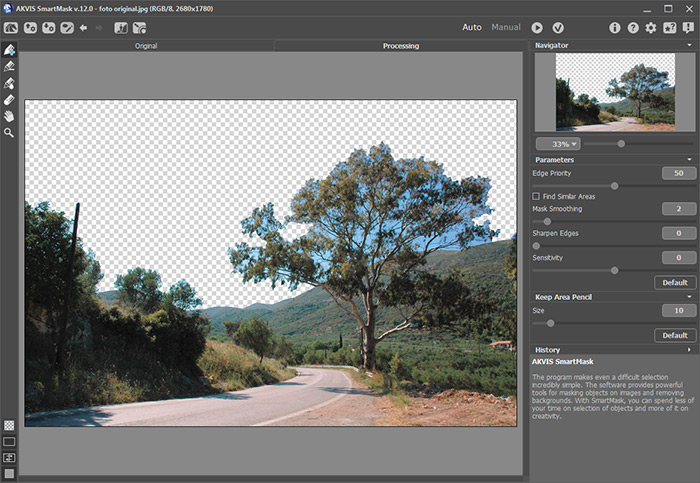
Resultado após o processamento -
Passo 5. Para fazer uma seleção mais precisa use o lápis verde - Lápis transição área
 - para marcar as áreas que estão no fundo e pressione o botão .
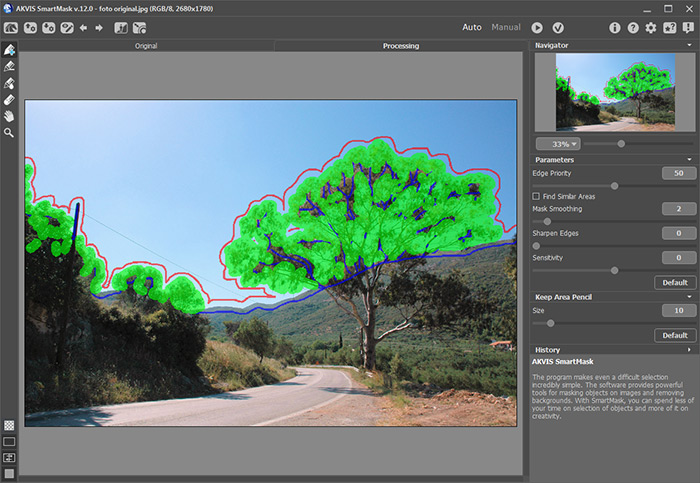
Lápis transição áreaO resultado é muito melhor, mas ainda existem áreas que queremos remover.
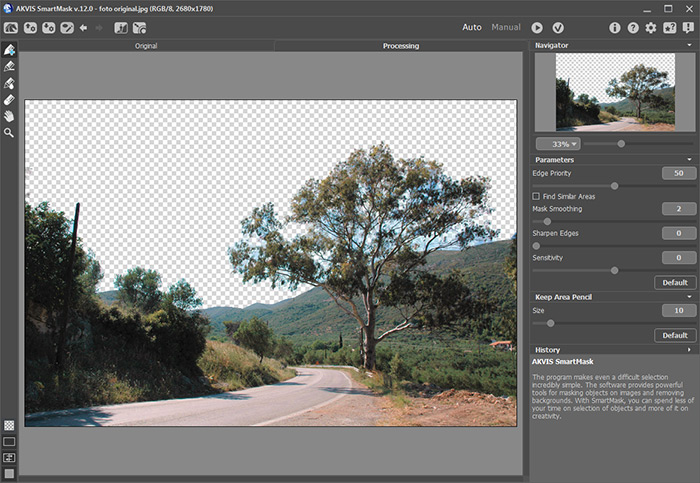
Resultado após o processamento no modo automático -
Passo 6. Para editar estes fragmentos manualmente, mude para modo Manual.
Use Zoom
 para aumentar as áreas problemáticas.
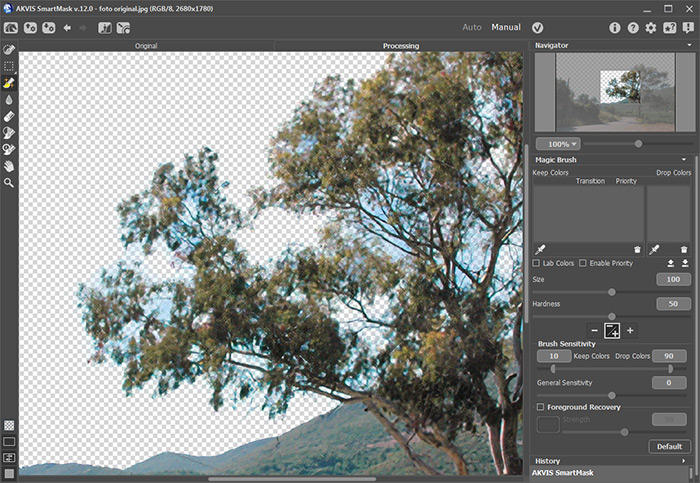
Fragmentos aumentadosAtive a ferramenta Pincel mágico
 e use a ferramenta conta-gotas
  para escolher as cores para a lista Manter cores e Eliminar cores.
Então selecione a ferramenta Pincel mágico e aplique na imagem.
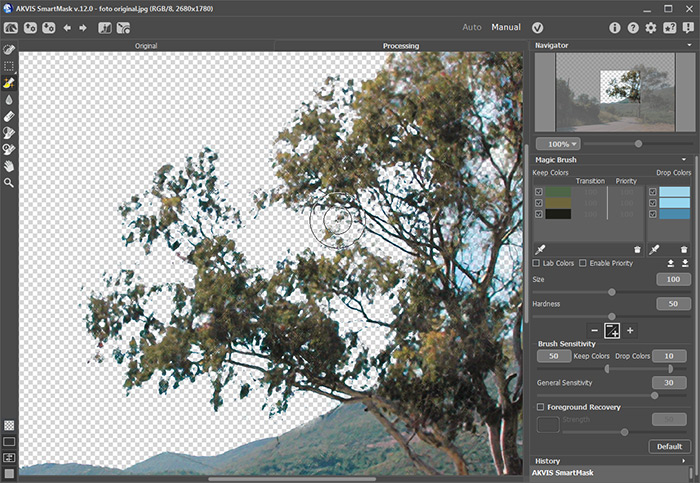
Usando o Pincel mágicoPara melhorar o resultado, clique no check-box Recuperação do primeiro plano escolha a cor preta:
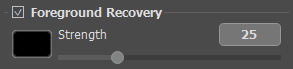
Faça um novo tratamento das áreas com o Pincel mágico
. O fragmento parecerá perfeito.
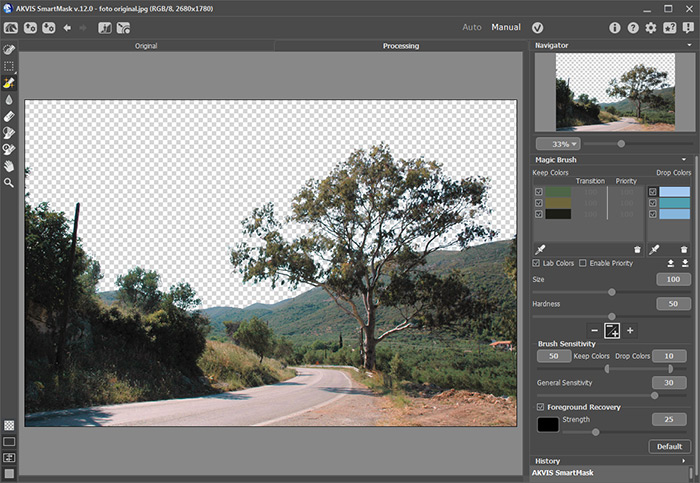
Restaurando as cores de alguns objetos -
Passo 7. Aplique o resultado do processamento pressionando o botão
 e a imagem retornará para o editor gráfico.
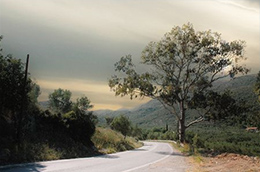
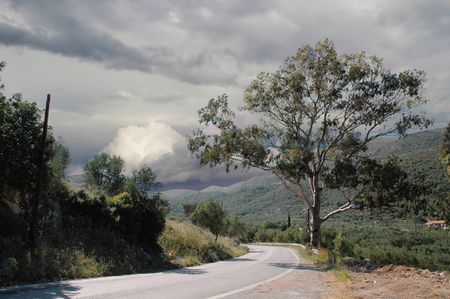
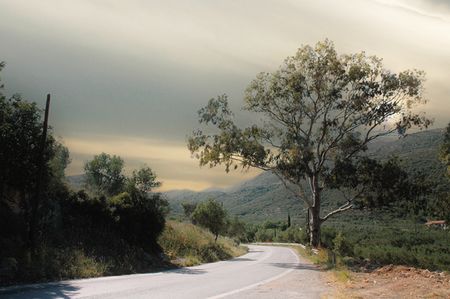
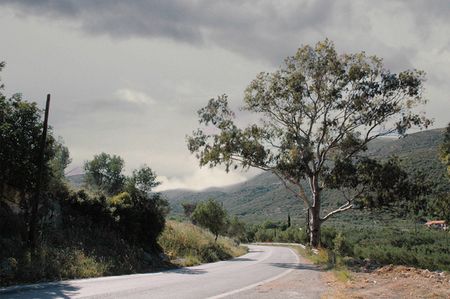
Agora você pode criar paisagens com diferentes fundos.
SmartMask AI v. 15.1 - Teste gratuito 10 dias
