Changeable Landscape
La version française sera bientôt affichée.
The author of this tutorial is Alvaro Salazar Chacon.
The AKVIS SmartMask plug-in can be used to change the background of an image (the following example the sky) regardless of the complexity of objects in the landscape.
-
Step 1. Open the image you want to edit in AliveColors.
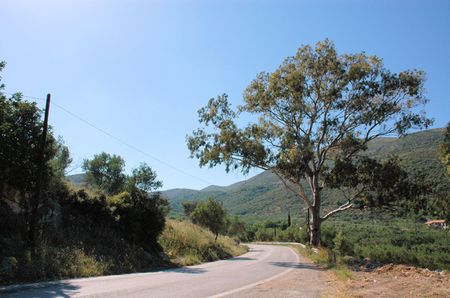
Original Landscape Image -
Step 2. Copy the background to a layer (Layers -> Duplicate), so that the plug-in can be used.
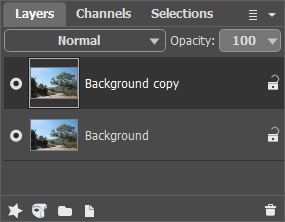
Layers Palette -
Step 3. Open the plug-in using AKVIS SmartMask: Effects -> AKVIS -> SmartMask.
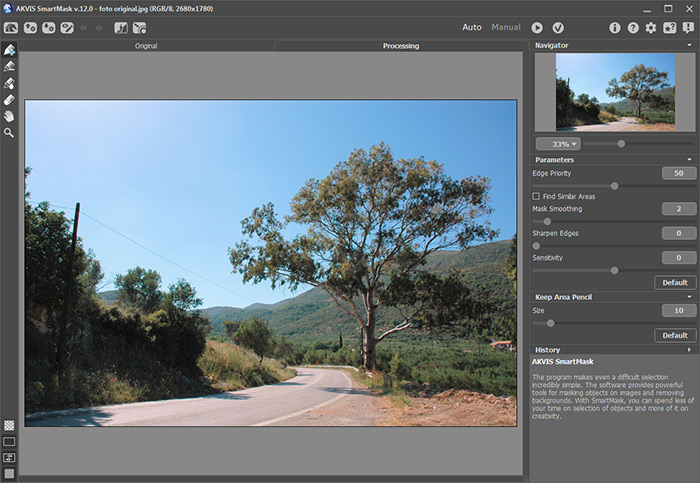
AKVIS SmartMask Plug-in's Workspace -
Step 4. In Auto mode, use the blue pencil - Keep Area Pencil
 , - to outline objects you want to preserve. Use the red pencil - Drop Area Pencil
  - to outline ares of the image that you want to delete.
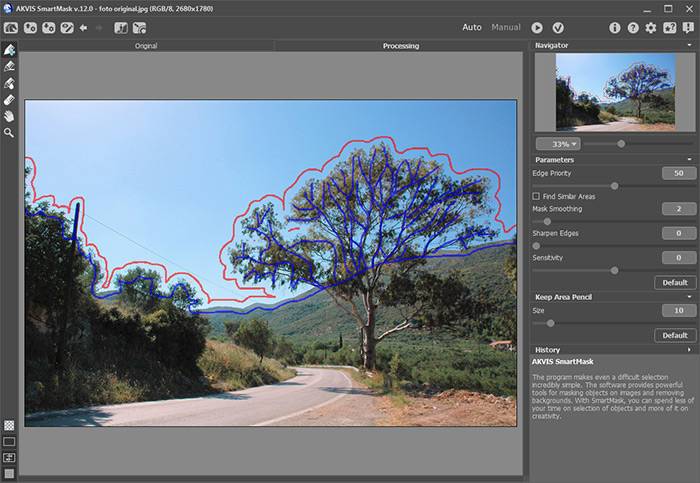
Selecting AreasClick on
 to start processing the image again.
The fragment was selected well, but there are still complex areas from the original background.
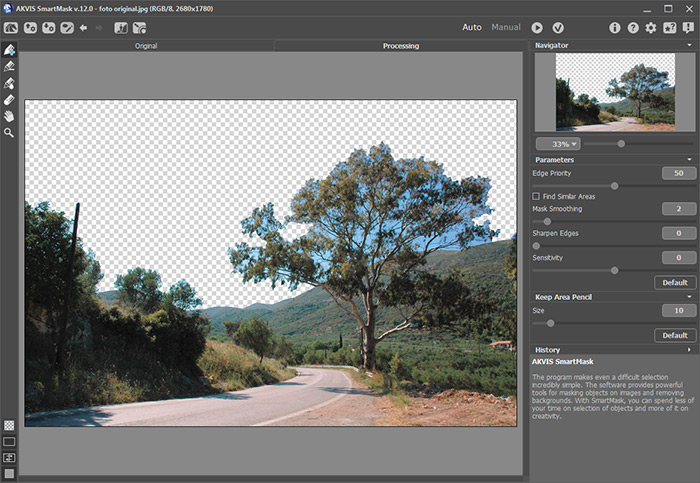
Result After Processing -
Step 5. To make a more accurate selection use the green pencil - Transition Area Pencil
 - to mark areas which are in the background and press the button.
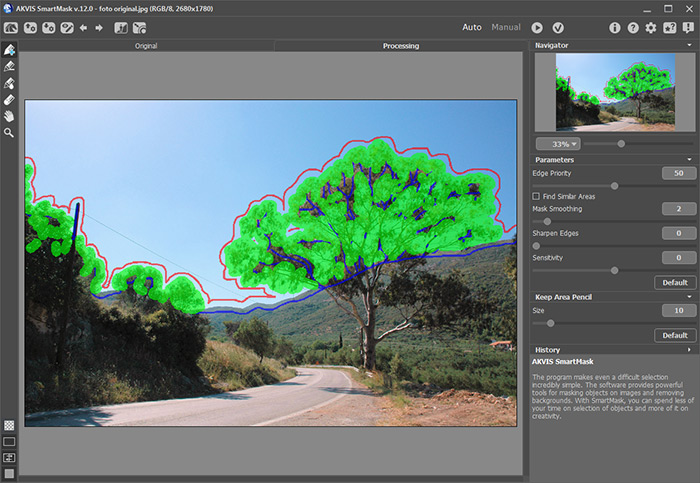
Transition Area PencilThe result is much better but there are still areas that I want to remove.
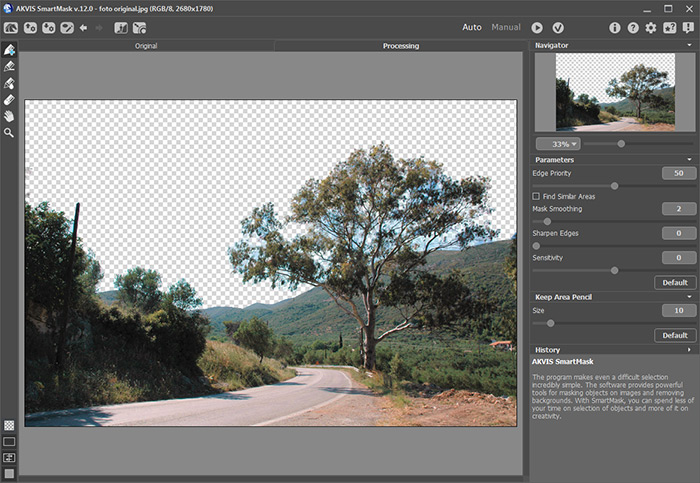
Result After Processing in Auto Mode -
Step 6. To edit the fragment by hand, switch to Manual mode.
Use Zoom
 to enlarge problem areas.
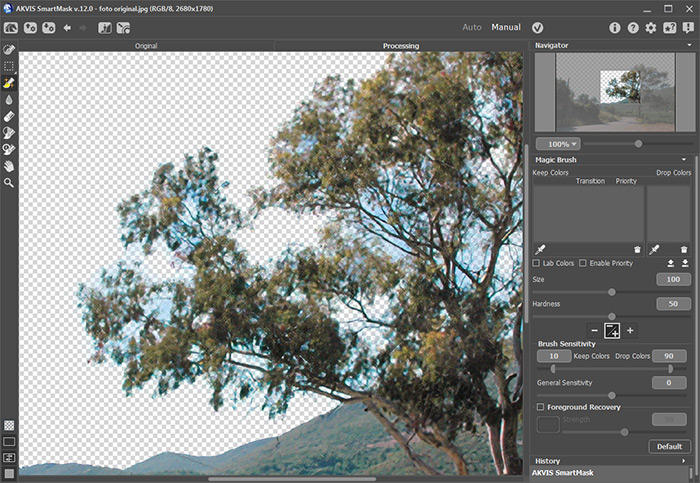
Enlarged FragmentActivate the Magic Brush tool
 and use the eyedropper tools
  to pick up the colors for the Keep Colors and Drop Colors lists.
Then select the Magic Brush tool and use it on the image.
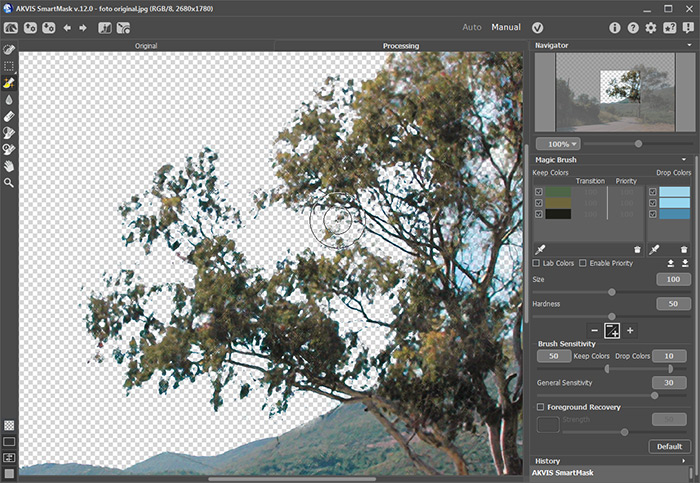
Using the Magic BrushTo improve the result further, click on the Foreground Recovery check-box and choose the color black:

Re-treat areas with the Magic Brush
. The fragment looks perfect.
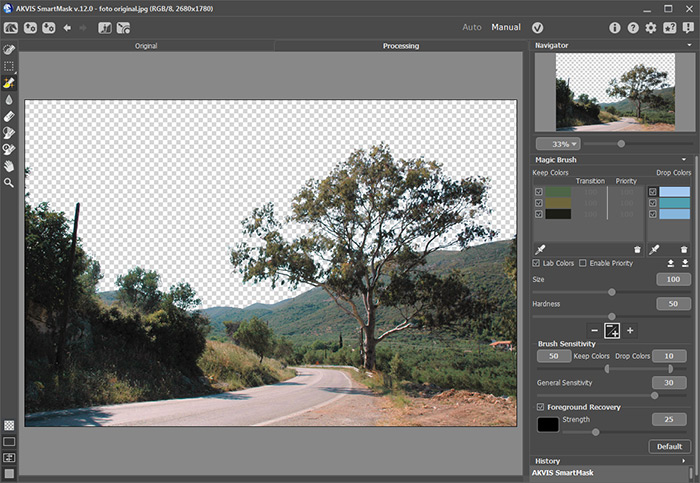
Restoring Some of the Object's Color -
Step 7. Apply the processing result by pressing the
 button and the image will be returned to the graphics editor.
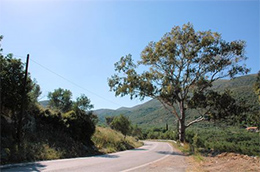
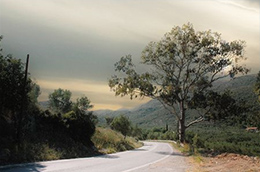
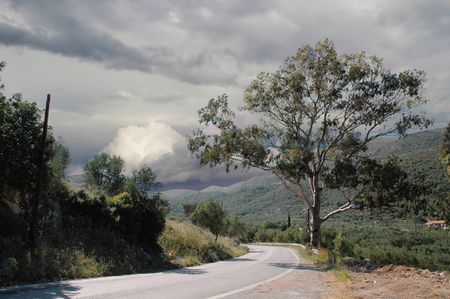
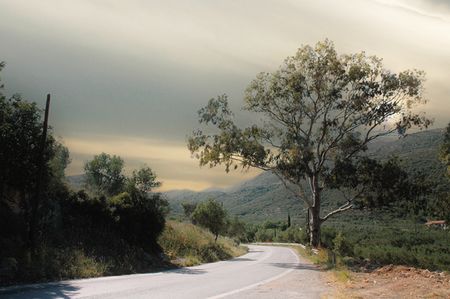
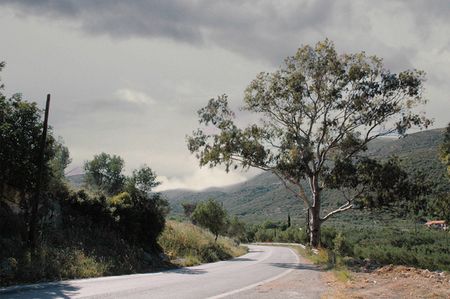
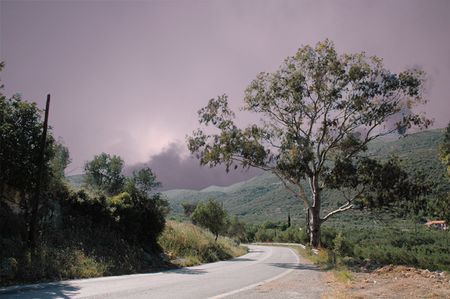
Now you can create landscapes with different backgrounds:
SmartMask AI v. 15.1 - 10 jours d'essai
