V.1-3: Modo Complexo
O modo Complexo é especialmente bom para selecionar objetos complexos – transparente ou vidro, objetos que têm algumas cores como o fundo (árvores, louças, bolhas de sabão...)
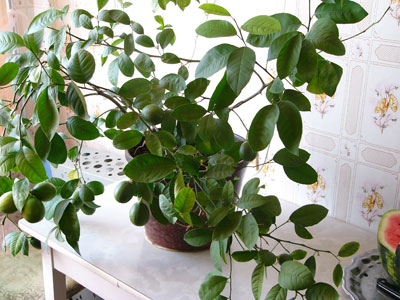
Foto Original
Atenção! É um modo manual então o botão executar  está desativado.
- Passo 1. Use a caixa de controle Só na zona verde (Only in green zone) para definir o modo operacional. Quando a caixa de controle está ligada, só a área de dentro do ultimo desenho da zona verde será editada. Quando a caixa de controle está desativada, a mudança influenciará em todos os pontos da imagem.
-
Passo 2. Edite a imagem manualmente usando as seguintes ferramentas:
-
Eliminar Cores
 . As cores escolhidas com esta ferramenta estão listadas no campo Eliminar cores. Para selecionar, uma cor a ser eliminada, clique com o botão esquerdo do mouse, no ponto correspondente da imagem.
-
Manter cores
 . As cores escolhidas com a ferramenta conta gota estão registradas no campo Manter cores. Para selecionar a cor que se quer conservar, clique no ponto correspondente da imagem com o botão esquerdo do mouse.
Use a tecla de acesso rápido I no teclado para ativar estas ferramentas e alterná-las entre si.
Por padrão, os instrumentos usan a cor média de uma área de 3x3 px ao redor da ponta do conta-gotas. Para alterar o número de pixels na área, use os seguintes teclas: Alt com um clique do rato reduz a área a um pixel, Shift com um clique do rato amplia a área a 5x5 px.
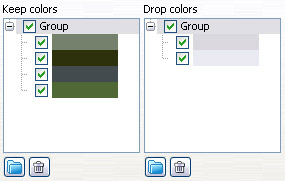
Os campos Eliminar cores e Manter cores são encontrados no Painel de ajustes. Eles contem sets de cores escolhidos pelos usuários. Adicione cores usando a ferramenta mencionada à cima. É possível agrupar cores. Para criar um novo grupo, clique no botão
 . Para apagar a cor da lista, selecione esta cor clicando o lado esquerdo do mouse e pressione o botão
  . A marca verde que define a coloração/grupos de cores que serão levadas em consideração quando o resultado for calculado.
-
-
Passo 3. Processe a imagem usando a ferramenta Pincel mágico
 .
.
O Pincel mágico mantém os pontos que tem cores listadas no campo Manter cores e elimina os pontos que mantém as cores listadas no campo Eliminar cores. Outras cores são mantidas ou apagadas de acordo com sua proximidade com um ou outro set de cor.
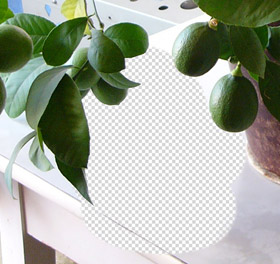
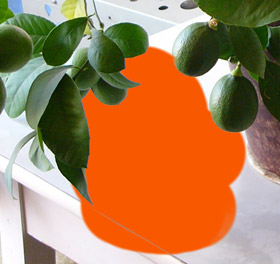
Sobre um fundo transparente Sobre um fundo de cor Pincel mágico tem os seguintes parâmetros:
Há três caixas de controle que definem o modo de operação do Pincel mágico:
Calcular. Quando a caixa de controle está ligada, o pincel remove os pontos que tem as mesmas cores daqueles listados no campo Eliminar cores perto deles e restaura os pontos que tem as mesma cores como aquelas listadas no campo Manter cores e cores próximas dele.
Reparar. Neste modo o Pincel mágico restaura (conserta) só os pontos que tem a mesmas cores que estão na lista no campo Manter cores.
Limpar. Neste modo o Pincel mágico apaga só os pontos que tem as mesmas cores que estão listadas no campo Eliminar cores.
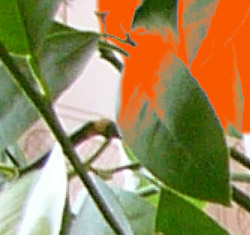
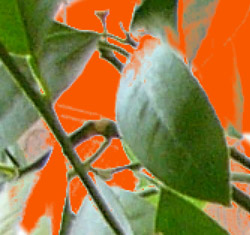
Antes da aplicação da ferramenta Caixa de controle "calcular" ligada 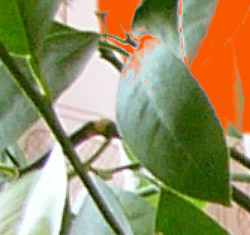
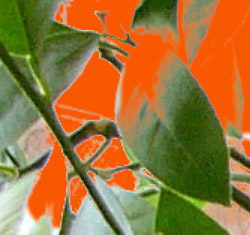
Caixa de Controle "Reparar" ligada Caixa de Controle "Limpar" ligada Parâmetros que ajustam e determinam a zona de aplicação do efeito:
Pincel. Este parâmetro estabelece o diâmetro interior do pincel, que é a zona onde o efeito selecionado é aplicado por completo.
Borda. Este parâmetro estabelece outro diâmetro do pincel, que é a zona onde o efeito selecionado é aplicado parcialmente.
Caixa de controle de Recuperação do primeiro plano. Na maioria dos casos os objetos em uma foto não são igualmente iluminados, então o objeto recortado pode ter matizes e cores refletidas dos objetos próximos. Tal matiz de cor pode ser absolutamente inapropriado em um novo fundo: por exemplo, cabelo que tem uma tonalidade indesejada de cor azul do céu ou um matiz verde das árvores, sombras de objetos sobre as roupas... A caixa de controle Recuperação do primeiro plano ajuda a desfazer da cor e matizes indesejáveis. Simplesmente selecione a cor com um clique no prato de cores (use o diálogo Selecionar cor ou use a ferramenta Conta-gotas para pegar a cor da imagem); ou ajuste a sua transparência (com clique do lado direito) – desta maneira selecione a cor da lista Mantenha cor. Processe a imagem com o Pincel mágico – a cor receberá a cor e o matiz selecionado.
O parâmetro Força define a influencia da cor aplicada. Quanto mais alto o valor do parâmetro, mais as cores estarão sujeitas a mudar.
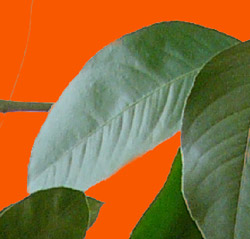
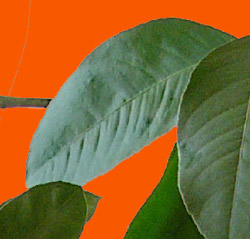
Caixa de Controle "Recuperação
do Primeiro Plano" esta desativadaCaixa de controle do primeiro plano
esta ativada cor verde selecionadaParametro de Sensibilidade do pincel:
Geral. O parâmetro influencia na quantidade de detalhes recuperado na zona difícil. Quanto mais alto o valor do parâmetro, mais os detalhes semitransparentes são visíveis.
Sensibilidade para Manter cores. Quando mais alto o valor do parametro, mais amplo é a extensão das cores mantidas na imagem.
Sensibilidade para Eliminar cores. Quanto mais alto o valor do parâmetro, mais ampla é a extensão das cores apagadas.
- Passo 4. Repita os passos 2 e 3 mudando o set de cores até toda imagem ser processada.
-
Passo 5. Retoque o resultado usando as seguintes ferramentas:
-
Pincel restaurador
 . Esta ferramenta restaura a área para o seu estado original. Use a tecla Y de atalho para ativar esta ferramenta no teclado.
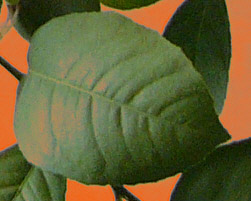
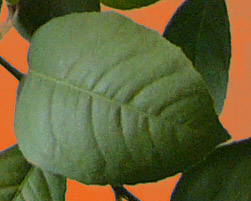
Antes da aplicação da ferramenta Depois da aplicação da ferramenta -
Borracha
 . Esta ferramenta apaga as áreas na qual ela é aplicada. Use a tecla de atalho (tecla de acesso rápido) E para ativar esta ferramenta no teclado.
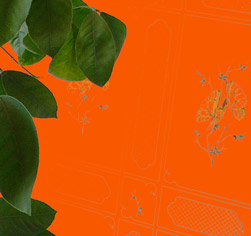

Antes da aplicação da ferramenta Depois da aplicação da ferramenta -
Desfoque
 . Esta ferramenta cria o efeito desfoque, reduzindo o contraste da cor entre os pixels adjacentes. A ferramenta é caracterizada pelo parâmetro Desfoque. Quanto mais alto o valor do parâmetro, mais forte é o efeito. Em Desfoque = 1 não há desfoque nenhum. Use a tecla de atalho R para ativar esta ferramenta no teclado.
Para todas estas três ferramentas os parâmetros do Pincel e Borda podem ser ajustados.
-
-
Passo 6. Clique no botão
 para aplicar as mudanças e sair do plugin.
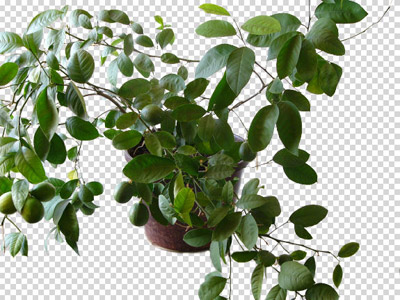
Resultado
SmartMask v. 12.0 - Teste gratuito 10 dias

