Remove JPEG-Artifacts: How to Correct a Bad JPEG Image
The author of this tutorial is Philippe Gregoire, a Belgian digital painter, which works in Photoshop, Poser, and Corel Painter.
Attention! The tutorial was made with the old version of the Noise Buster algorithm. Starting from version 12.0, the program uses trained neural networks to remove noise. You can see the work of Noise Buster AI here.
To get rid of noise and pixelation, Philippe used AKVIS Noise Buster. Now a specialized freeware program for jpeg artifact removing is available — AKVIS Artifact Remover AI.
 |
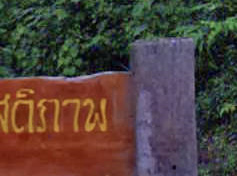 |
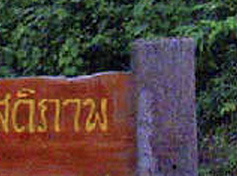
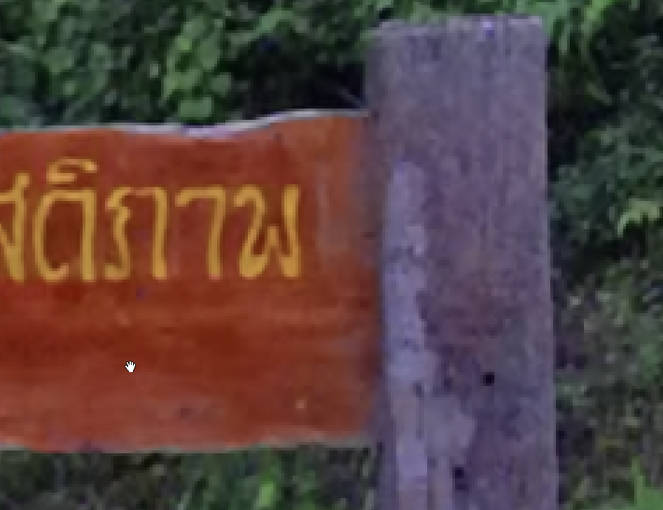
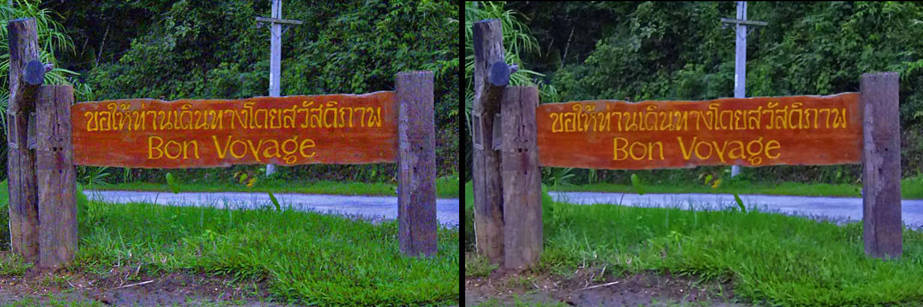
| Fragment Before: Noise Photo | Fragment After: Enhanced Photo |
Philippe wrote:
A few weeks ago, I was told by a friend about a plug-in called AKVIS Noise Buster that could help me with my picture noise problems.
For my work I always start from photos I take by myself and I also do a lot of scans. My main problem is to improve the photo and scan quality first because all the scanned pictures have always a lot of noise especially those that come from prints. Photos taken under bad light conditions also have a lot of noise.
The only solution I had in Photoshop was to Gaussian blur and then to Unsharp Mask my source images. I was also struggling with PS noise filter to remove remaining noise. But the main point with all these tools is that whatever you try, you always loose picture sharpness and details in the end.
I then tried AKVIS Noise Buster and on my first attempt, I was immediately amazed. It does a great job of smoothing my images without losing sharpness. For example, in a close-up view of an image where you can see all of the skin imperfections, AKVIS Noise Buster transforms it to an image where the subject has smooth young skin while preserving the sharpness of the eyes, lips, and other details.
Sometimes you get a very bad JPEG image file.
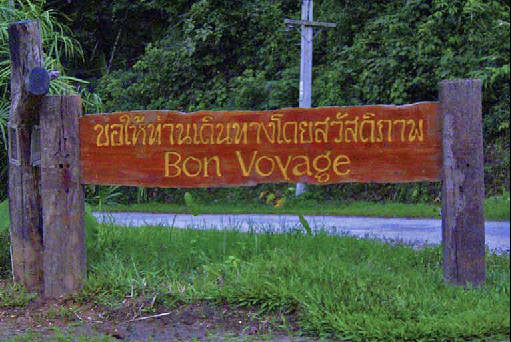
At first sight it looks not so bad, but if you zoom a little, you'll see the typically square-pixellated design which can be found on bad JPEG's.
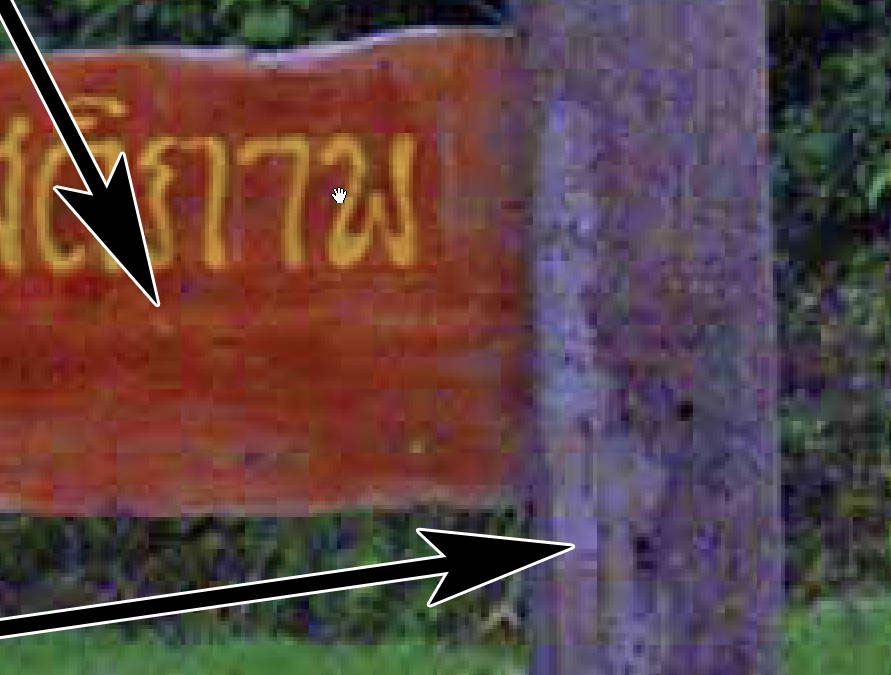
That's when the AKVIS Noise Buster plug-in can be very helpful.
- Step 1. Load the JPEG file into AliveColors. Call the AKVIS Noise Buster plug-in (you just have to choose in the main menu Effects -> AKVIS -> Noise Buster).
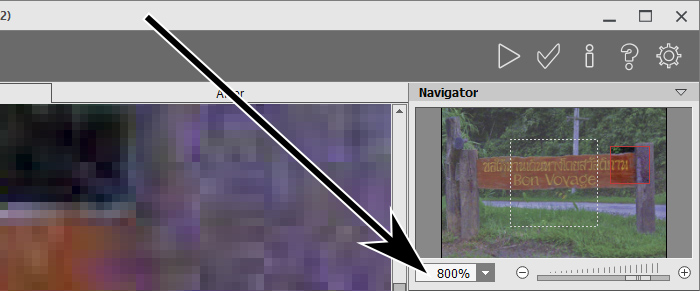
- Step 2. In the Navigator, push the slider to the right until you clearly see the JPEG Artifacts in the main window.
- Step 3. Use the default settings.
- Step 4. Select an area in the main window where you can easily see the differences between the processed an unprocessed parts of the image.
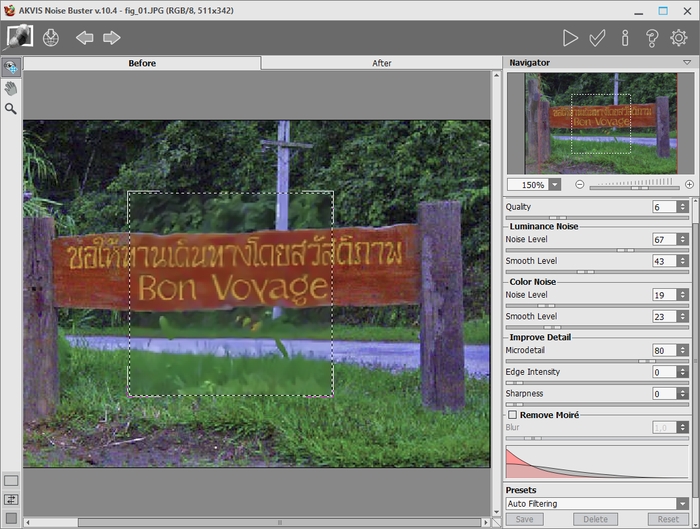
- Step 5. If you like the result in the preview window, click
 and examine your image again in the AKVIS Noise Buster plug-in window.
- Step 6. If you are happy with the result then click
 to apply the changes.
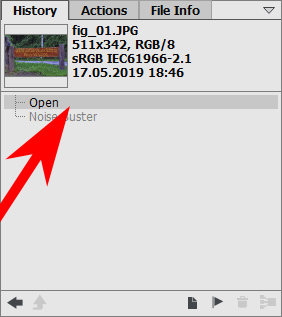
- Step 7. Now you can try the plug-in with more powerful settings. Go to the History palette of AliveColors and choose the first history state. This will return you to the original state of the photo.
- Step 8. Call the AKVIS Noise Buster plug-in again and choose more powerful settings.
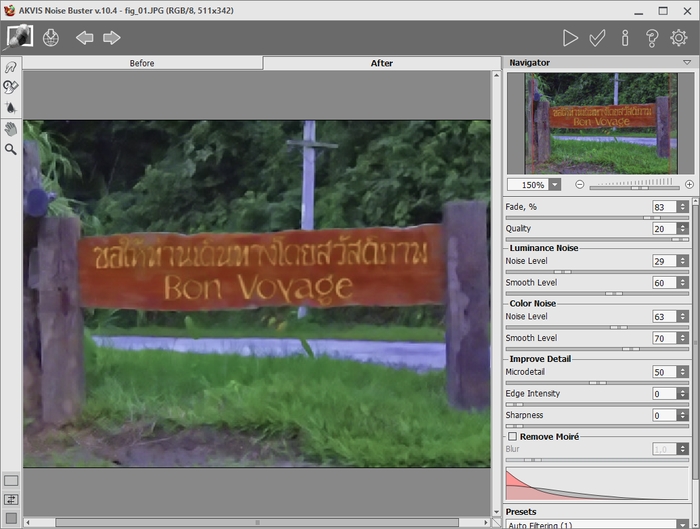
Click
and again and you get a more corrected image. Maybe you will find this one is corrected too much.
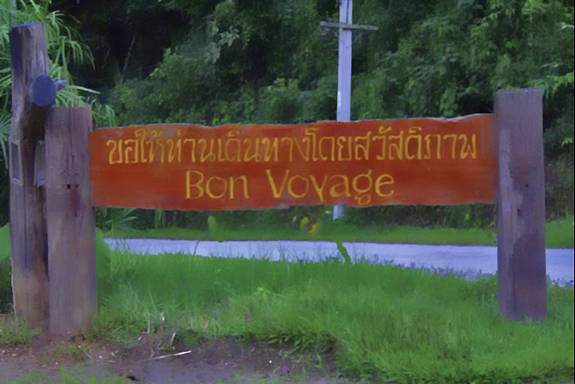
- Step 9. If you compare the original image with the first corrected version,
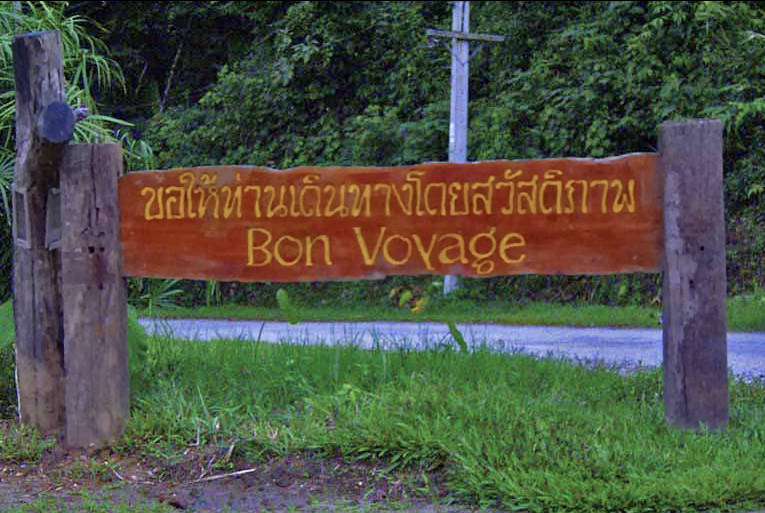
you see that the correction is good on some parts of the image (the posts and the sign) and too strong on some other parts (trees, grass...).
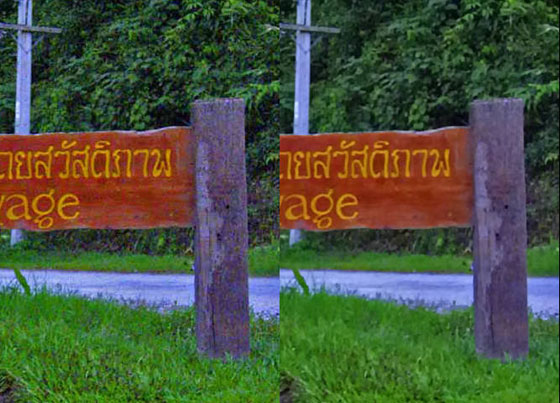
The solution will be to isolate these parts from one another.
- Step 10. Make a selection of the parts to be corrected. The best way is the Selection Brush
 .
.
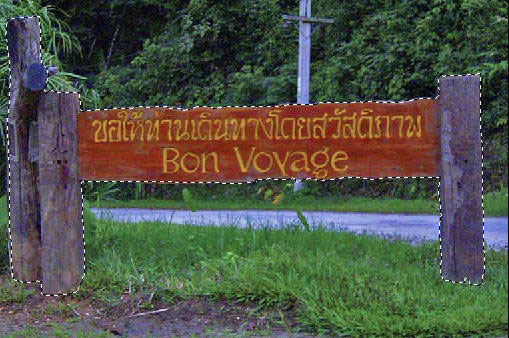
- Step 11. Then press Ctrl+J on the keyboard. You get a copy of the selected parts on a new layer.
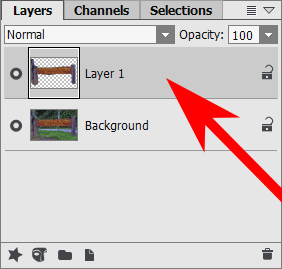
- Step 12. You apply the AKVIS Noise Buster plug-in (as described here before) on layer 1 only and you get an excellent image, where the posts and the sign are corrected and the grass remains perfect.
Noise Buster AI v. 13.2 - Free 10-day Trial
