Elemente der Lichteffekte
Jeder Lichteffekt besteht aus Elementen, die ihre eigenen Parameter haben. Die Struktur des Effekts kann in der Elemente-Leiste bearbeitet werden (die Leiste wird im Erweiterten Modus angezeigt).
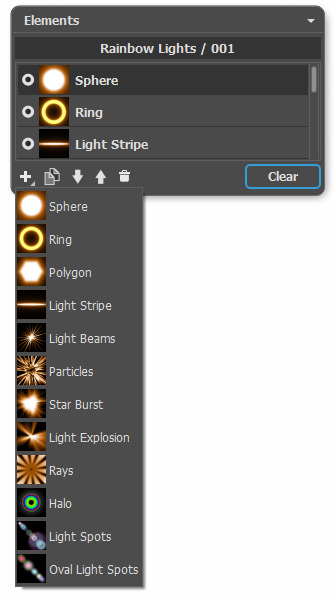
Zur Bearbeitung der Liste der Elemente werden die folgenden Schaltflächen benutzt (alle Befehle sind auch durch einen Rechtsklick innerhalb der Leiste aufrufbar):
-
Um ein neues Element hinzuzufügen, klicken Sie auf
 und wählen Sie einen Typ des Elementes aus der Liste aus. Das neue Element wird oberhalb des aktuellen Elements in der Elemente-Leiste positioniert und in dem Bildfenster angezeigt.
Um ein hinzugefügtes Element auszuwählen, klicken Sie darauf mit der linken Maustaste. Die aktivierte (editierbare) Zeile wird dunkelgrau hervorgehoben und in den Elementparametern werden die Parameter des Elements angezeigt.
-
Um das ausgewählte Element zu kopieren, klicken Sie auf
 . Die Kopie des Elements wird in die Liste eine Zeile höher eingefügt.
-
Mit den Schaltflächen
 und
und  kann man die Reihenfolge der Elemente ändern. Die Schaltfläche bewegt das ausgewählte Element einen Schritt nach unten, die Schaltfläche bewegt das ausgewählte Element einen Schritt nach oben. Die Position in der Liste beeinflusst die Position des Elements in dem Lichteffekt: obere Elemente befinden sich näher zum Vordergrund, untere Elemente - näher zum Hintergrund.
-
Links von dem Elementnamen befindet sich der Sichtbarkeitsindikator
 /
/ , mit dem man die Ebene vorübergehend in dem Bildfenster aus-/einblenden kann. Wenn eine Ebene ausgeblendet ist, werden ihre Parameter inaktiv. Die Umschaltung des Sichtbarkeitsmodus erfolgt durch einen Linksklick auf den Indikator.
-
Um ein ausgewähltes Element zu entfernen, wählen Sie es und klicken auf die Schaltfläche
 . Außerdem kann man das ausgewählte Element auf dieses Symbol des Mülleimers ziehen sowie die Delete-Schaltfläche benutzen.
- Verwenden Sie die Schaltfläche Löschen, um alle Elemente in der Liste zu löschen.
Hinweis. Alle Schaltflächen haben die entsprechenden Befehle im Kontextmenü. Das Menü wird durch einen Rechtsklick auf die Effekte-Leiste aufgerufen.
In den Elementparametern sind die Parameter des ausgewählten Elements zu finden. Folgende Einstellungen sind gleich bei den meisten Elementen:
Position und Größe. Die Gruppe enthält die Parameter, anhand deren man die Position und die Größe des Lichtelements festlegt.
-
Verschiebung (-200..200). Der Parameter ändert die Lage des Elements auf der geraden Linie, die beim aktiven Werkzeug
 angezeigt wird.
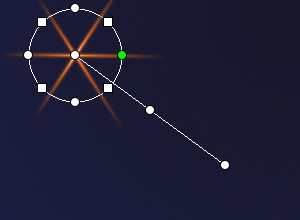
Verschiebung = 100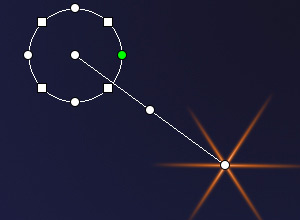
Verschiebung = -100 -
Maßstab (1-1000). Der Parameter verändert die Größe des ausgewählten Elements.

Maßstab = 50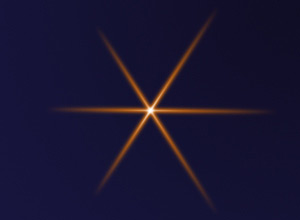
Maßstab = 100 -
Drehung (0-359). Der Parameter dreht das Element um einen Winkel. Mit zunehmendem Wert wird das Element im Uhrzeigersinn gedreht.
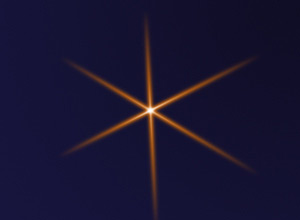
Drehung = 30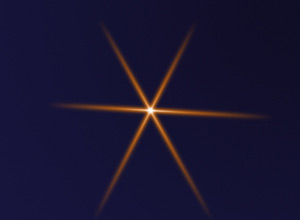
Drehung = 60
Farbe. Mit dieser Gruppe kann man die Farbe und Durchsichtigkeit des ausgewählten Elements anpassen sowie den Vermischungsmodus ändern.
-
Deckkraft (1-100). Der Parameter legt die Transparenz des ausgewählten Elements fest, sodass der Dursichtigkeitsgrad der unteren Elemente und des Hintergrundbildes geändert wird. Je höher der Parameterwert ist, desto durchsichtiger ist das Element.

Deckkraft = 25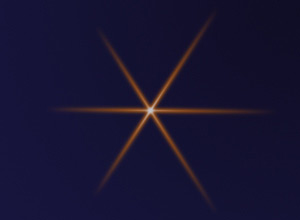
Deckkraft = 75 -
Vermischungsmodus. In dem Aufklappmenü wird festgelegt, wie das ausgewählte Element mit dem unteren Element vermischt wird. Mehrere Informationen über die Vermischungsmodi finden Sie hier.
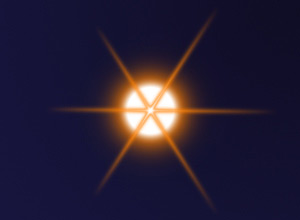
Normal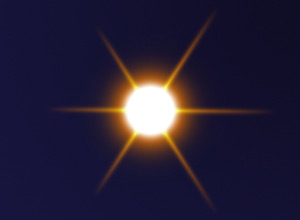
Plus -
Helligkeit (1-200). Der Parameter bestimmt die Intensität des Elementleuchtens. Mit aufnehmendem Wert wird der Schein matter. Mit zunehmendem Wert wird der Schein heller.

Helligkeit = 50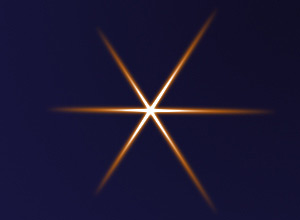
Helligkeit = 150 -
Farbe. Für jedes Element kann man die Farbe des Glühens und des Halos zuweisen. Standardmäßig sind die Farbquadrate leer und das Programm benutzt die in den Effektparametern gewählten Farben.
Um eine Farbe in dem Dialogfenster Farbe wählen auszuwählen, führen Sie einen Doppelklick auf das jeweilige Farbmuster. Um eine Farbe aus dem Bild oder aus dem angewendeten Lichteffekt zu übernehmen, klicken Sie auf das Farbmuster (der Cursor verwandelt sich in eine Pipette) und klicken dann die erwünschte Farbe auf dem Bild an. Um das Farbmuster zu leeren, rechtsklicken Sie darauf.
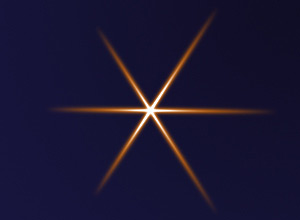
Farbe des Glühens = Weiß
Farbe des Halos = Orange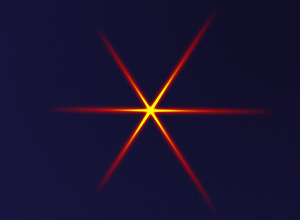
Farbe des Glühens = Gelb
Farbe des Halos = Rot
Sonderparameter. Außer den oben genannten Parametern hat jedes Element eine Gruppe von individuellen Einstellungen. Mehrere Informationen dazu finden Sie auf den Seiten mit Elementbeschreibungen.
LightShop v. 8.1 - 10-Tage-Testversion
