Creating a photo collage in Corel Photo-Paint
Questa pagina al momento è usufruibile in lingua inglese. La versione italiana sarà presto disponibile.
The example was made in the old version of the Chameleon plug-in.
Now the technique of using AKVIS Chameleon is different, but the result will be the same.
Now the technique of using AKVIS Chameleon is different, but the result will be the same.
Consult the article "Chameleon mode" to get the same result with the new version. In the older versions (before v.5.0) this mode was called Standard and applied automatically right after you launch the plugin from the menu Filter.
 |
 |
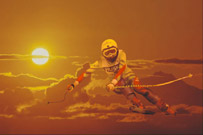 |
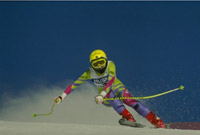
| Source images | Result | |
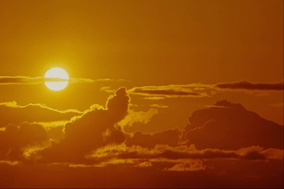
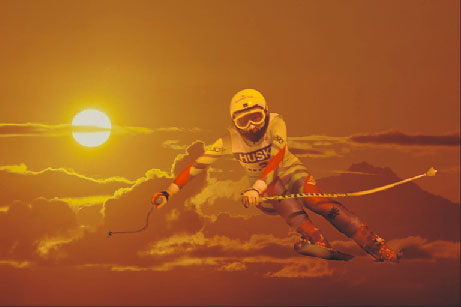
- Step 1. Open two images to create a photo collage in Corel Photo-Paint. We have chosen an image of a mountain-skier and a sunset sky. The idea is to select the mountain-skier, paste him into the sunset sky image and apply the plug-in AKVIS Chameleon to adjust the color scheme of the skier to the background. After AKVIS Chameleon the mountain-skier will not look alien to the surroundings any longer.
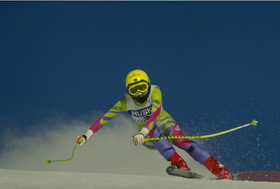
- Step 2. Select the Magnetic Mask Tool in the Toolbar and deactivate the check box Anti-aliasing in its Options bar. Start selecting the skier following the edges of the figure.
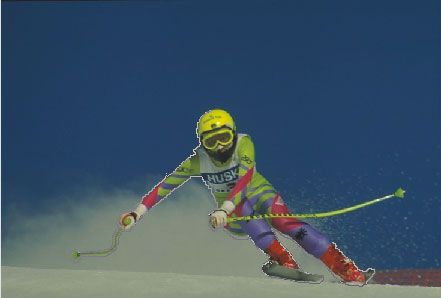
Close the selection contour. As a result the unselected areas (the sky and the snow) will be filled with semi-trasparent red.
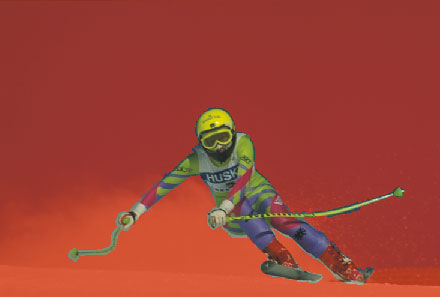
- Step 3. Copy the selection (the command Edit->Copy) and paste it into the sunset sky image by using the command Edit -> Paste->Paste as New Selection.
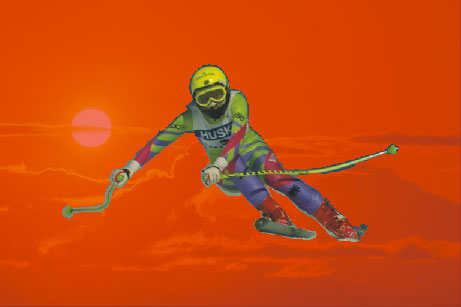
- Step 4. Activate the Object Pick Tool in the Toolbar and move the skier a bit.
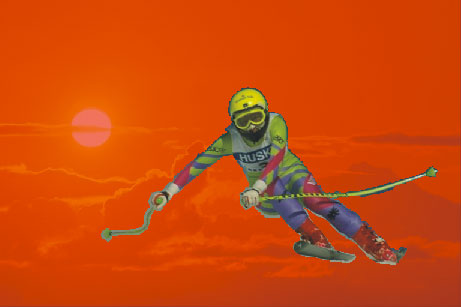
- Step 5. Call the command Mask->Invert twice. By sight nothing has changed but without this command the plug-in AKVIS Chameleon will not work in Corel Photo-Paint.
- Step 6. Call the plug-in AKVIS Chameleon (the command Effects -> AKVIS -> Chameleon).
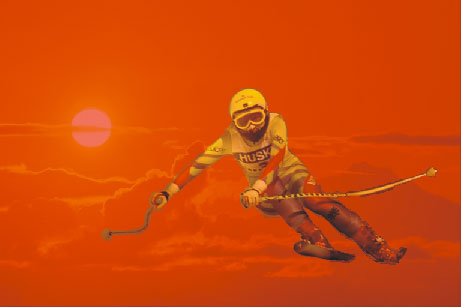
- Step 7. Remove the mask with the command Mask -> Remove) and the photo collage is ready.
Chameleon v. 12.2 - 10-giorni di prova gratuita
