Área de trabalho
AKVIS Enhancer pode trabalhar independentemente como um programa autônomo bem como um plugin para programas de gráfico.
Standalone é um programa autônomo. Você pode executá-lo da maneira usual.
Plugin é um módulo adicional para editores gráficos, por exemplo, para Photoshop, AliveColors e outros programas compatíveis. Para chamar o plugin, selecioná-lo a partir de filtros do seu programa de edição de imagem.
A janela do AKVIS Enhancer parece assim:
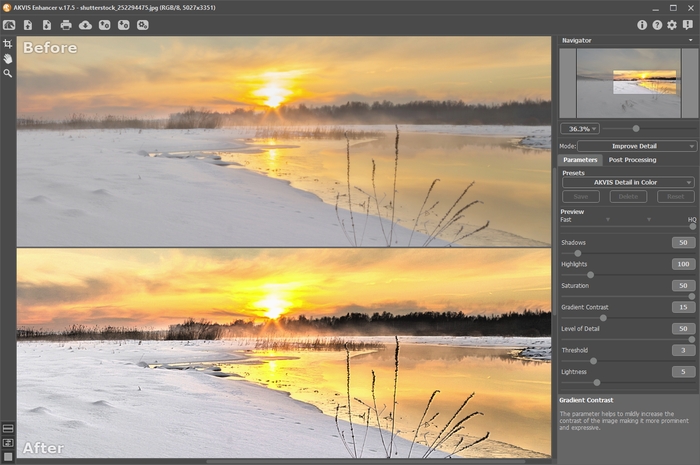
A maior parte da janela do AKVIS Enhancer é formada pela Janela de imagem com duas abas Antes e Depois. A imagem original é mostrada na aba Antes, a aba Depois mostra a foto processada.
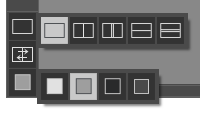
Você pode selecionar o Modo de visualização na Janela de imagem e das abas Antes/Depois na parte inferior do painel esquerdo.
Na parte mais alta da janela pode se vê o Painel de controlecom os seguintes botões:
- O botão
 abre a página Web do AKVIS Enhancer.
- O botão
 (somente na versão autônoma) permite abrir uma imagem para processar. A tecla de atalho para o comando é Ctrl+O no Windows, ⌘+O no Mac.
Clique com o botão direito do mouse neste botão para mostrar a lista das imagens recentamente abertas. Você pode ajustar o seu número nos opções do programa.
- O botão
 (somente na versão autônoma) permite salvar imagens para o disco. A tecla de atalho para o comando é Ctrl+S no Windows, ⌘+S no Maс.
- O botão
 (somente na versão autônoma) permite imprimir a imagem. A tecla de atalho para o comando é Ctrl+P no Windows, ⌘+P no Mac.
- O botão
 importar ajustes predefinidos de um arquivo (com a extensão .enhancer).
- O botão
 exportar uns arquivos ajustes predefinidos com a extensão .enhancer.
- O botão
 (somente na versão autônoma) abre a caixa de diálogo Tratamiento por lotes.
- O botão
 (somente nos modo Pre-impressão e Correcção de tons) iniciar o processamento da imagem com a tendência fixada.
- O botão
 (somente na versão plugin) permite aplicar o resultado à imagem e fechar a janela do AKVIS Enhancer.
- O botão
 mostra informações sobre o programa.
- O botão
 abre os arquivos de ajuda do programa. A tecla de atalho para o comando é F1.
- O botão
 chama a caixa de diálogo Opções.
- O botão
 abre a janela que mostra as últimas notícias sobre Enhancer.
A parte esquerda da Janela de imagem lá é uma Barra de ferramentas:
- O botão
 (somente nos modo Pre-impressão e Correcção de tons) liga e desliga a janela visão antecipada.
- O botão
 (somente na versão autônoma) ativa a ferramenta Recortar que permite cortar áreas indesejadas na imagem.
- O botão
 ativa a ferramenta Mão que é desenhada para rolar a área exibida da imagem se, na escala escolhida, a imagem toda não cabe na janela. Para mover a imagem você deve pressionar este botão, colocar o cursor sobre a imagem, pressionar o botão esquerdo e, mantendo-o pressionado, mover a imagem na janela.
Dê um clique duplo no ícone
, na barra de ferramentas, para ajustar a imagem à janela de imagem.
- O botão
 ativa a ferramenta Zoom que é desenhada para alterar a escala da imagem. Para aumentar a escala, pressione o botão e clique com o botão esquerdo na imagem. Para diminuir a escala, clique com o botão esquerdo com tecla Alt pressionada.
Dê um clique duplo no ícone
, na barra de ferramentas, para fazer a escala de imagem a 100% (o tamanho real).
E abaixo, há três botões que controlam a aparência da Janela de imagem.
Navegue e escale a imagem usando a a janela de navegação - Navegador. Na janela Navegador pode se ver uma cópia da imagem reduzida. A moldura vermelha mostra a parte da imagem que agora esta visível na Janela de imagem; a área do lado de fora da moldura estará sombreada. Arraste a moldura para tornar visíveis outras partes da imagem. Para mover a moldura traga o cursor para dentro da moldura, pressione o botão esquerdo do mouse e mantenha - o pressionado, mexa a moldura na janela Navegador.
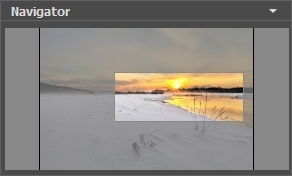
Para rolar a imagem na Janela de imagem pressione a barra de espaço no teclado e arraste a imagem com o botão esquerdo do mouse. Use a roda de rolagem do mouse para mover a imagem para cima e para baixo, mantendo a tecla de controle Ctrl pressionada – para a esquerda/e direita, mantendo a tecla Alt pressionada – meça a imagem. Clique direito na barra de rolagem para ativar o menu rápido de navegação.
Use o cursor para medir a imagem na Janela de imagem. Quando mover o cursor para a direita, a escala da imagem aumenta. Quando mover o cursor para a esquerda, a escala da imagem se reduz.
A escala da imagem também pode ser mudada entrando com um novo coeficiente dentro do campo da escala. O dropdown do menu coeficiente de escala mostra alguns coeficientes frequentemente usados.
A tecla de atalho pode ser usada para modificar a escala da imagem + e Ctrl++ (⌘++ no Mac) para aumentar a escala da imagem, - e Ctrl+- (⌘+- no Mac) para reduzir a escala.
Sob o Navegador há um Painel de ajustes onde você pode selecionar o Modo de correção de fotos e ajustar parâmetros.
No campo Ajustes predefinidos (presets) pode se salvar o cenário atual como um ajuste predefinido para usá-lo no futuro. O ajuste predefinido atual pode ser salvo, editado, apagado. Quando o programa é iniciado, usa os cenários do último ajuste predefinido utilizado.
Sob o Painel de ajustes você pode ver dicas para o parâmetro e o botão sobre o qual passa o cursor.
Enhancer v. 17.8 - Teste gratuito 10 dias
