Ukrainian family
あいにく, このページは英語にだけ使用可能です。
This example of photo restoration was sent to us by Dmitry Pendlishak. Dmitry used AKVIS Retoucher to restore the following photo from his family archives.
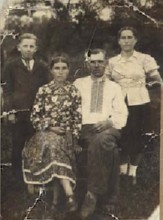
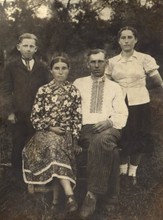
Here is what Dmitry says about the photo: "This is a photo of my grand-parents from the dad's side. It was taken in the village Nizhniya Yablonka, West Ukraine. I can not give the exact date. It must be somewhere in the end of 1950s".
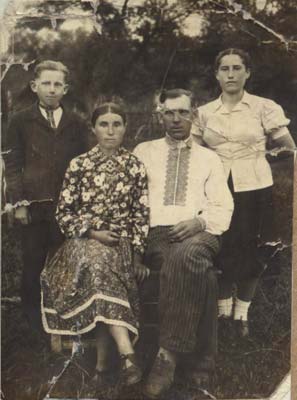
- Step 1. First of all, Dmitry painted over the scratches and creases with red using Selection Brush tool
 .
.
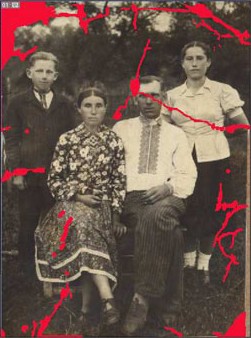
- Step 2. Then he pressed the button
 to start the restoration process. After the restoration with he got the following image.
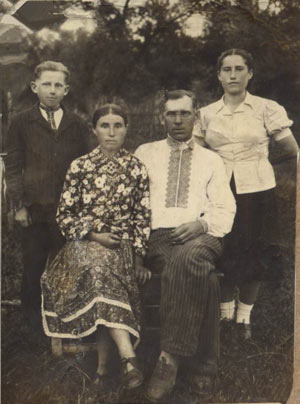
- Step 3. Dmitry used Chameleon Brush
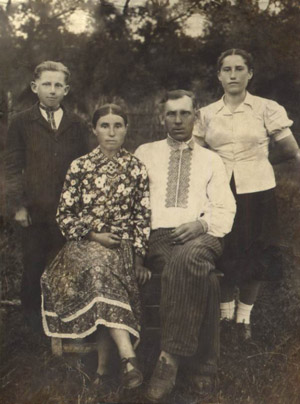
 to touch up the image. For example, to restore the left upper corner of the photo he duplicated a fragment on the right to replace the damaged section. Besides, he used it to restore the lacking part of the image on the right and to get rid of the minor defects.
As a result he got the following photo:
Retoucher v. 12.2 - 10日間の評価期間
