Electric Flowers
The example was made in the old version of AKVIS LightShop.
Read how to use the current version of the program.
The author of the tutorial is Nancy Knadler.
AKVIS LightShop can not only be used for adding effects, but also for creating experiments in the genre of alternative digital art. A few electric flowers, made with the program, are the next in a series of fantastic images sent by our users.
This tutorial will be useful to those who would like to learn how to build simple images and use modifiers in AKVIS LightShop.
- Step 1. Open your photo editor and create a new document with a black background.
- Step 2. Call AKVIS LightShop from the main menu: Filter -> AKVIS -> LightShop.
-
Step 3. Choose flower-looking light effect (Sample 35 in current version of the program). Click on the Effect Settings tab, then choose Particles to open the particles element properties.
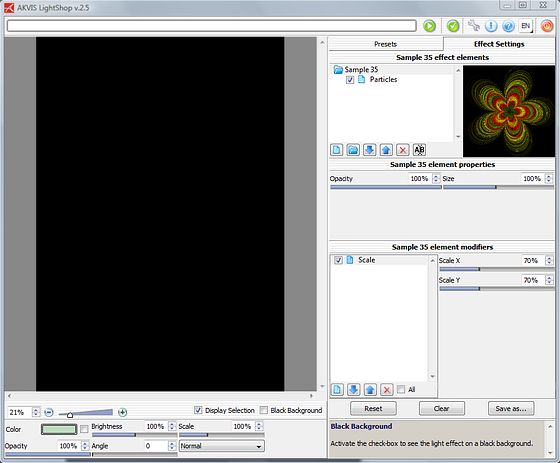
Light effect "Sample 35" and particles element properties -
Step 4. Use the right mouse button to delete all the gradient stops except for the first and last. Double-click on the first stop with the left mouse button and choose the color white from Select Color window. Then change the last stop to a light blue.
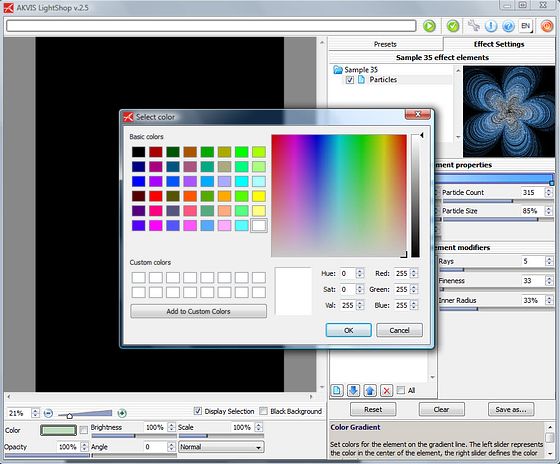
Select color -
Step 5. Change the particle element properties so that:
Size = 15%;
Number of Particles = 392;
Particles Size = 77%Adjust the options of the Particles' modifier Flower:
Rays = 7;
Inner Radius = 15%.Press the button
 to see the light effect in the Image Window. Position the light effect on the image by dragging it with the left mouse button.
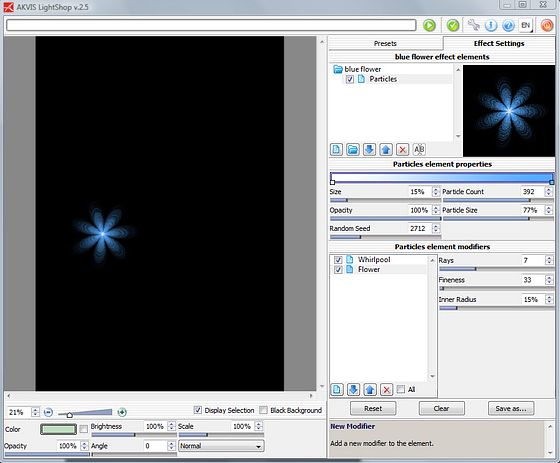
Change the particle element properties - Step 6. When you like the look of the flower, save it as a preset (press Save Effect and give it a name - for example, flower-set) so that you can save time with the other 2 flowers.
-
Step 7. Press the button
 to apply the result and return to your photo editor.
- Step 8. For the other 2 flowers select by personal preset flower-set (in User's Presets folder on the Presets tab) and change the last stop on the gradient to red and then yellow, each time returning to the photo editor.
-
Step 9. Call the plug-in AKVIS LightShop again. Create the stem by choosing the AKVIS Sample 2 and deleting the first strip. Change the gradient first and last stops to a dark green and then light green color. Then rotate the angle and adjust the width to suit your taste:
Width = 42;
Angle = 91.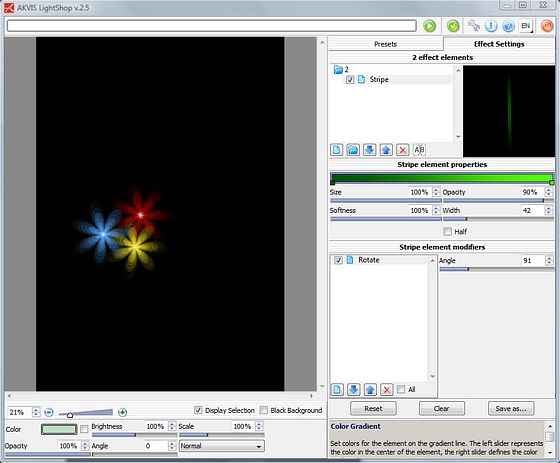
Light effect "Sample 2" and stripe element properties -
Step 10. Add modifiers Move, Whirlpool and Rotate (to choose the appropriate modifier from the list press
 ). Save the stem as a preset (for example, stem-set). Stem can be bended and rotated by changing the modifiers' parameters.
Press the button
to see the light effect in the Image Window. Move the stem into place with flowers.
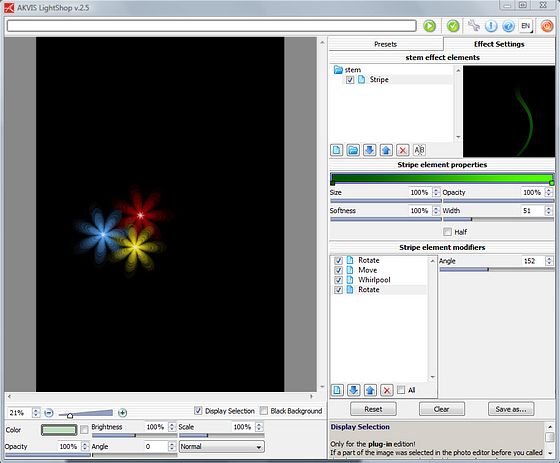
Change the stripe element modifiers -
Step 11. Press the button to apply the result and return to your photo editor.
- Step 12. Repeat the process twice for a total of three stems changing the modifier's parameters in stem-set preset.
-
Step 13. For the final picture, go back into photo editor, duplicate the layer twice, and set the duplicated layers to the Screen blending mode.
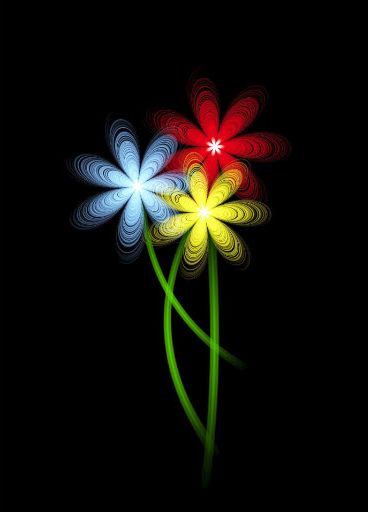
Result
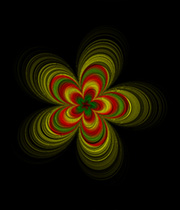
|
|
| Original Image | Result |
LightShop v. 8.1 - 10日間の評価期間
